 Pay4SaaS
Deploy Next.js to a Linux VPS
01
How do you deploy a Next.js project to a Linux VPS from scratch?
I'll use pay4saas.cn as an example — let's walk through it step by step.
This workflow applies to any Linux VPS (Hetzner, Vultr, DigitalOcean, etc.). We'll use Alibaba Cloud (Aliyun) as the example here.
Important note: If you're using a server in mainland China, complete your ICP filing before deploying — otherwise your site may be taken down. Overseas servers don't require ICP filing, so you can skip this step.
02
Phase 1: Server Setup
1. Connect to Your Server
Two options:
-
Option 1 (recommended for beginners): Use the remote connection feature directly in the Alibaba Cloud console — simple and hassle-free.
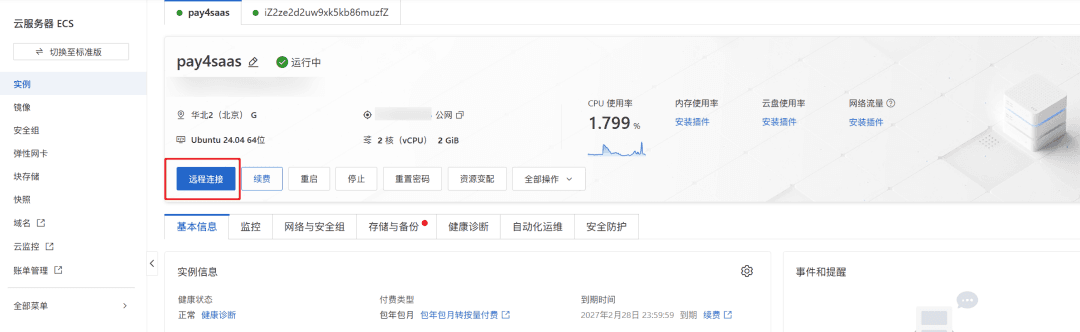
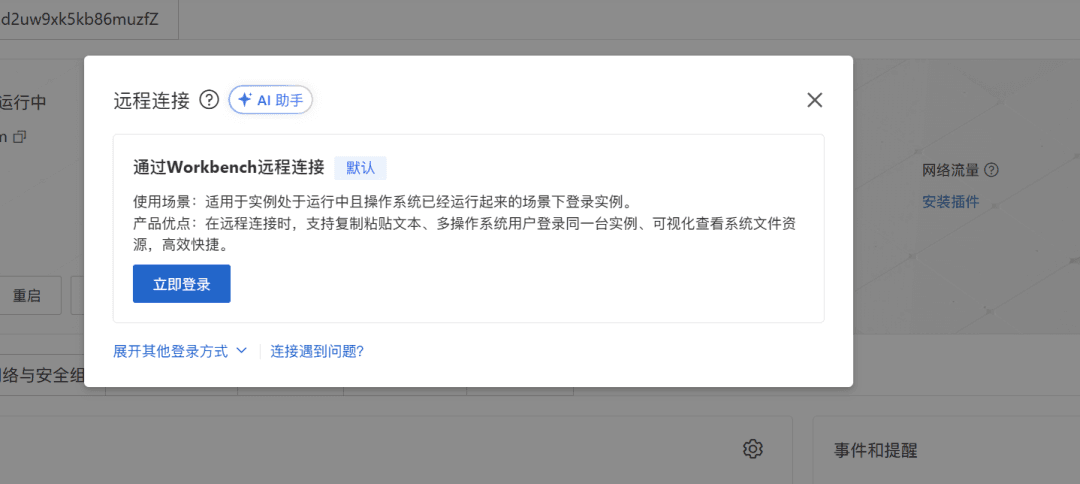
Click "Log In Now".
Choose password-free login.
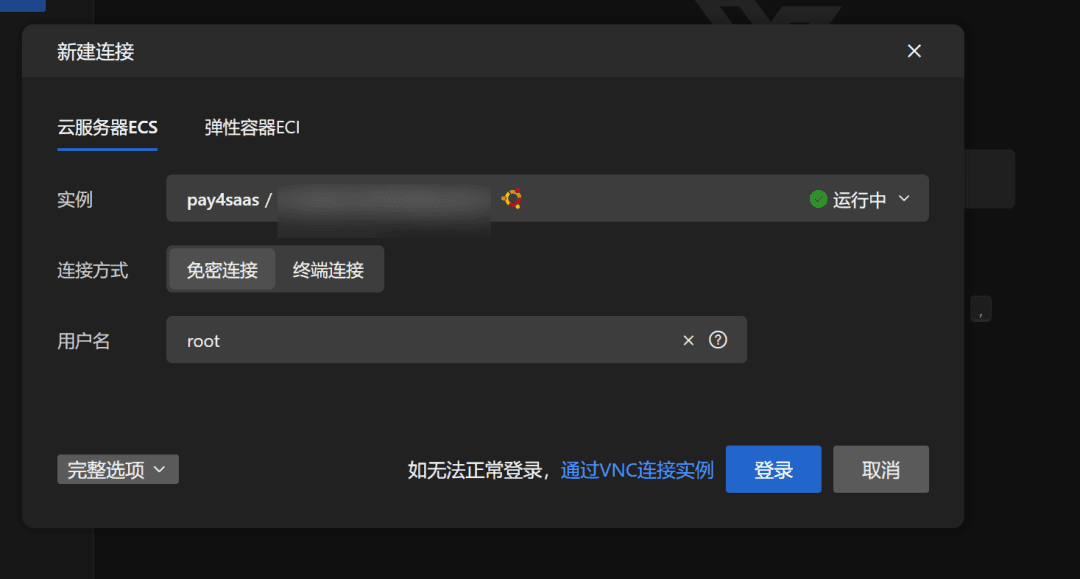
-
Option 2: SSH from your local terminal —
ssh root@your.server.ip
2. Install the Base Environment
# Update the system
apt update && apt upgrade -y
# Install Node.js 20.x
curl -fsSL https://deb.nodesource.com/setup_20.x | bash -
apt-get install -y nodejs
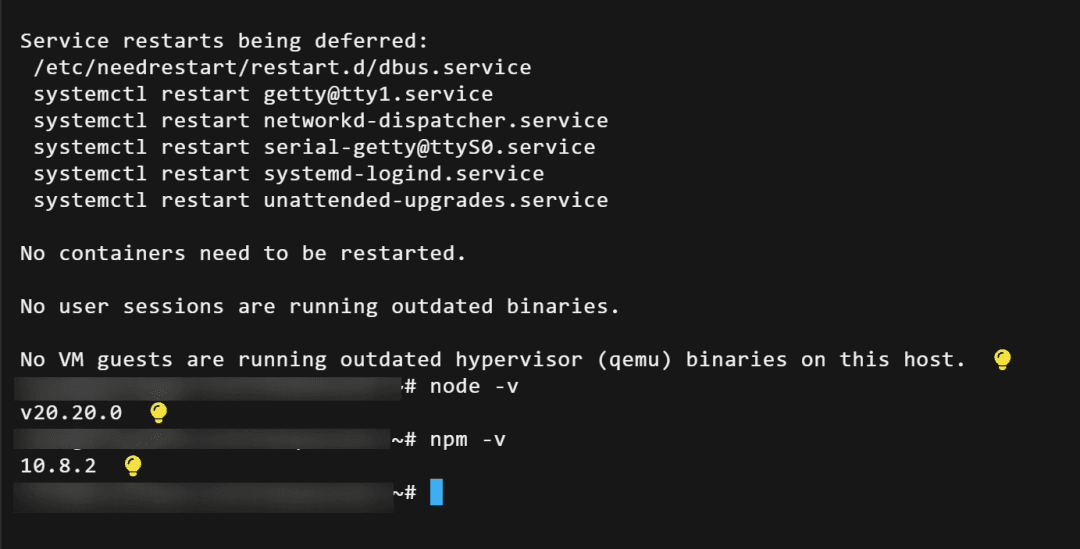
# Verify installation
node -v
npm -v
You should see the version numbers like this:
# Install PM2 process manager
npm install -g pm2
# Install Git
apt install git -y
03
Phase 2: Deploy the Project
3. Clone the Project
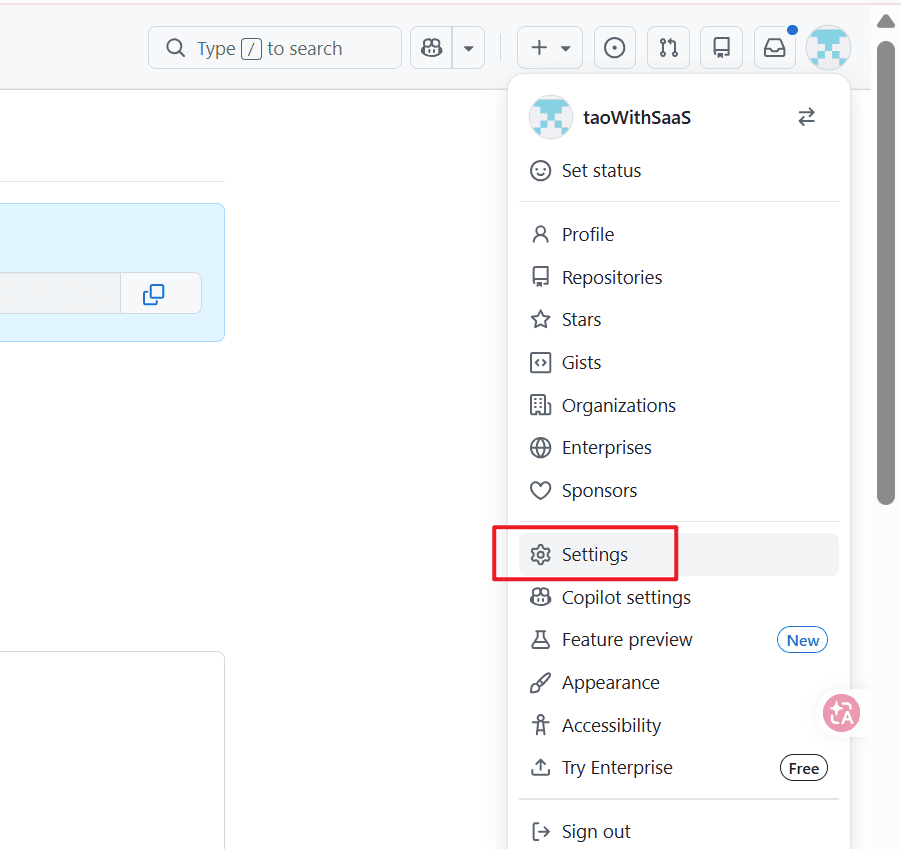
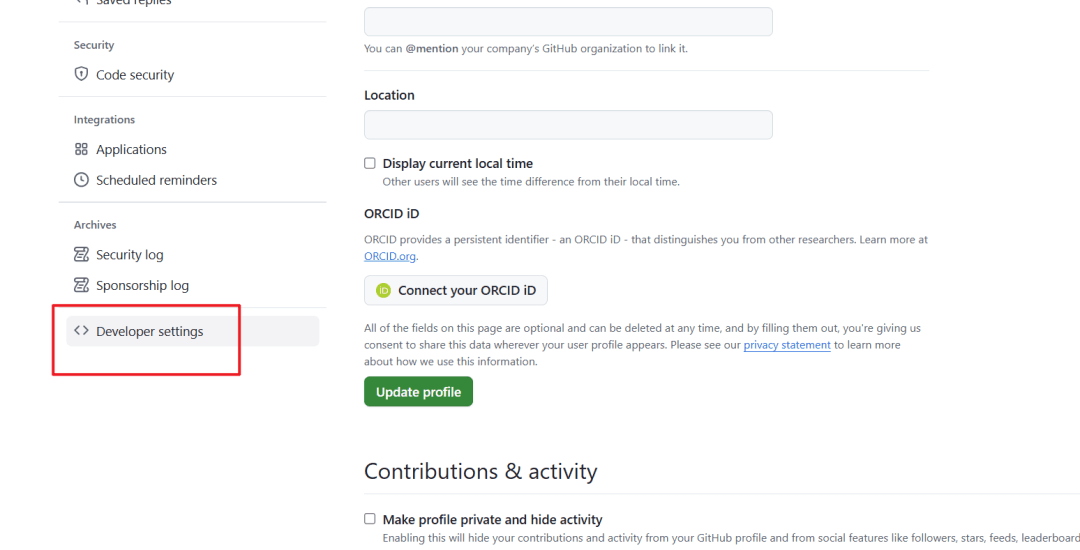
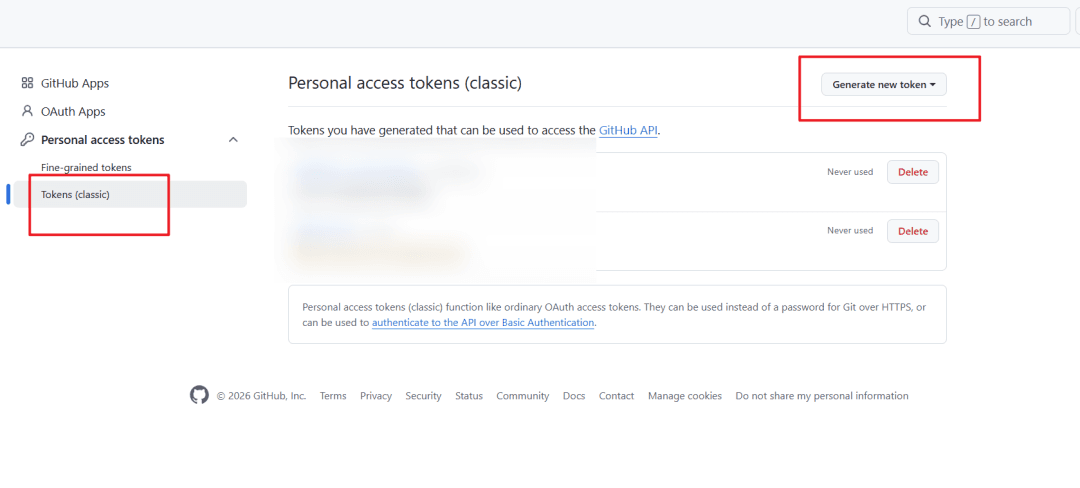
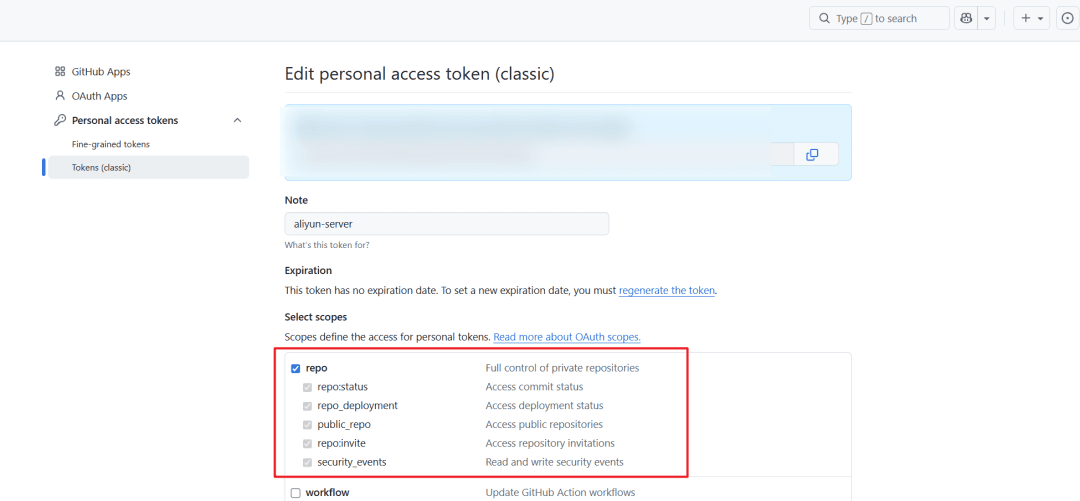
Note: GitHub no longer supports password authentication — cloning directly will return Password authentication not supported. You need to create a Personal Access Token first: GitHub Settings → Developer settings → Personal access tokens. Here's how:
cd /home
git clone -b main https://github.com/your-username/project.git
cd project-name
4. Configure Environment Variables
nano .env.localPaste your environment variables (Supabase, payment provider configs, etc.). To save, don't use Ctrl+S — instead:
Ctrl + Xto exit- Press
Yto confirm save - Press
Enterto confirm the filename
How to update environment variables later?
# Check current values
cat /home/pay4SaaS/.env.local
# Standard workflow
cd /home/pay4SaaS
echo "" > .env.local   # Clear the file
nano .env.local         # Paste new config
Then continue with the next steps.
5. Install Dependencies and Build
From the project directory (/home/pay4SaaS), run:
npm install      # Install dependencies
npm run build    # Build for production
6. Start the App with PM2
First, create a PM2 config file:
nano ecosystem.config.jsPaste the following:
module.exports = {
apps: [{
name: 'pay4saas',
script: 'node_modules/next/dist/bin/next',
args: 'start -H 0.0.0.0',
cwd: '/home/pay4SaaS',
instances: 1,
exec_mode: 'fork',
env: {
NODE_ENV: 'production',
PORT: 3000
    }
  }]
}
Then start it:
pm2 start ecosystem.config.js
pm2 save        # Save the config
pm2 startup     # Enable auto-start on boot
Two common pitfalls:
- Don't use
pm2 start npm -- startdirectly — the working directory can get messed up. - Always add
-H 0.0.0.0— otherwise it only listens on localhost, and external traffic can't reach it.
04
Phase 3: Network Configuration
7. Configure Cloud Security Groups
Security groups are specific to cloud providers like Alibaba Cloud, AWS, and Tencent Cloud. If you're using a bare VPS (like Hetzner), there are no security groups — just configure the UFW firewall in the next step.
Location: ECS Console → Security Groups → Manage Rules → Inbound
These ports should already be open by default — verify and add any missing ones:
| Port | Purpose |
|---|---|
| 22 | SSH access |
| 80 | HTTP traffic |
| 443 | HTTPS traffic |
| 3000 | Next.js app (for initial testing) |
For each rule: set policy to "Allow", priority 100, protocol to "Custom TCP", and source to 0.0.0.0/0.
Don't forget to click Save after configuring.
8. Configure the UFW Firewall
Cloud security groups alone aren't enough — the server itself has a UFW firewall layer that also needs configuration:
# Check current status
sudo ufw status
# Open required ports
sudo ufw allow 22/tcp
sudo ufw allow 80/tcp
sudo ufw allow 443/tcp
sudo ufw allow 3000/tcp
# Reload to apply
sudo ufw reload
This is an easy one to miss — if you only configure the cloud security group but forget UFW, you'll get 502 errors. Both layers need to be configured.
05
Phase 4: Domain and HTTPS
9. Configure DNS Records
In your domain management platform (e.g., Alibaba Cloud Domain Console), add two A records:
| Host Record | Value |
|---|---|
| @ | Your server's public IP |
| www | Your server's public IP |
Wait 5–30 minutes for DNS propagation, then verify from your local terminal:
ping pay4saas.cn
nslookup pay4saas.cn 8.8.8.8
10. Install and Configure Nginx
# Install
sudo apt install nginx -y
# Create site config
sudo nano /etc/nginx/sites-available/pay4saas
Paste the following config:
server {
    listen 80;
    server_name pay4saas.cn www.pay4saas.cn;
    location / {
        proxy_pass http://localhost:3000;
        proxy_http_version 1.1;
        proxy_set_header Upgrade $http_upgrade;
        proxy_set_header Connection 'upgrade';
        proxy_set_header Host $host;
        proxy_set_header X-Real-IP $remote_addr;
        proxy_set_header X-Forwarded-For $proxy_add_x_forwarded_for;
        proxy_set_header X-Forwarded-Proto $scheme;
        proxy_cache_bypass $http_upgrade;
    }
}
Then enable the config:
sudo ln -s /etc/nginx/sites-available/pay4saas /etc/nginx/sites-enabled/
sudo nginx -t
sudo systemctl restart nginx
11. Set Up Free HTTPS Certificate
# Install Certbot
sudo apt install certbot python3-certbot-nginx -y
# Automatically obtain and configure SSL certificate
sudo certbot --nginx -d pay4saas.cn -d www.pay4saas.cn
Follow the prompts — enter your email and agree to the terms.
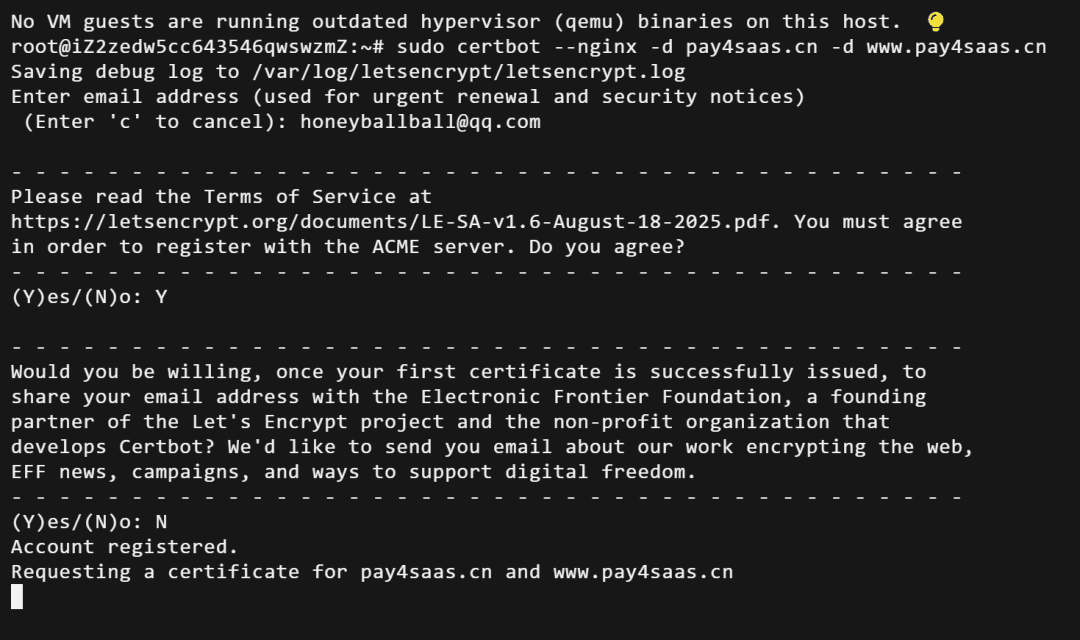
Certbot will automatically update your Nginx config.
Two common pitfalls here: running Certbot before DNS has propagated will fail validation, and having ports 80/443 closed will also cause failure. Make sure your domain resolves correctly before running this step.
06
Deploying Code Updates
Routine Update Workflow
Every time you push new code, SSH into the server and run these commands — takes about 1–2 minutes:
ssh root@your.server.ip
cd /home/pay4SaaS
# One-liner update
pm2 stop pay4saas && rm -rf .next && git pull origin main && npm install && npm run build && pm2 start pay4saas
# Check logs to confirm everything is running
pm2 logs pay4saas
# If there's a critical issue, stop the app (site will return 502)
pm2 stop pay4saas