 Pay4SaaS
Deploy GitHub Projects via Vercel
1. Connect GitHub
Open https://vercel.com/, go to account settings.
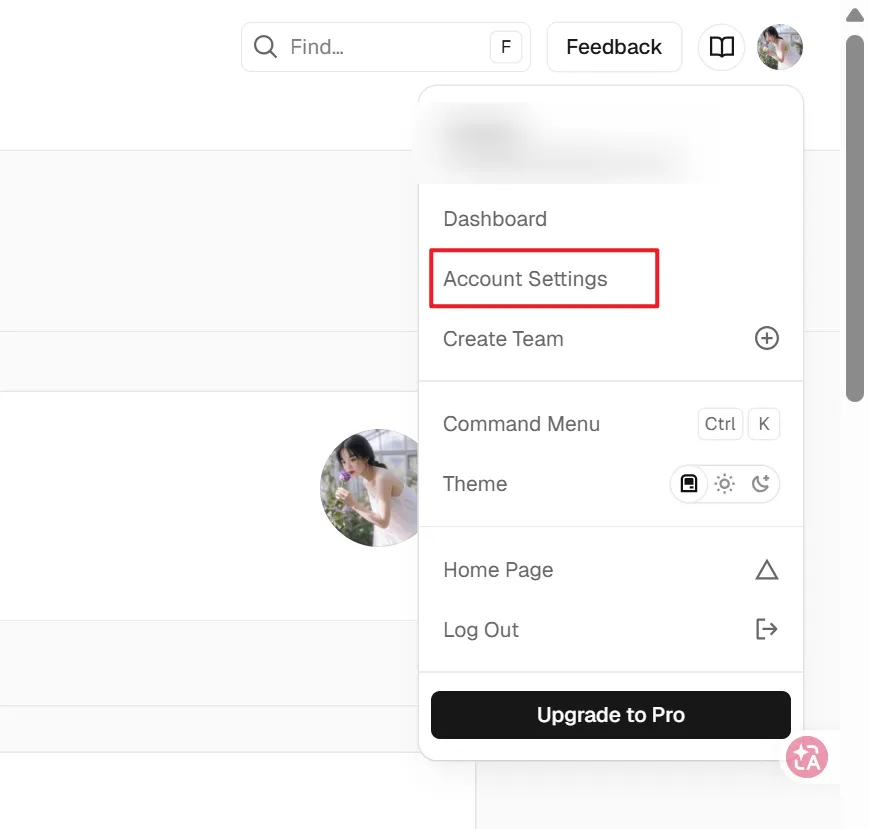
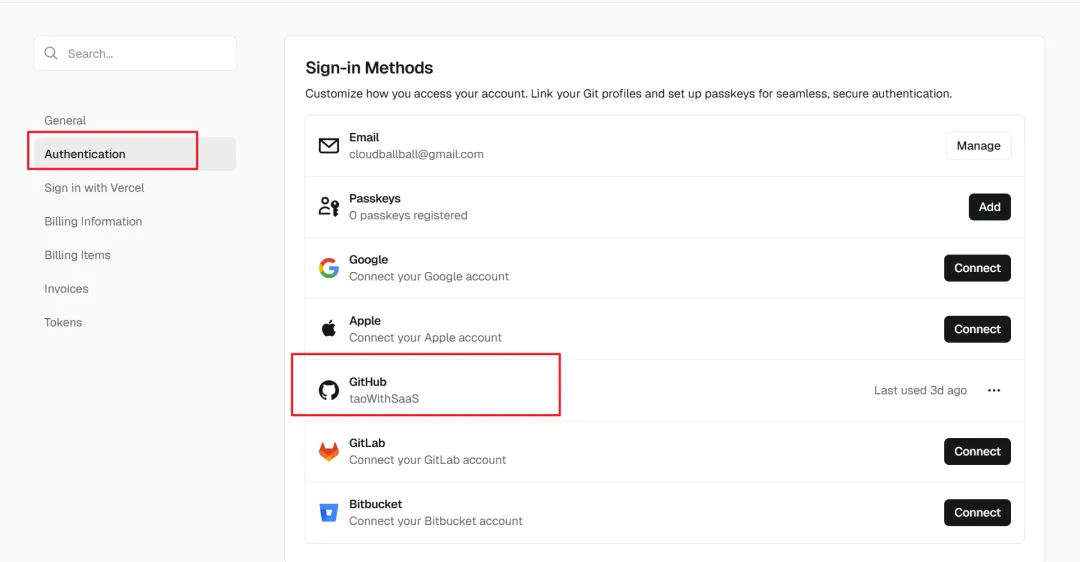
Find Authentication, on the right side click GitHub, confirm all the way through to connect. Once connected, the right side will look like this.
2. Import Project and Deploy
Add New - Project.
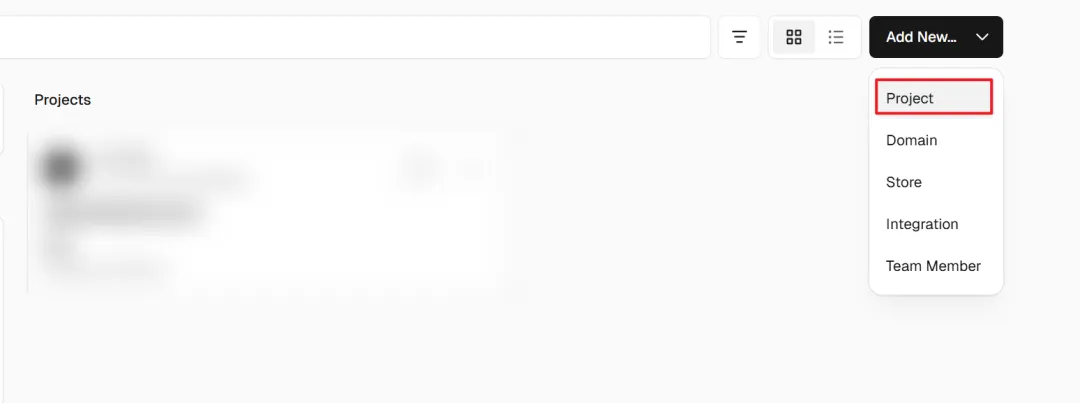
Then, your Git project list will appear. Import the project you want to deploy.
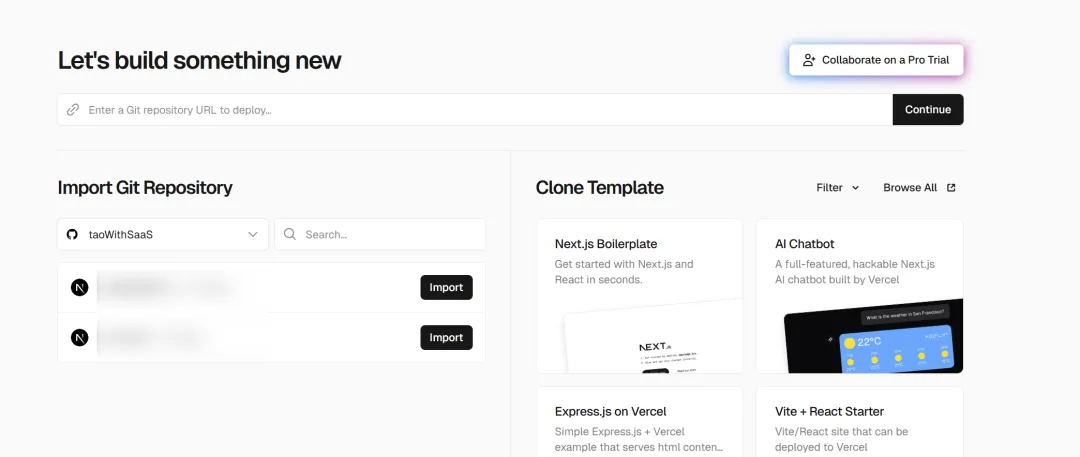
The project name cannot use camelCase — it must be lowercase and can contain certain special characters. Then click Deploy.
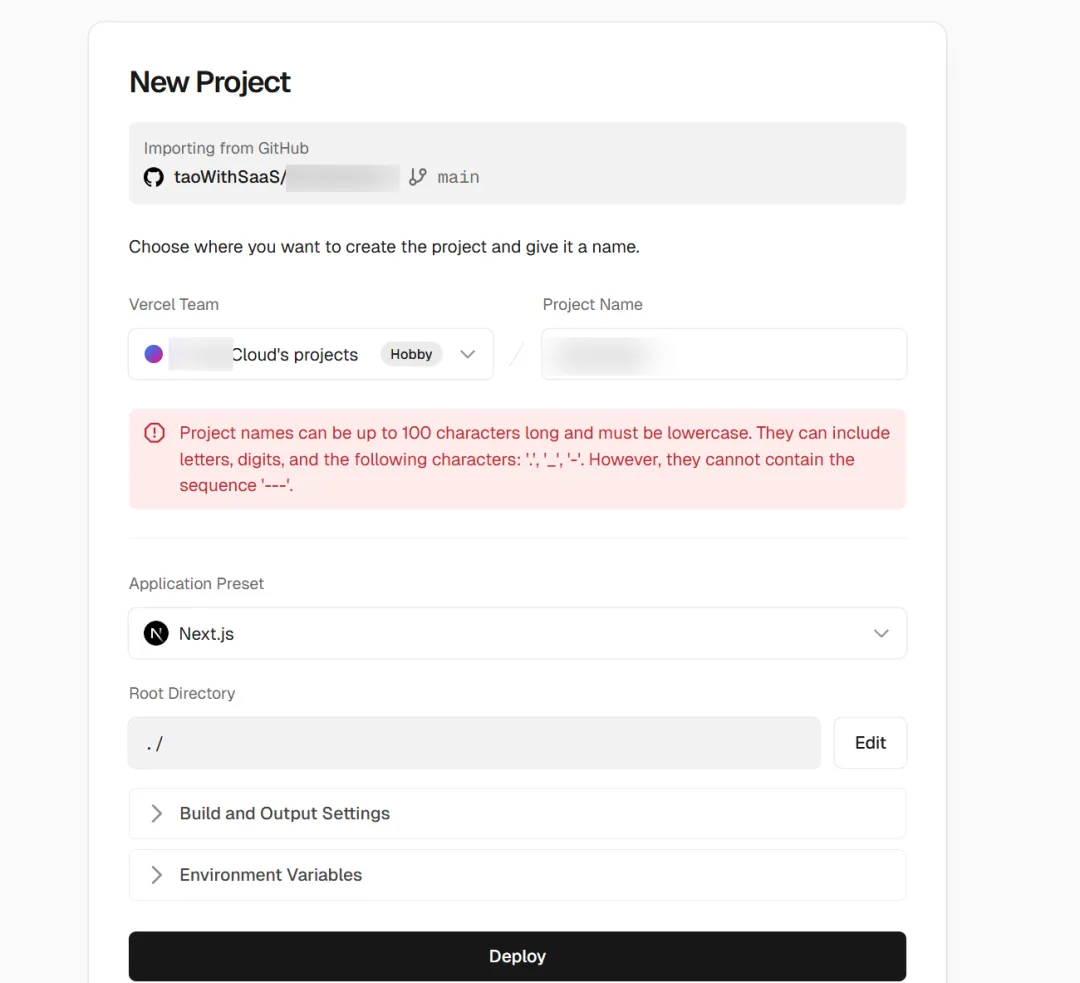
Building.
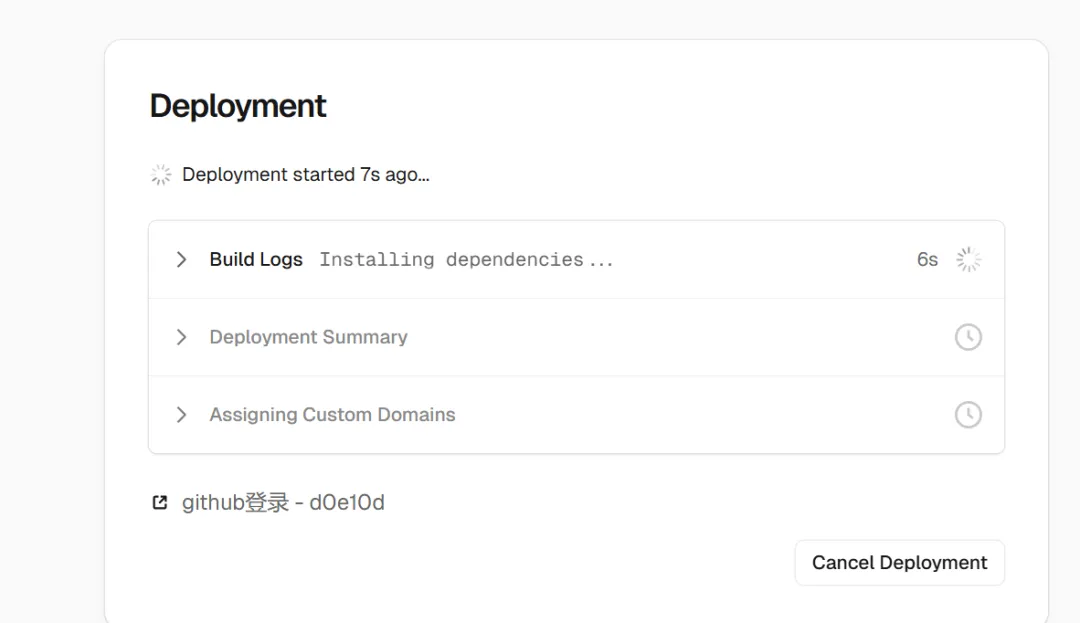
Then, an error occurred.
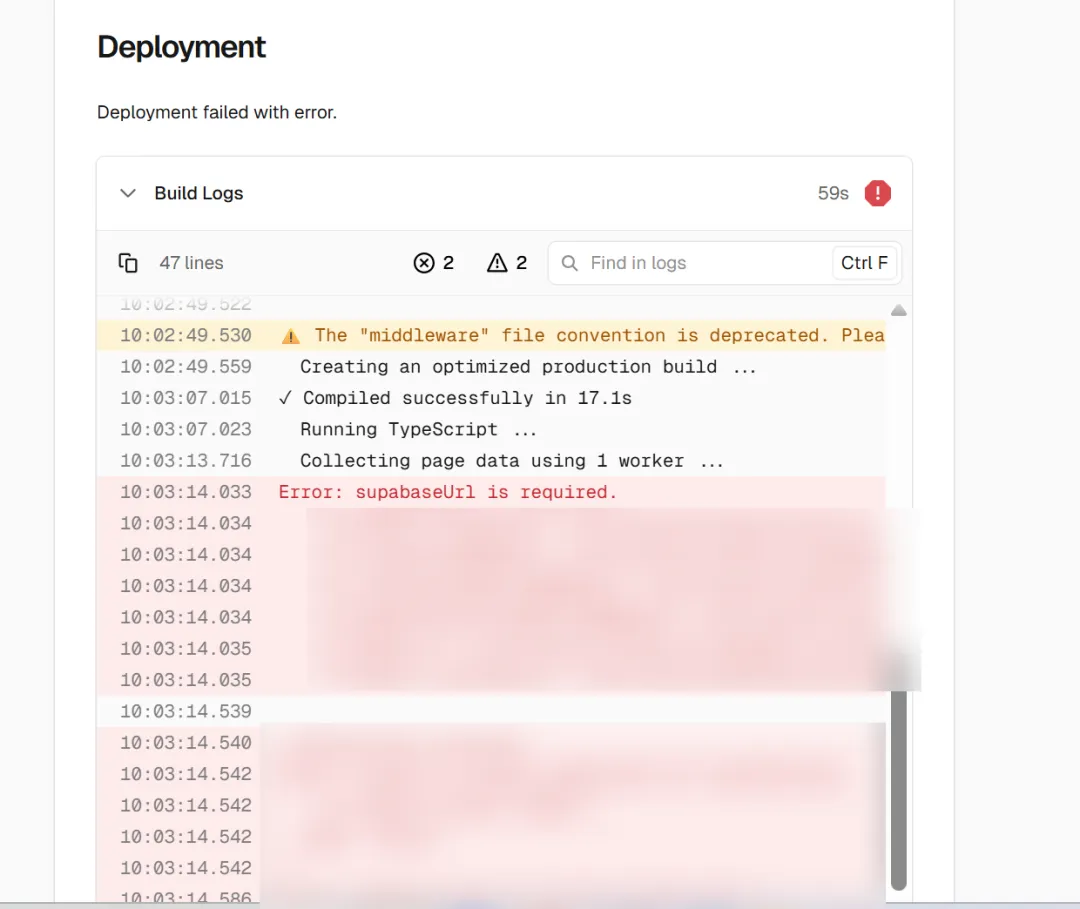
It's an environment variable issue — configure it here.
3. Configure Environment Variables
Go back to the project's Settings.
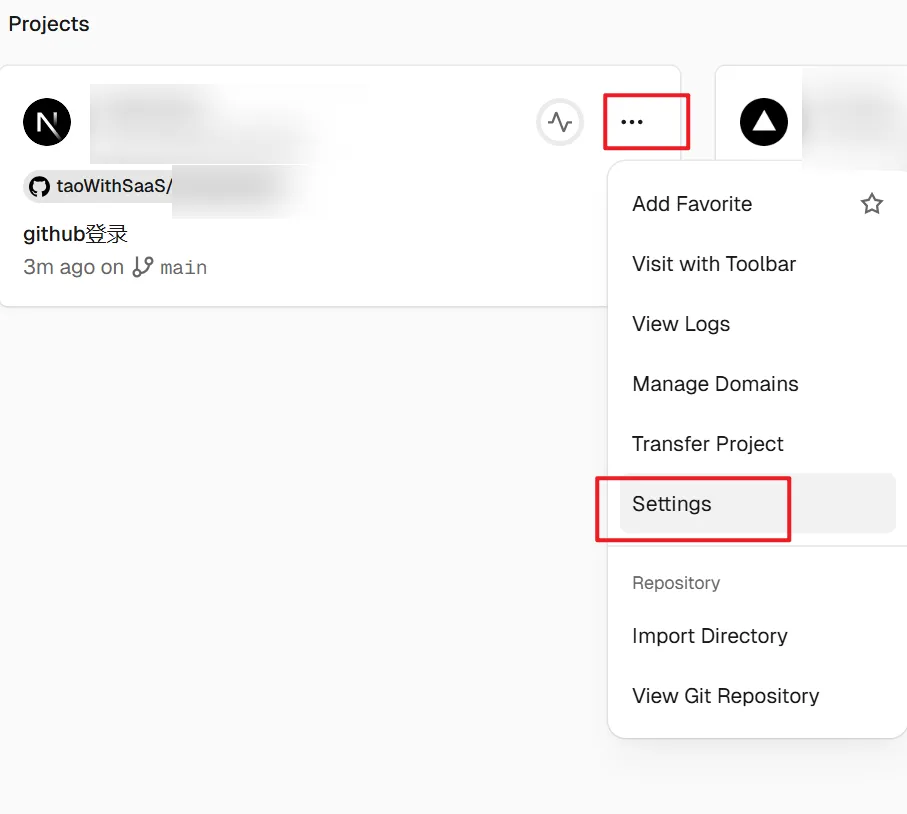
Find this section.
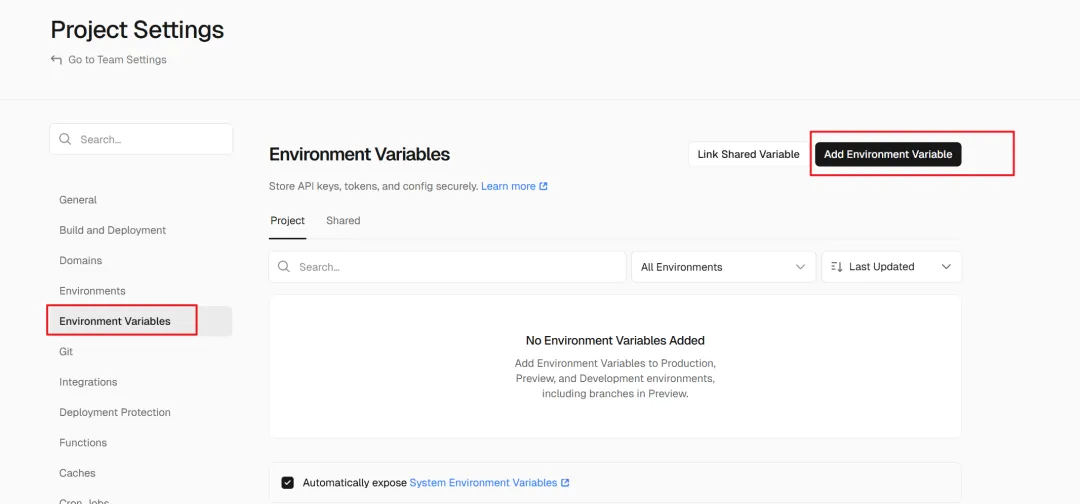
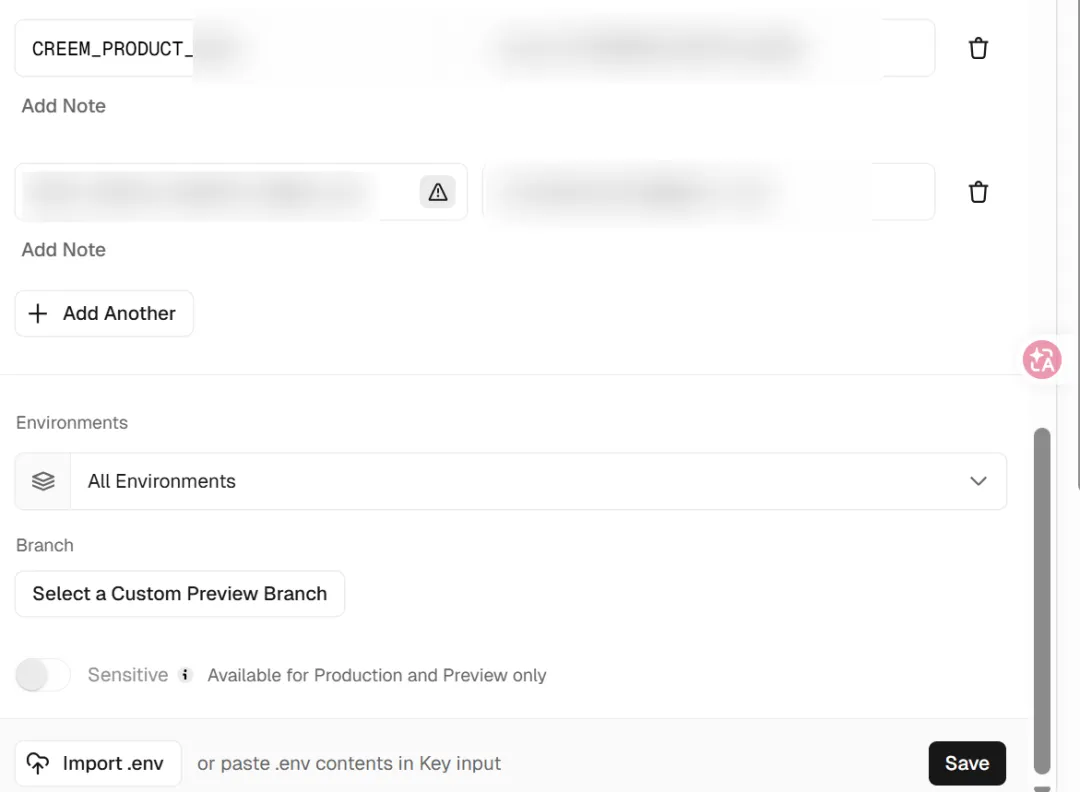
Paste directly from your .env file. Save.
After saving, a Deploy prompt will appear in the bottom right corner.
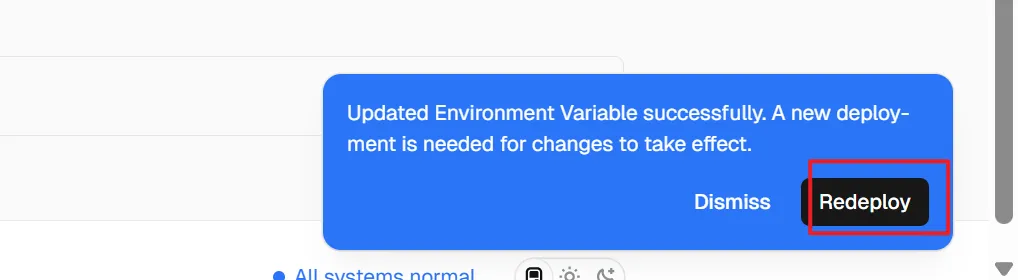
Click it to redeploy.
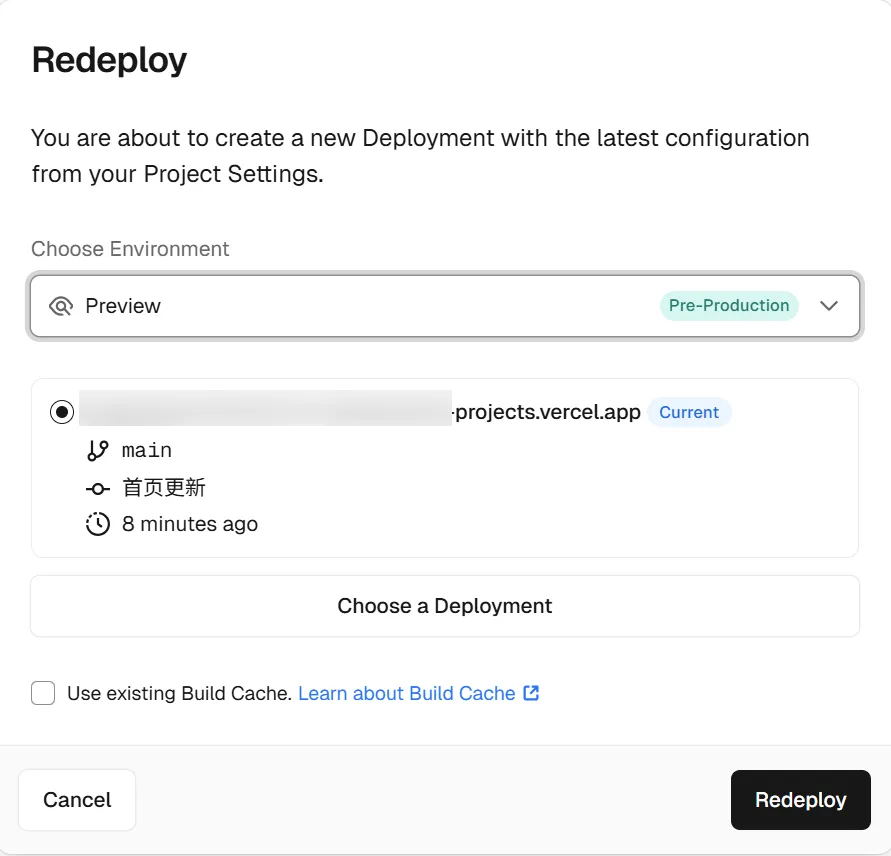
Then wait 1–2 minutes, go back to the project dashboard, click on the project, and you'll see the deployment status.
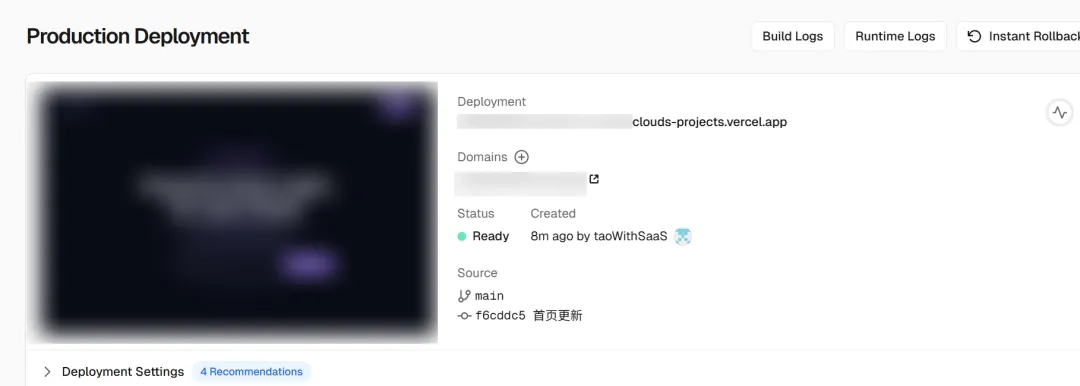
Ready means it succeeded. Click the Domains link to see it live.
Vercel deployment statuses include the following:
-
Ready — Deployment succeeded. The project is running normally and accessible to users.
-
Initializing — Deployment was just triggered. The build environment is being initialized in preparation for the build.
-
Building — The build command (e.g.
npm run build) is being executed. This is the active build state. -
Queued — The deployment has been submitted but is waiting in queue for build resources. Not yet started.
-
Canceled — The deployment was manually canceled, or automatically canceled because a newer deployment was triggered.
-
Error — Deployment failed, usually due to build errors, missing environment variables, or code issues. Click in to view the detailed error logs.
The most common ones you'll see day-to-day are Ready and Error. When you hit an Error, just click in to check the Build Logs — the error messages are usually clear and easy to pinpoint.
4. Automatic Deployment
Going forward, every time you push Git commits, a deployment to the preview environment will be triggered automatically. Be careful with the production environment — it requires manual triggering here.
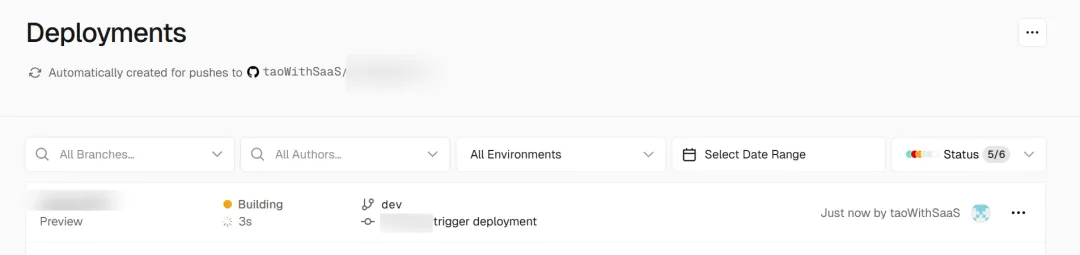
The overall process isn't complicated.
Connect GitHub, import the project, configure environment variables — three steps and you're up and running. Day-to-day commits automatically go to preview, while production is manually controlled, keeping things clean and predictable. If a deployment fails, don't panic — check the Build Logs for the error, and most issues can be tracked down quickly. Once you get the hang of it, your release workflow will speed up considerably.