 Pay4SaaS
5 Post-Launch SEO Essentials
01
Time to set up SEO. What is it exactly?
SEO helps search engines (Google, Bing, etc.) understand your website and rank your pages higher in search results.
Higher rankings mean more visibility, more traffic, more sign-ups, and ultimately more revenue.
So what SEO tasks should you complete after launch?
02
1. Connect with Google Search Console
Tell Google "this is my site" by officially verifying ownership.
Go to: Google Search Console
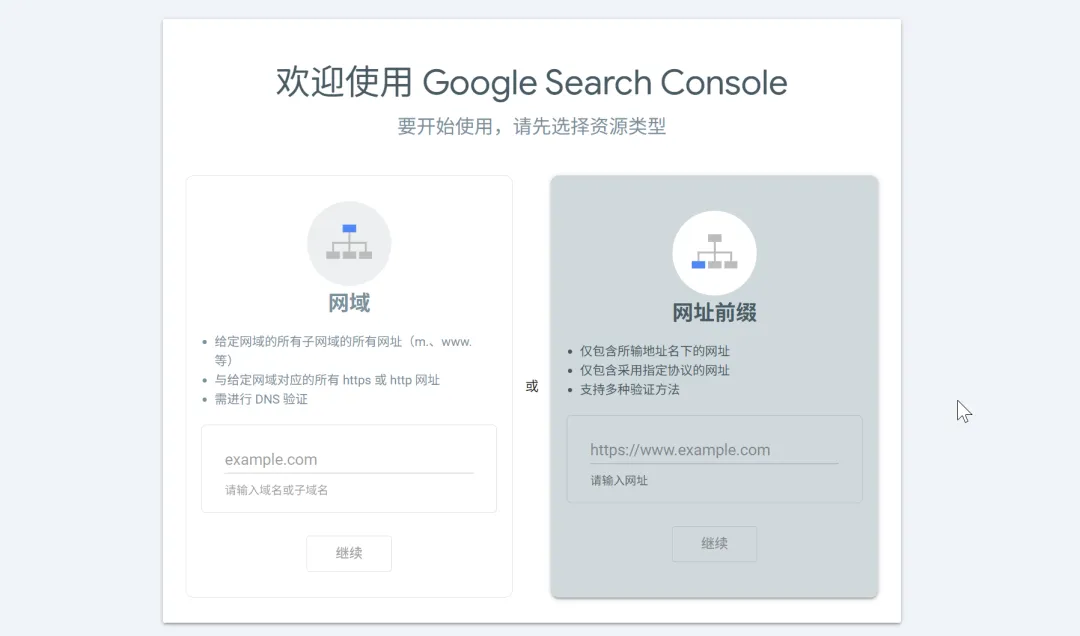
Choose URL prefix, since you likely have a single domain.
For verification, use the HTML tag method — it's the simplest. Click copy.
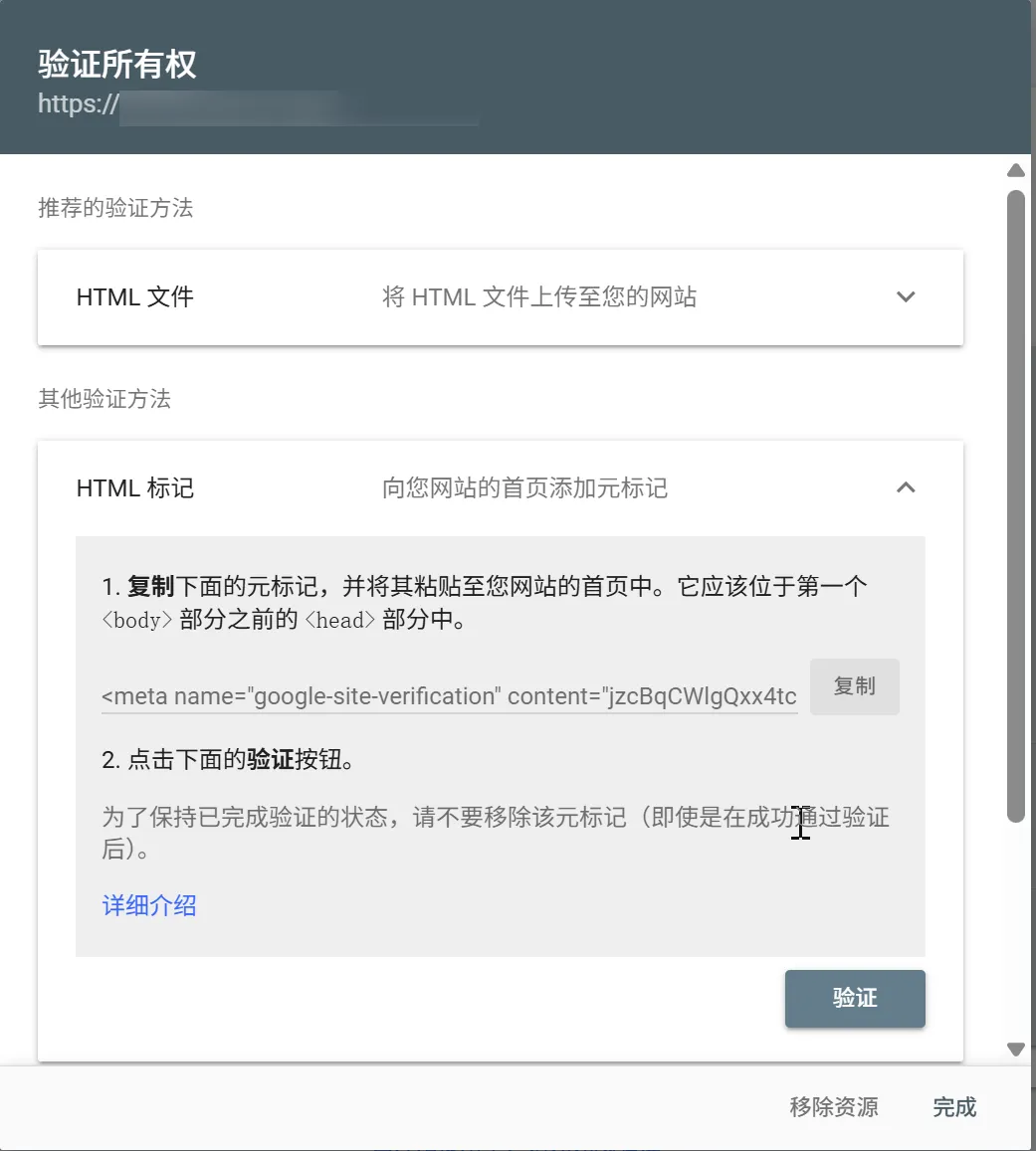
Copy the content value and add it to your environment variables: NEXT_PUBLIC_GOOGLE_SITE_VERIFICATION=xxx.
Then push your code. After deployment, come back and click verify.
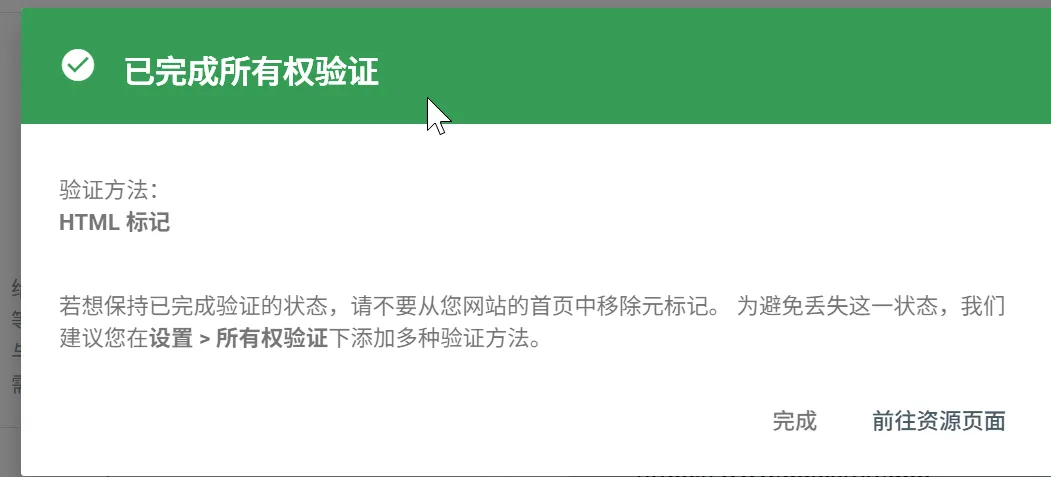
Make sure to click the verify button in the HTML tag row — clicking the wrong one will cause verification to fail.
2. Add Analytics Tracking
Track real user visits and their behavior:
- Which pages get clicked but abandoned within 3 seconds?
- Which pages have longer dwell times and conversion potential?
This data helps you prioritize future SEO optimization efforts.
Go to Google Analytics.
a) First time setting up analytics? Follow these steps.
Create an account and check the following options:
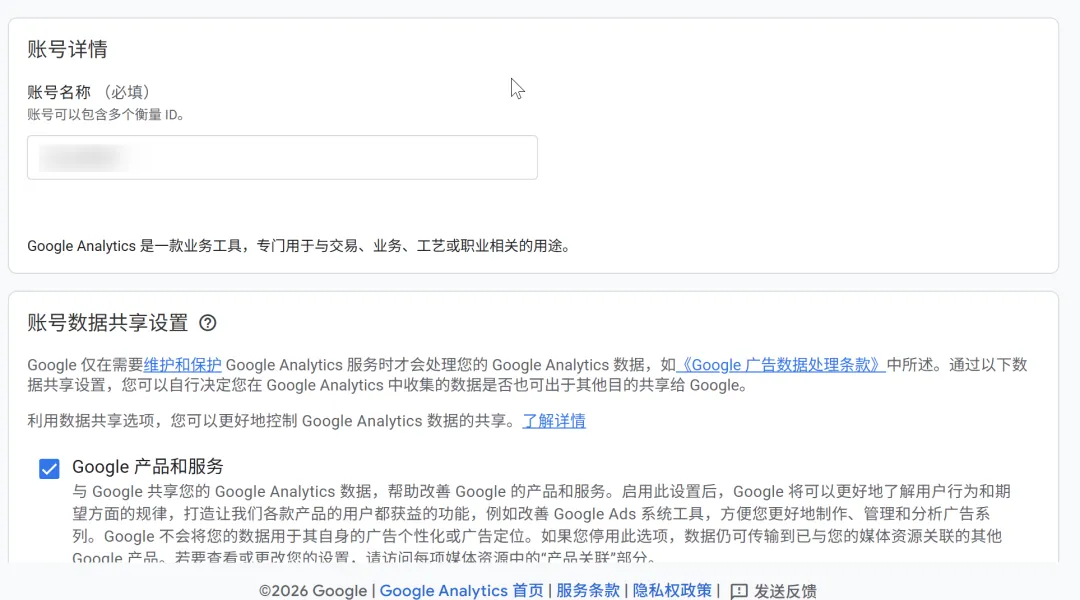
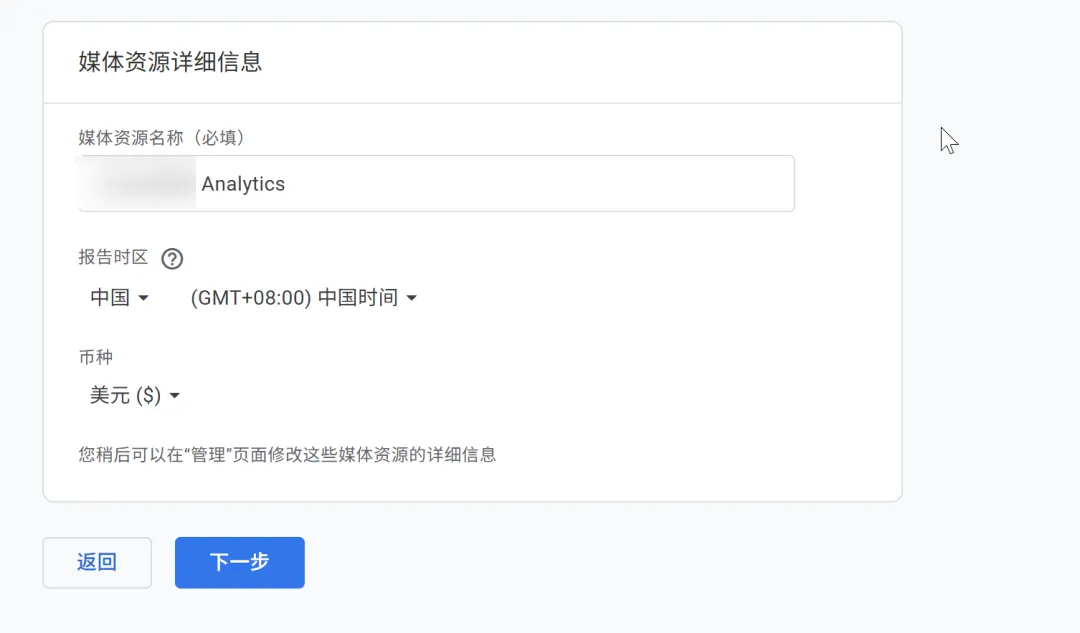
For the first step, enter your domain name. Since the product targets international users, select USD as the currency.
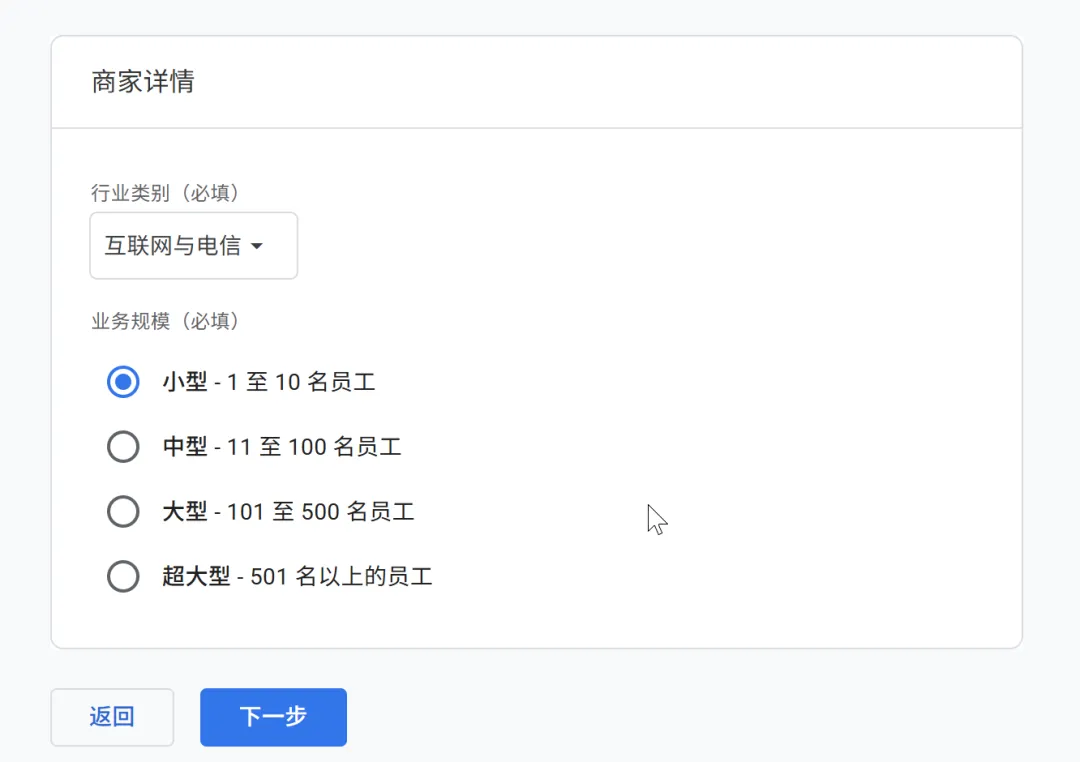
Business details:
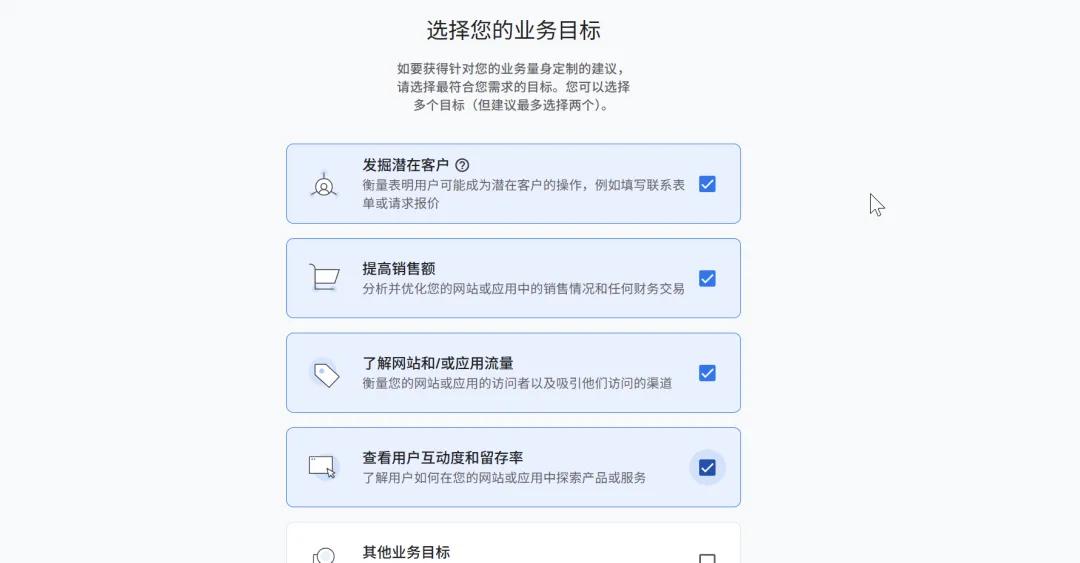
Business objectives — check the first 4:
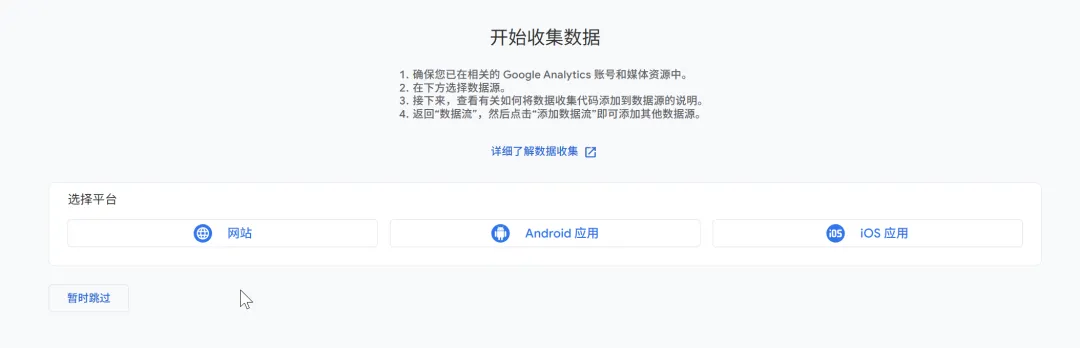
Choose "Web":
For the data stream name, use your domain name + "web" for easy identification:
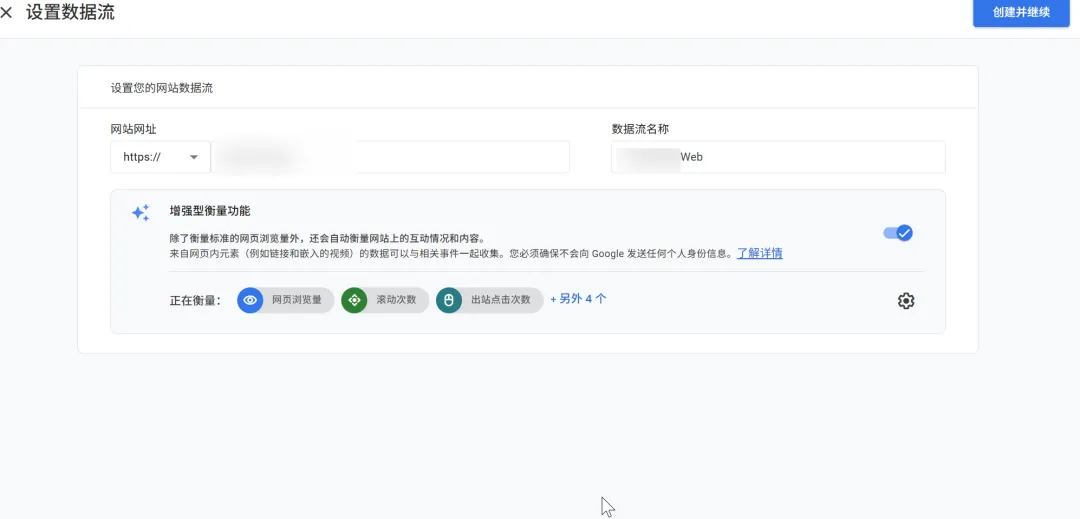
The platform will generate your tracking code:
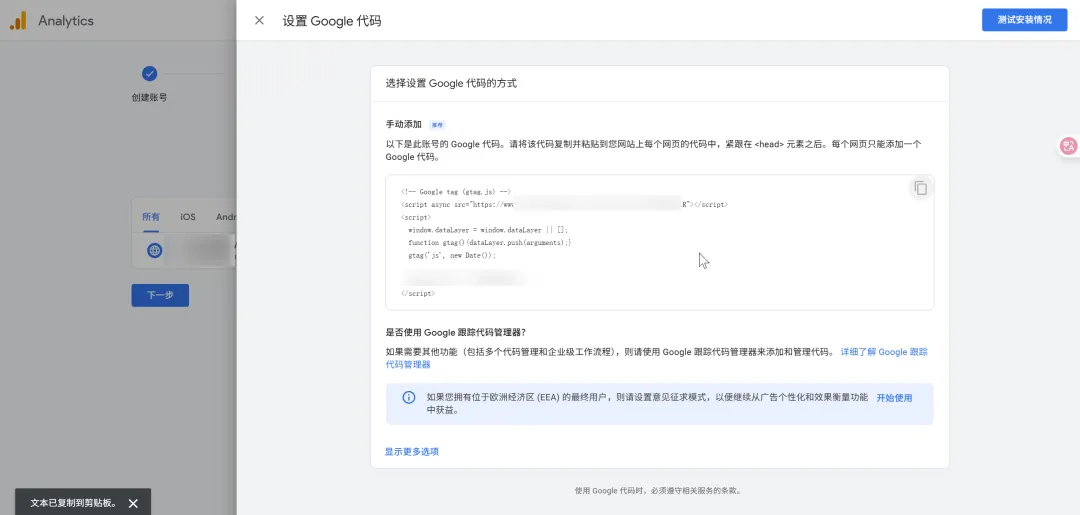
Then update your environment variable: NEXT_PUBLIC_GA_ID=G-xxx.
b) Already have an analytics account? Add a new stream here.
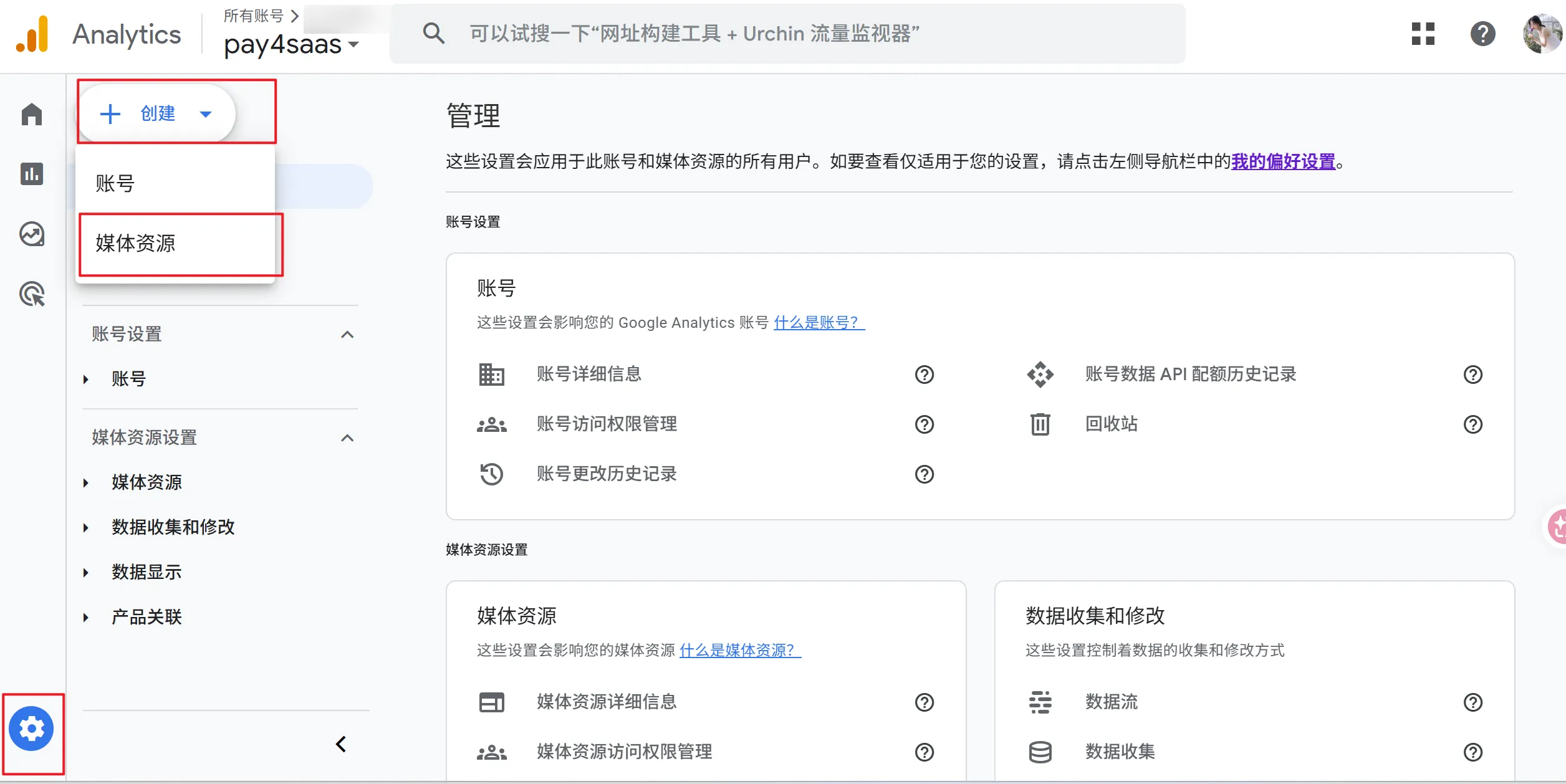
Then update your environment variable: NEXT_PUBLIC_GA_ID=G-xxx.
3. Generate and Submit a Sitemap
A sitemap tells Google which pages you have and speeds up indexing.
Pages to include: homepage, pricing, FAQ, blog (public pages you want indexed). Do NOT include API routes, login pages, or private user pages (e.g., billing history).
Parameter reference:
- url: Required. Tells search engines this page is indexable.
- priority: Relative importance within your site, from 0.1 to 1. Homepage = 1, pricing = 0.8, privacy/terms = 0.2.
- changeFrequency: How often the page typically changes.
| Page | Recommended |
|---|---|
| Homepage | daily |
| Blog listing | daily |
| Blog posts | weekly |
| Pricing page | monthly |
| Documentation | monthly |
| Static pages | never |
- lastModified: When the page was last updated. Search engines use this to decide whether to re-crawl.
Don't use new Date() for everything — Google will think all pages update constantly, which can reduce trust and waste crawl budget.
The built-in app/sitemap.ts handles this automatically: it reads each file's last Git commit time as lastModified, so only genuinely updated pages get fresh timestamps. Both static pages (homepage, pricing, privacy, etc.) and content pages (docs, blog) are automatically scanned and included — no manual maintenance needed.
4. Add robots.txt
Add a robots.txt file in the public folder to tell search engines they can crawl all your pages, and point them to your sitemap:
User-agent: *
Allow: /
Sitemap: your-domain/sitemap.xml
Explanation:
- User-agent: Applies to all crawlers (Googlebot, Bingbot, etc.).
- Allow: /: Permits access to all paths on your site.
- Sitemap: Your official page manifest, ensuring new pages get crawled quickly.
5. Verify Meta Tags
Ensure your metadata is complete: title, description, keywords, openGraph, twitter, icons, manifest, etc.
03
After pushing your code, first confirm that sitemap.xml and robots.txt are accessible, then view page source to verify meta tags.
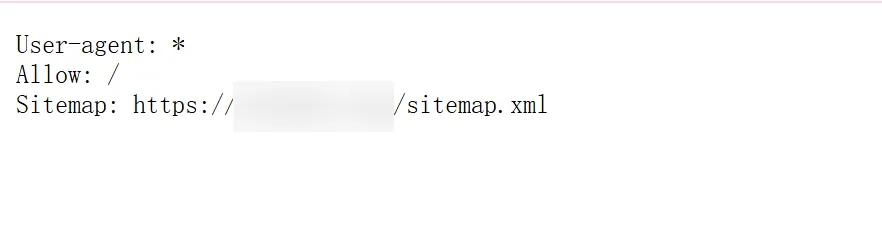
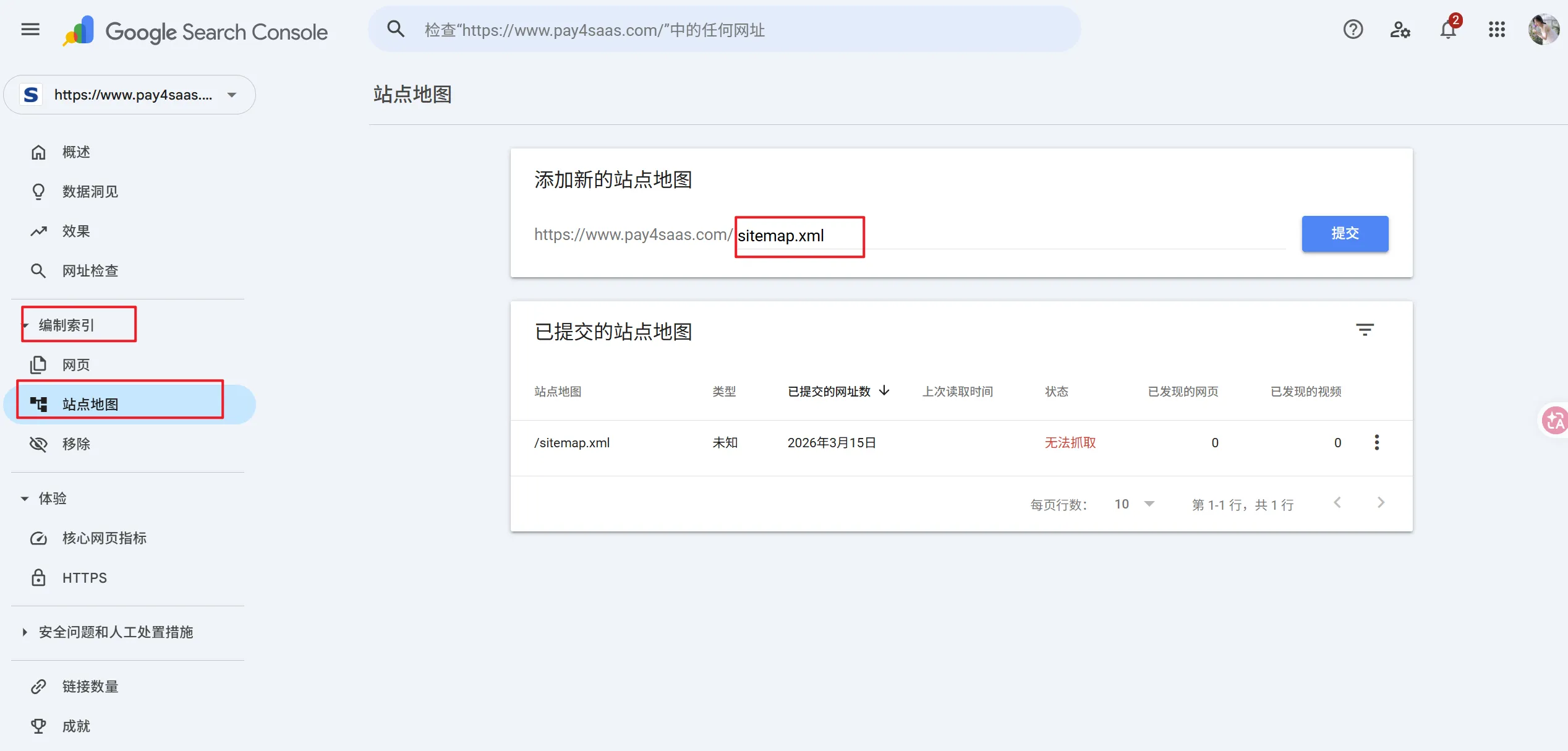
Then open Google Search Console, go to Indexing → Sitemaps, and submit your sitemap.xml. This lets Google proactively discover and crawl all your pages, speeding up indexing.
Enter your domain in the top search bar to check indexing status.
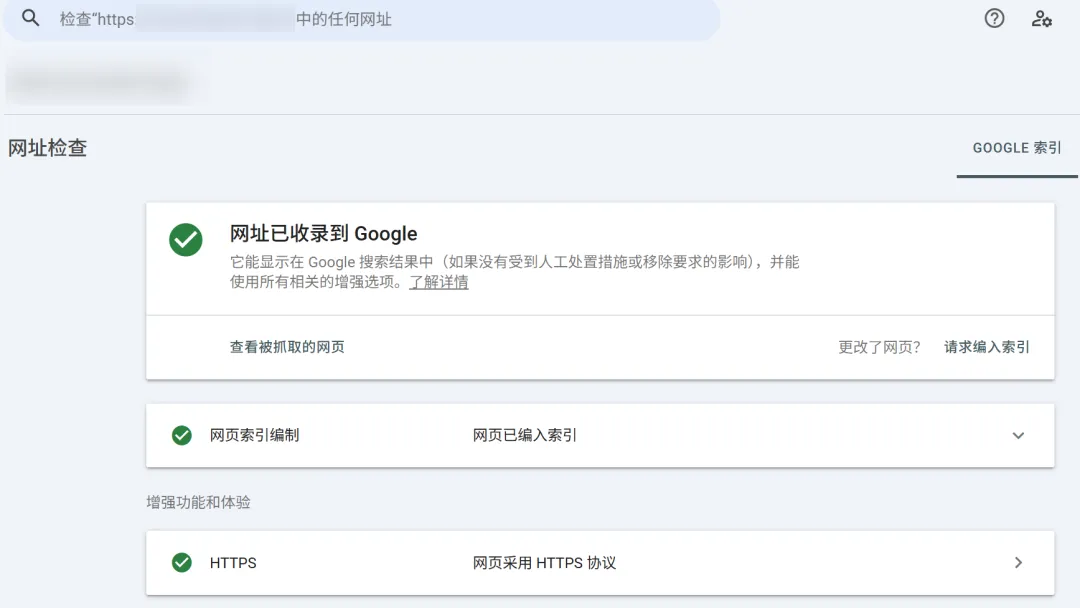
You should see your pages being indexed normally.