 Pay4SaaS
Email & Password Authentication
The Pay4SaaS login page supports three methods: Email & Password, Google OAuth, and GitHub OAuth. This guide covers the Email & Password configuration.
1. Enable Supabase Email Provider
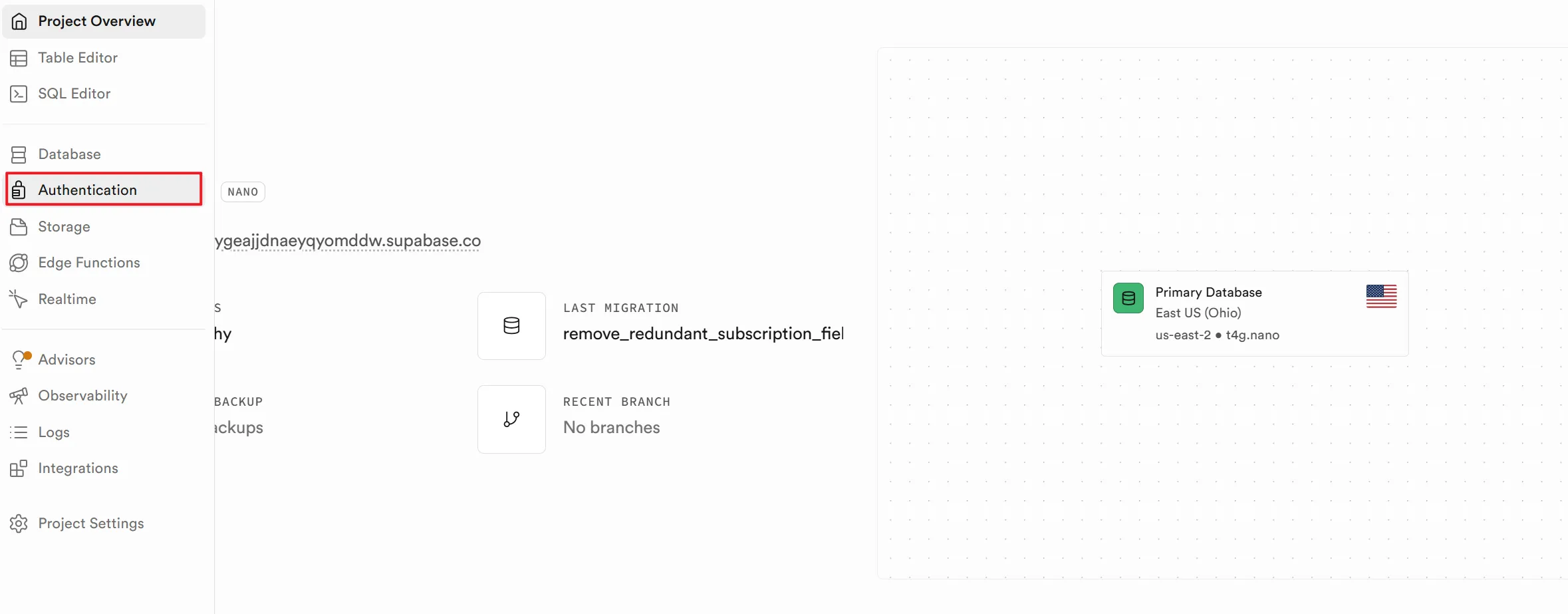
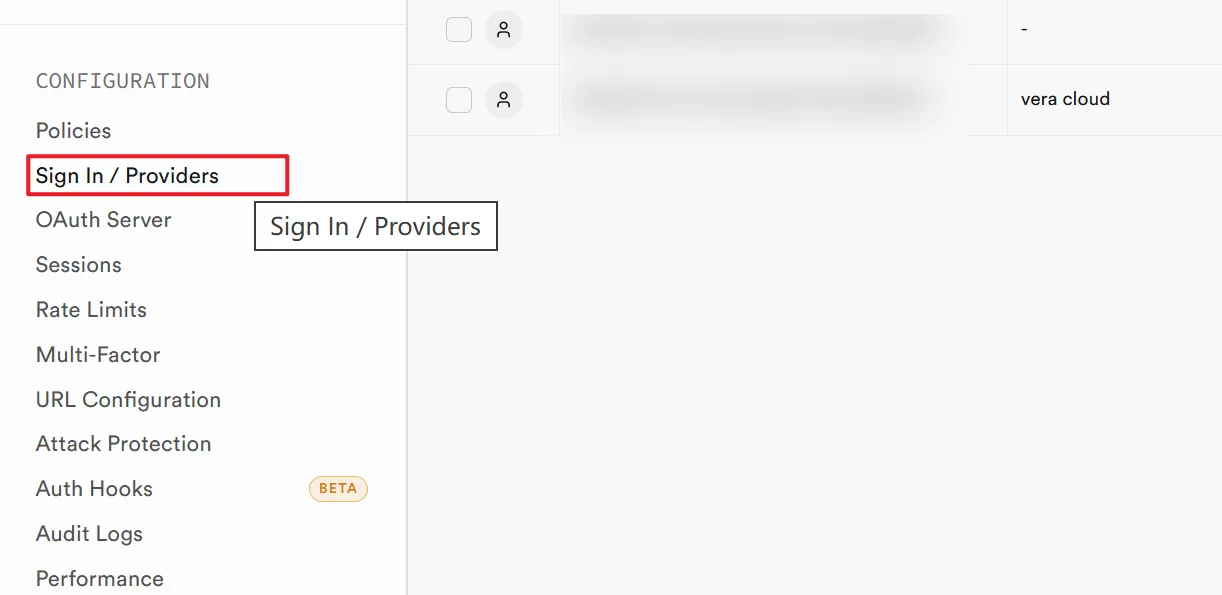
Go to Supabase Dashboard → your project → Authentication → Sign In / Providers → Email.
Confirm the following settings:
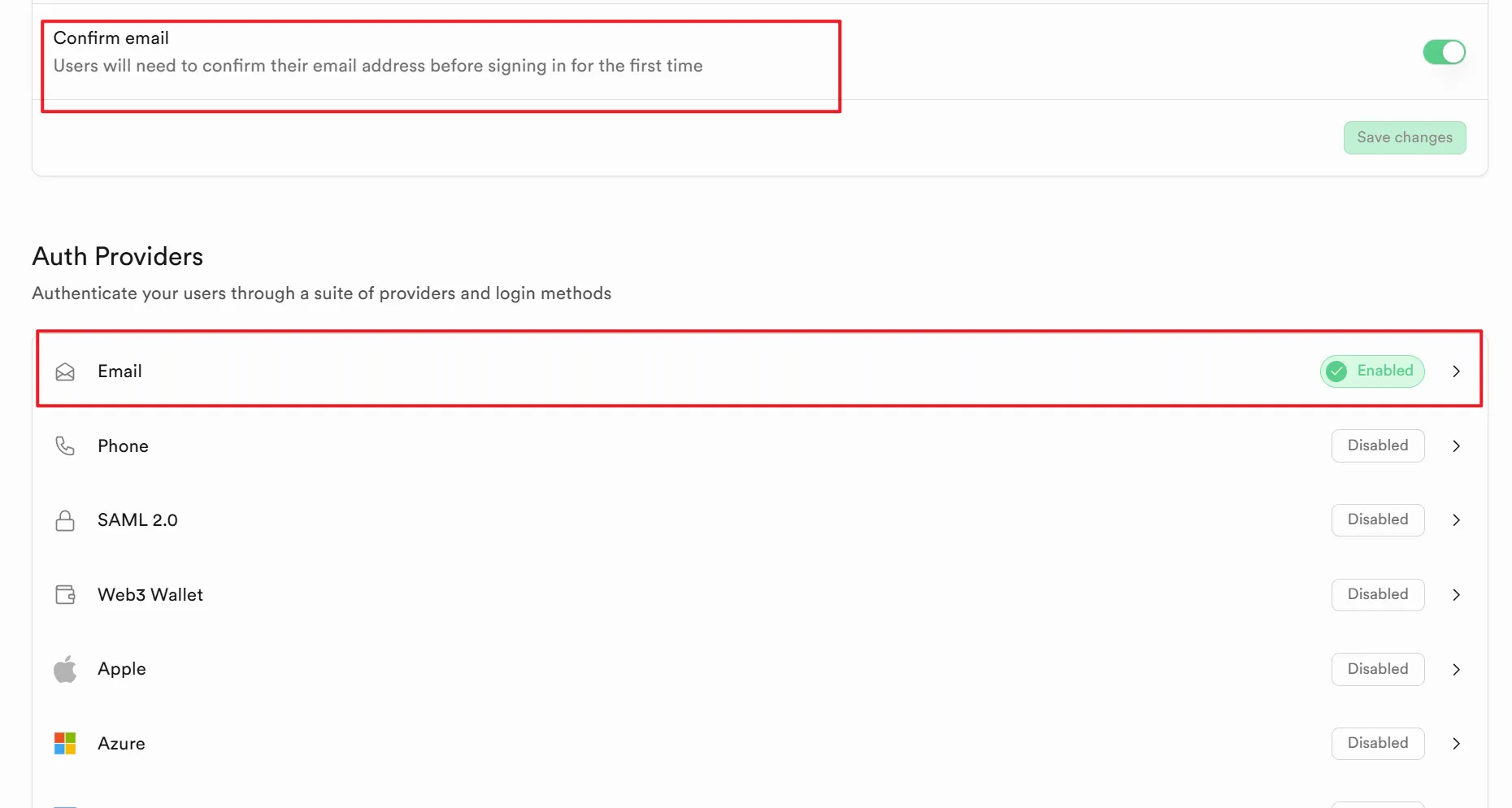
- Confirm email: Enabled (requires email confirmation after sign-up)
Click on the Email entry and confirm the following settings:
- Enable Email provider: Enabled
- Secure password change: Recommended to enable
- Secure email change: Recommended to enable
2. Login Page Features
The login page at /login includes the following built-in features:
- Sign In: Enter email + password, calls
signInWithPassword() - Sign Up: Switch to Sign Up mode, enter email + password, calls
signUp()and sends a confirmation email - Forgot Password: Click Forgot Password, enter email, calls
resetPasswordForEmail()and sends a reset link - Password Show/Hide: Eye icon on the right side of the password input field
After signing up, the user will receive a confirmation email. Clicking the link will automatically redirect back to the app to complete verification.
3. No Additional Configuration Required
Email & Password authentication uses Supabase's built-in Auth service. No additional environment variables or third-party service configuration is needed — just make sure the Supabase Email Provider is enabled.