Pay4SaaS
Implementing OAuth Login with Supabase + Google
1. Enable Google Auth in Supabase
Go to https://supabase.com, create a new project, note down the API key, database address, and database password. I won't cover this here as it was mentioned in detail earlier.
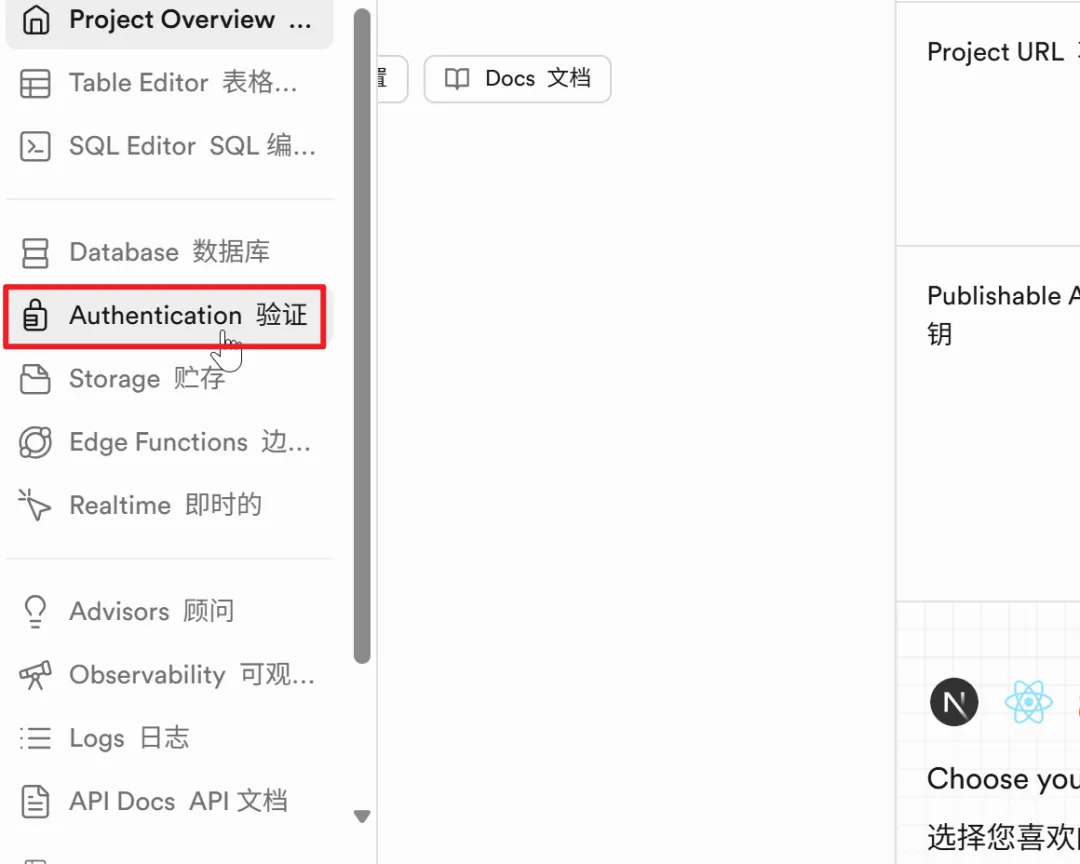
Open the project, Authentication.
Providers.
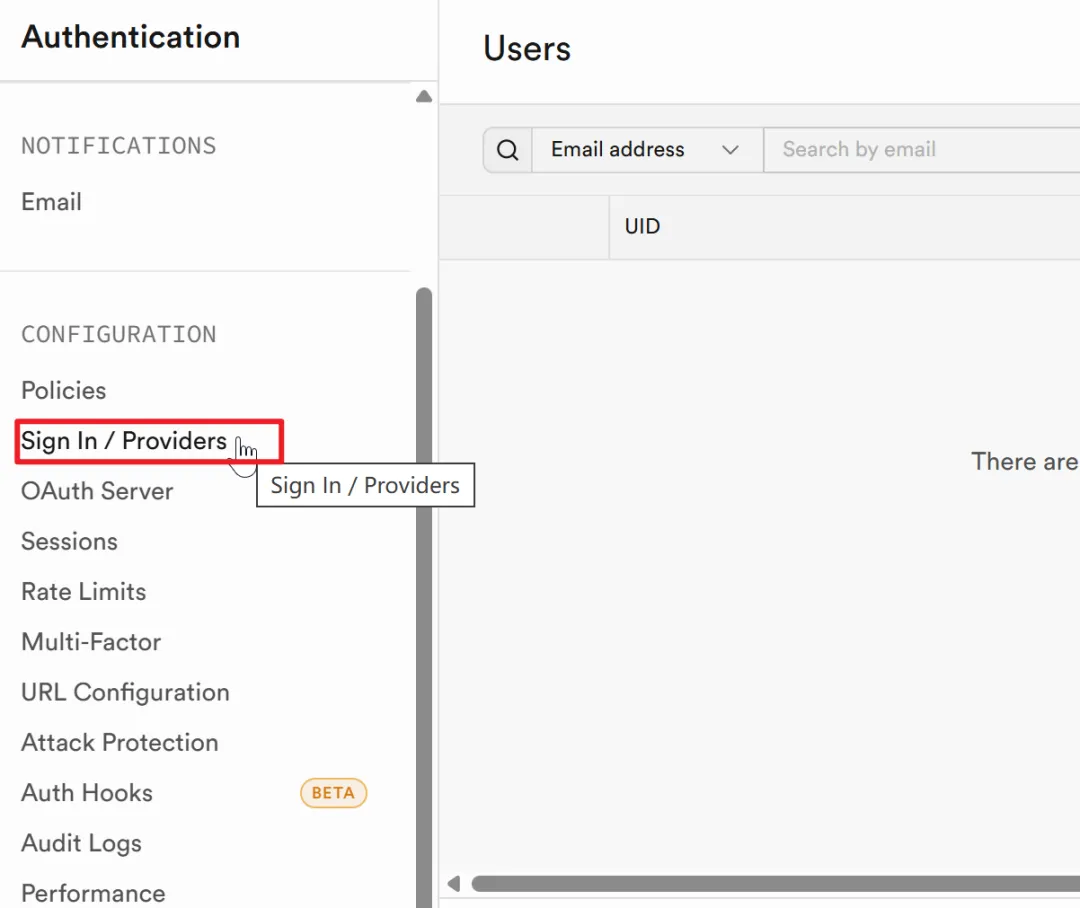
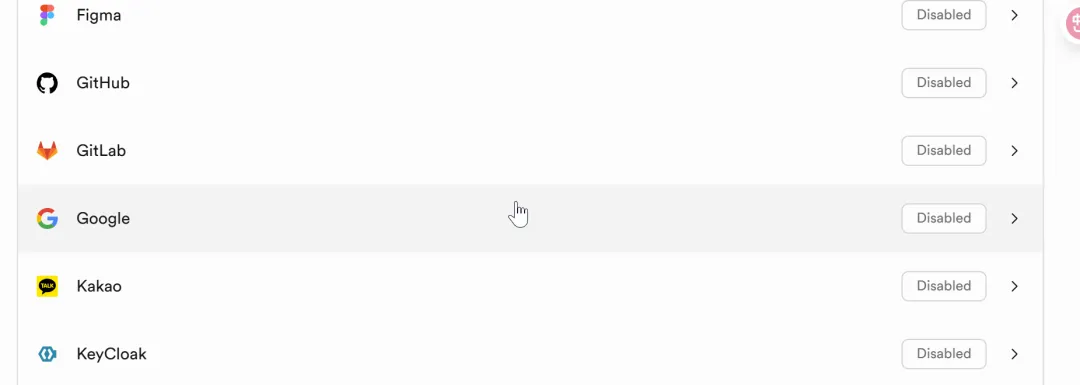
Scroll down and you'll see Google.
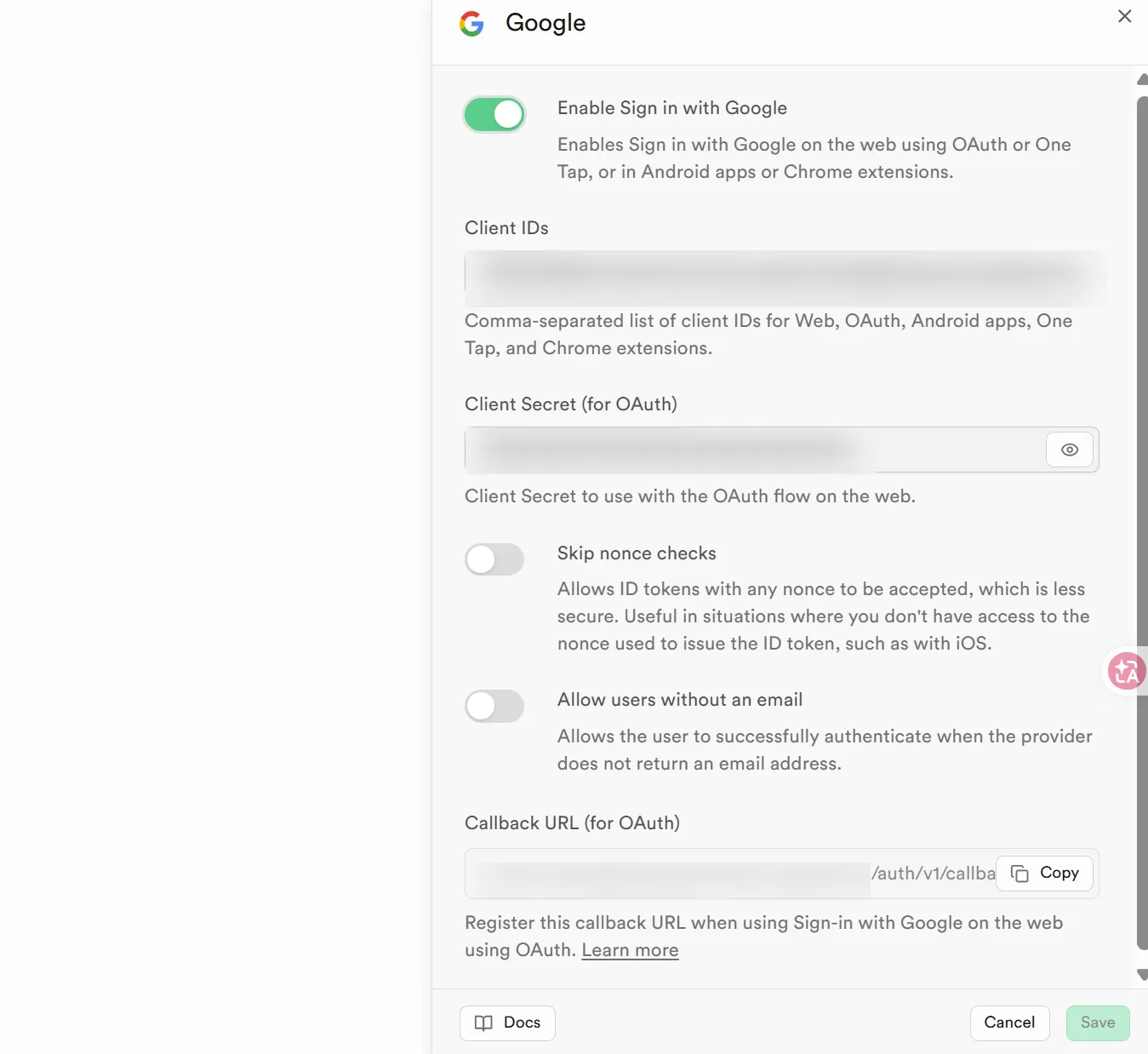
Enable it, the Client ID is what you saved in the previous step, no need to change the secret. Don't check the 2 checkboxes below the secret, from the description, it's safer not to check them.
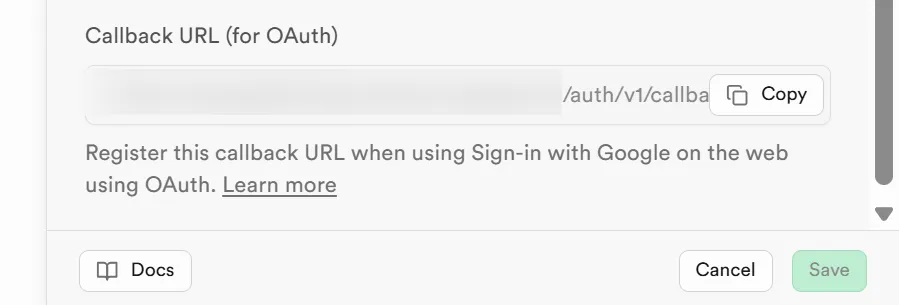
Then save this address locally and click save.
2. Enable Google People API and Create Credentials
Go to https://console.cloud.google.com/. It's a browser-based graphical management interface used for centralized management of various resources and services on Google Cloud Platform (GCP). Through this console, users can perform various operations, such as enabling API services which we'll use in this case.
After opening, select this.
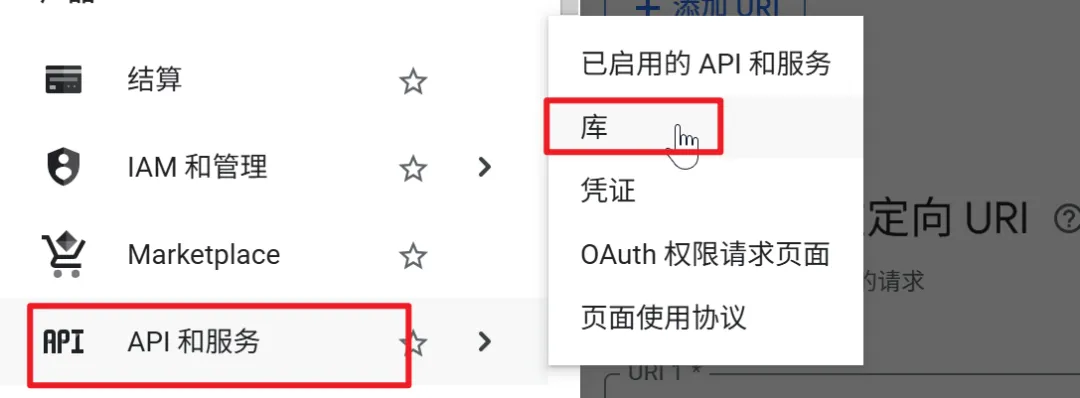
Search for Google People API, it's the first one.
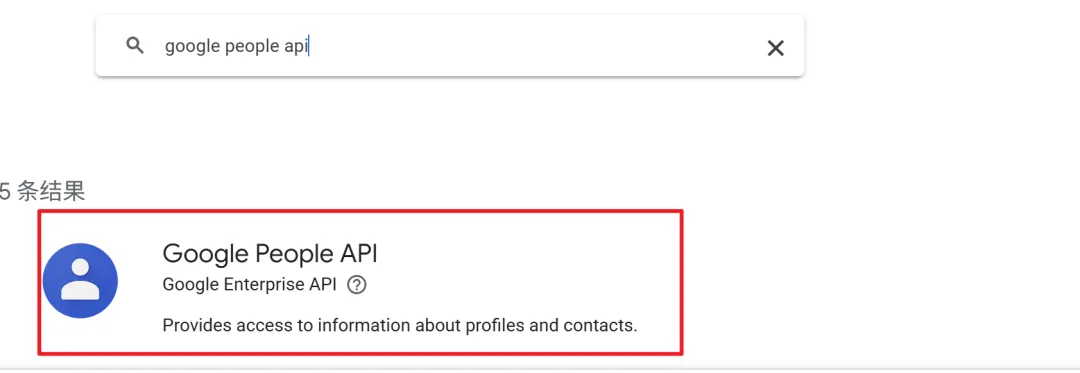
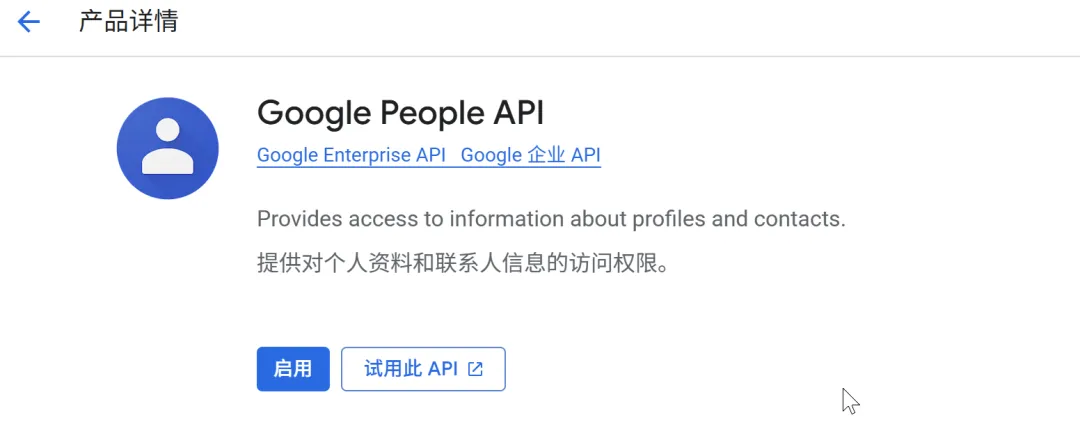
Click enable.
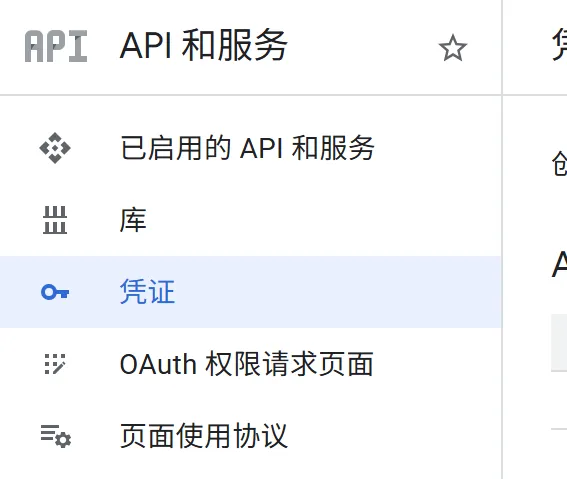
Go back to Credentials.
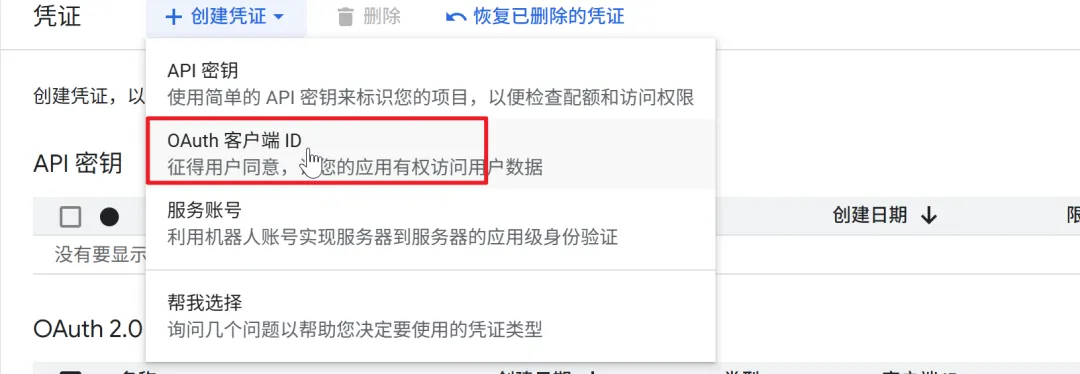
Create credentials, select this one.
Select Web application, fill in the name in English, use your domain address or project name.
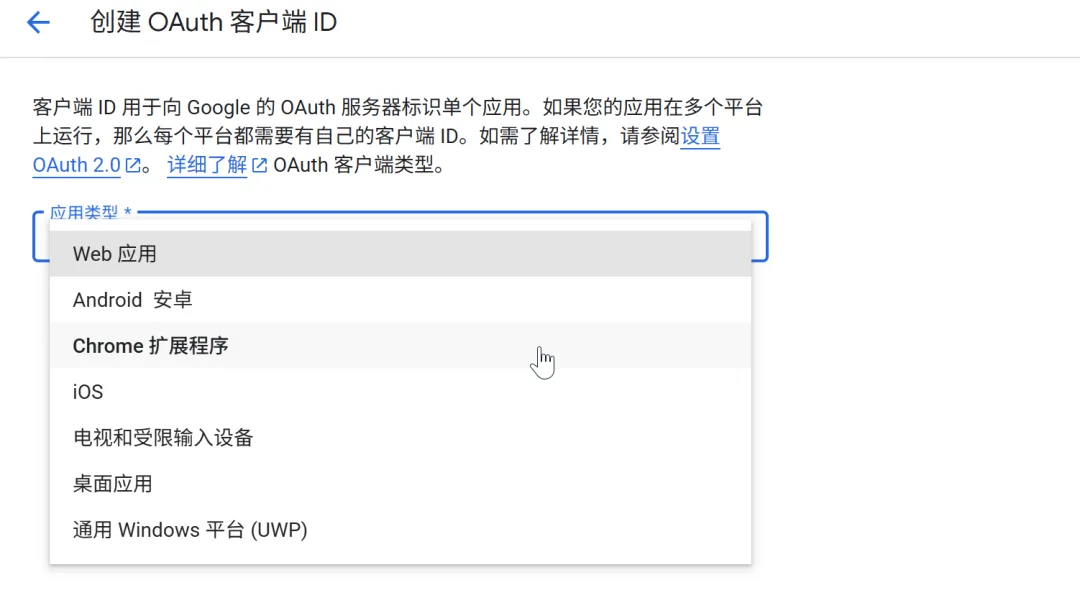
In the image below, I need to explain these 2 configurations.
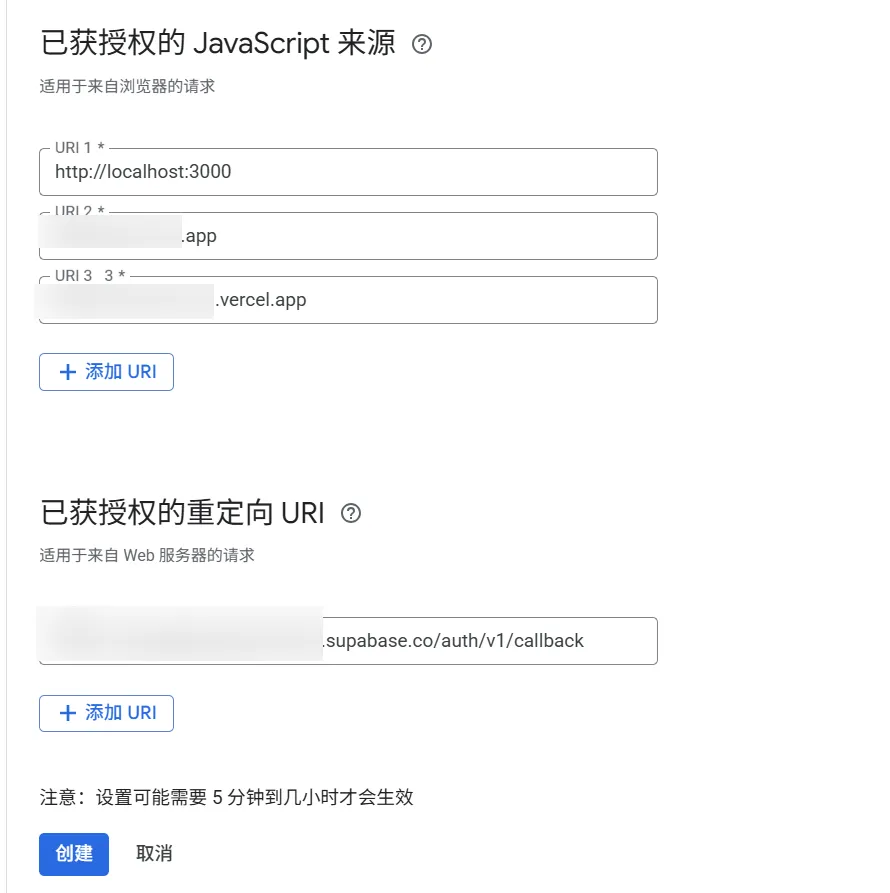
The first one, Authorized JavaScript origins, tells Google which websites can use your Client ID to initiate login in the browser.
What are they? One is the local environment for convenient local debugging, one is the production environment with your purchased domain. If deploying on Vercel and want to test, add a Vercel test environment as well.
The second one, Authorized redirect URIs, tells Google which specific addresses it can redirect back to after successful user login. Just use the Supabase callback address we already generated.
Then click create and download the JSON file from the popup, you'll need it in the next step.
3. Go Back to Supabase to Fill in Google Credentials
Go back to Supabase → Authentication → Sign In/Providers → Google.
Then fill in these 2 fields with the client_id and client_secret from the JSON file.
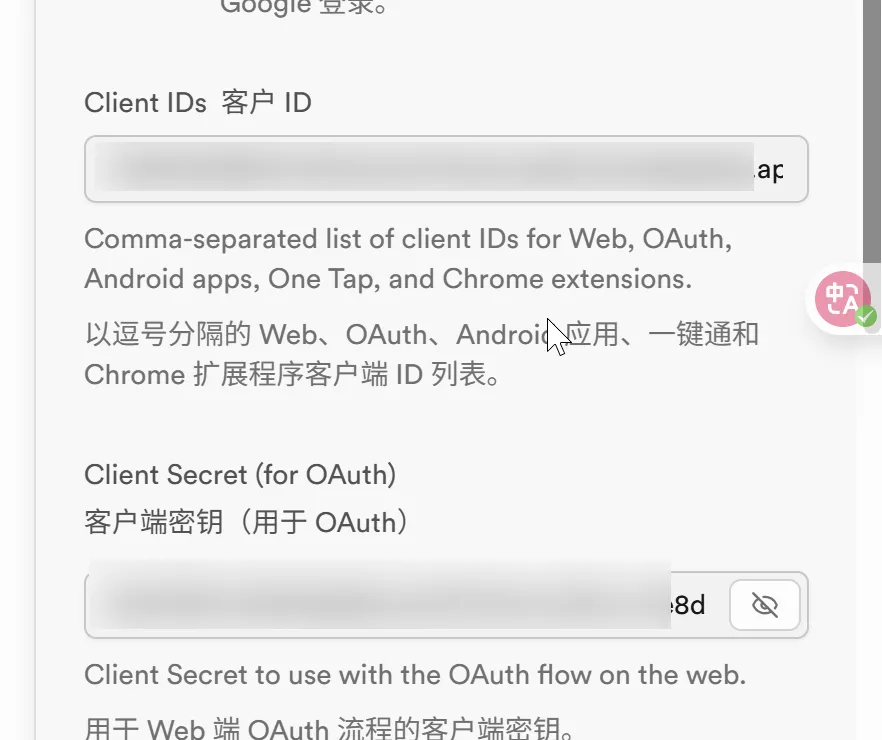
4. Configure URL (Important!)
Supabase → Authentication → URL Configuration
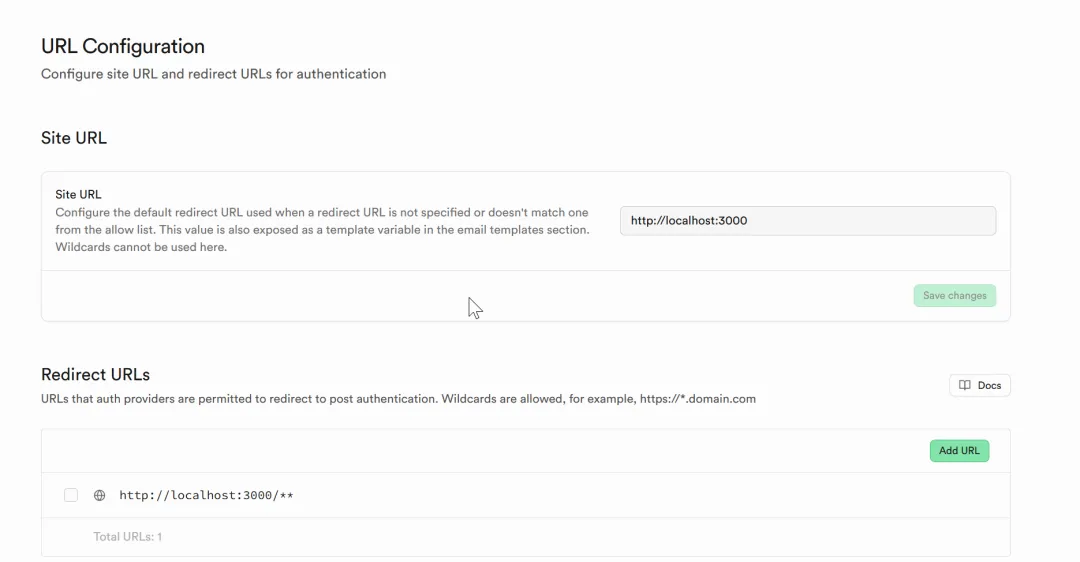
Site URL is the default primary domain, by default only one is allowed: http://localhost:3000, or your production environment domain. This doesn't matter much because the next redirect whitelist is what's necessary and must not be forgotten.
Redirect URLs is the allowed redirect address whitelist (can be multiple). Click Add URL. This is the same as the addresses configured in Google's "Authorized JavaScript origins", except you need to add /** after the domain, similar to the following format.
http://localhost:3000/**
Redirect URLs:
http://localhost:3000/**           (Keep for local development)
https://xxxx.vercel.app//**        (For test environment)
https://yourdomain.com/**          (For production environment)
Click Save.
Here's the result.
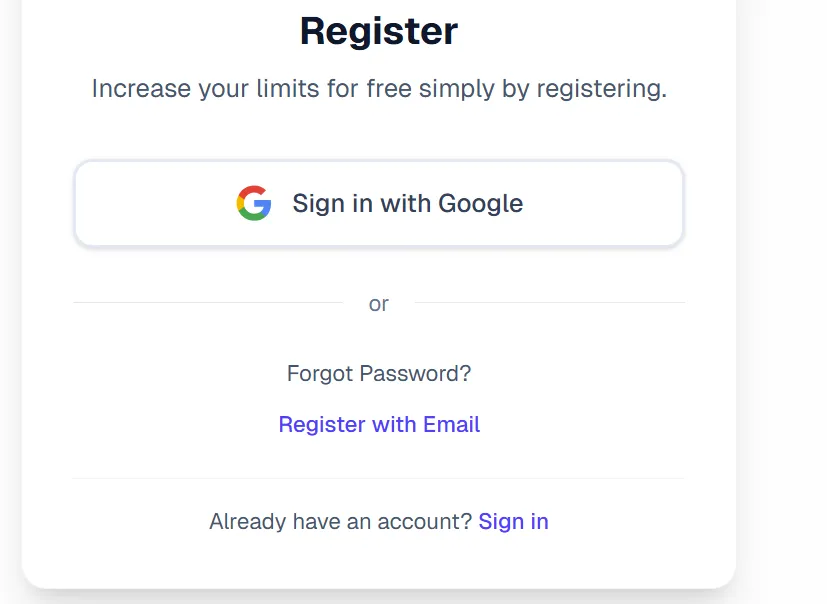
Click register.