Pay4SaaS
Stripe Configuration
https://dashboard.stripe.com/ — click here to switch to the test environment. Before going live, switch to the production environment and reconfigure the parameters below.
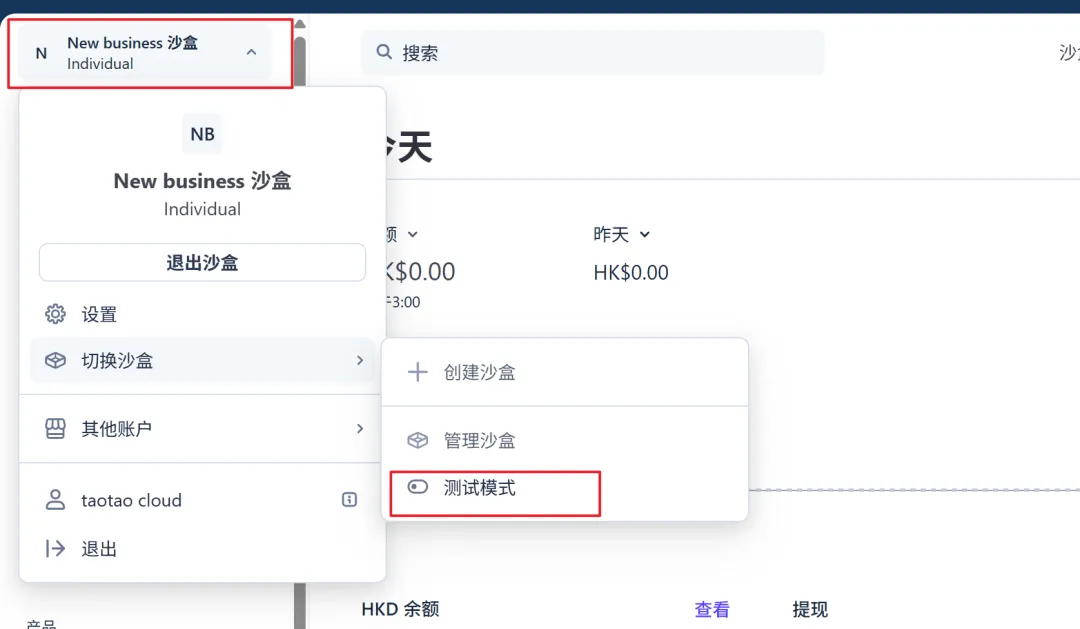
Start configuring API keys, webhooks, and products.
1. API Keys
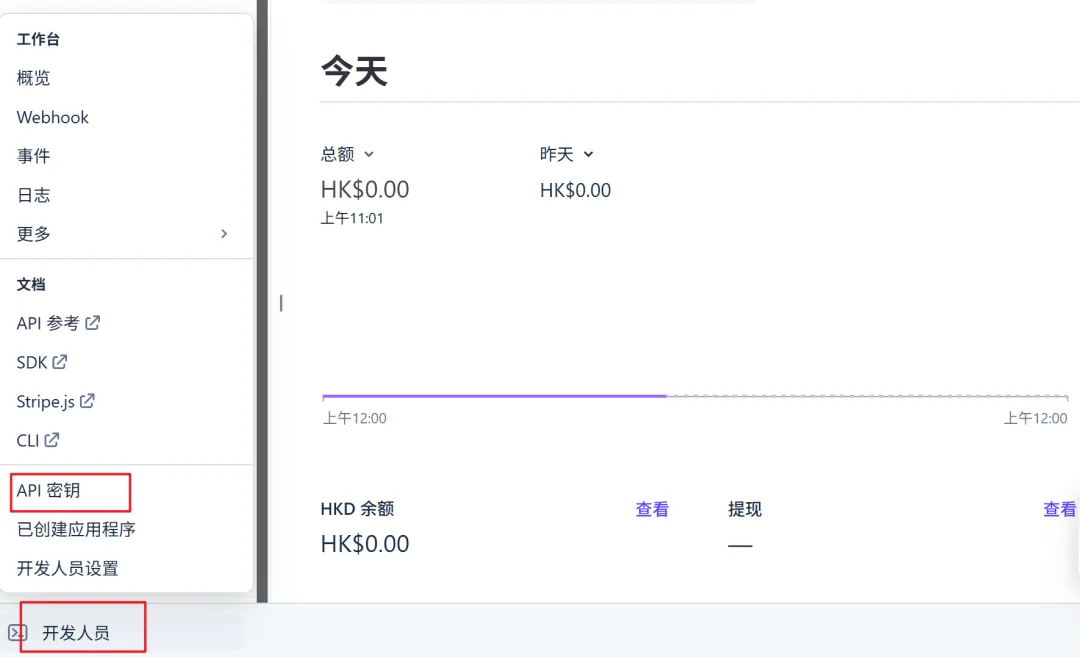
This is it.
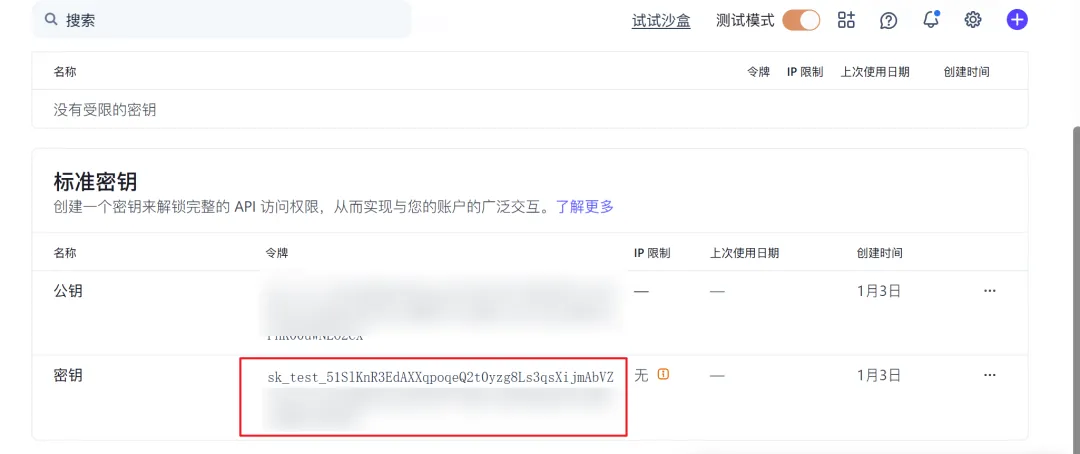
Write it into your environment variables.
STRIPE_API_KEY=sk_test_xxx2. Webhook
Find the webhook section.
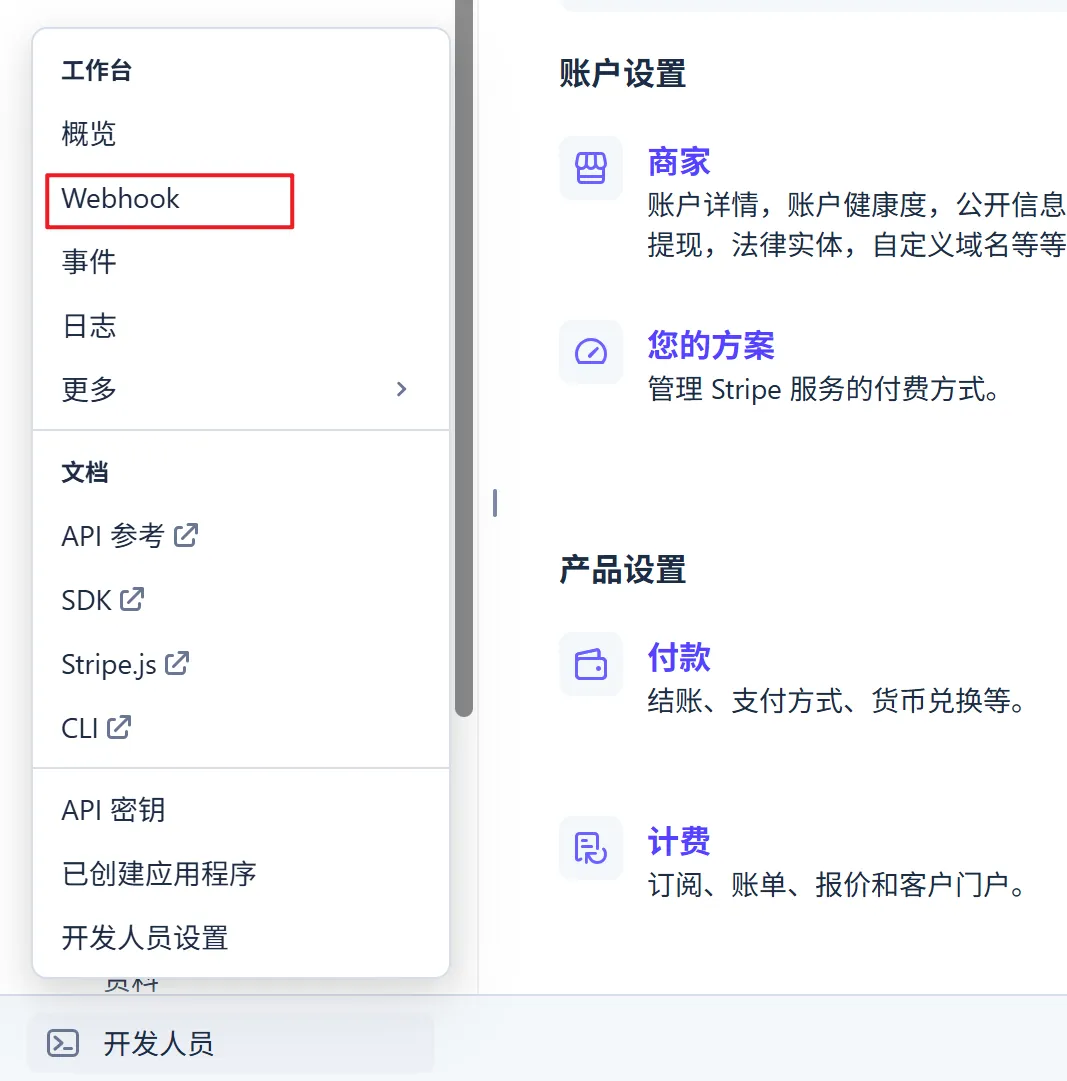
Add an endpoint.
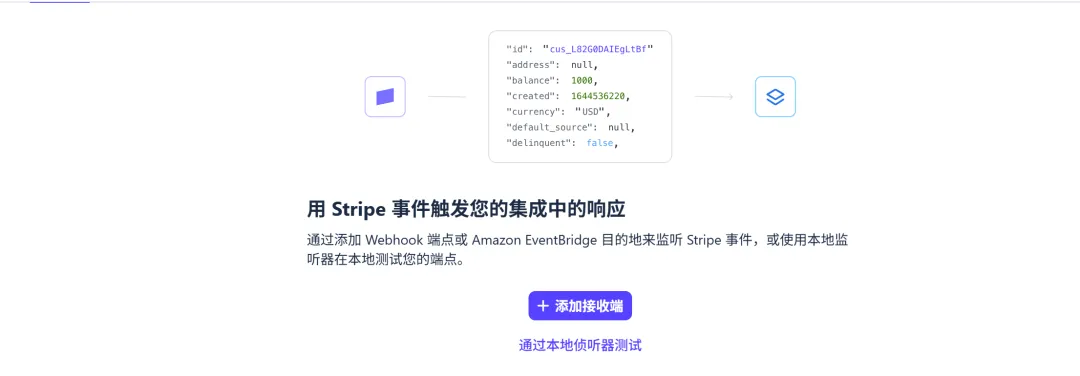
How to select events?
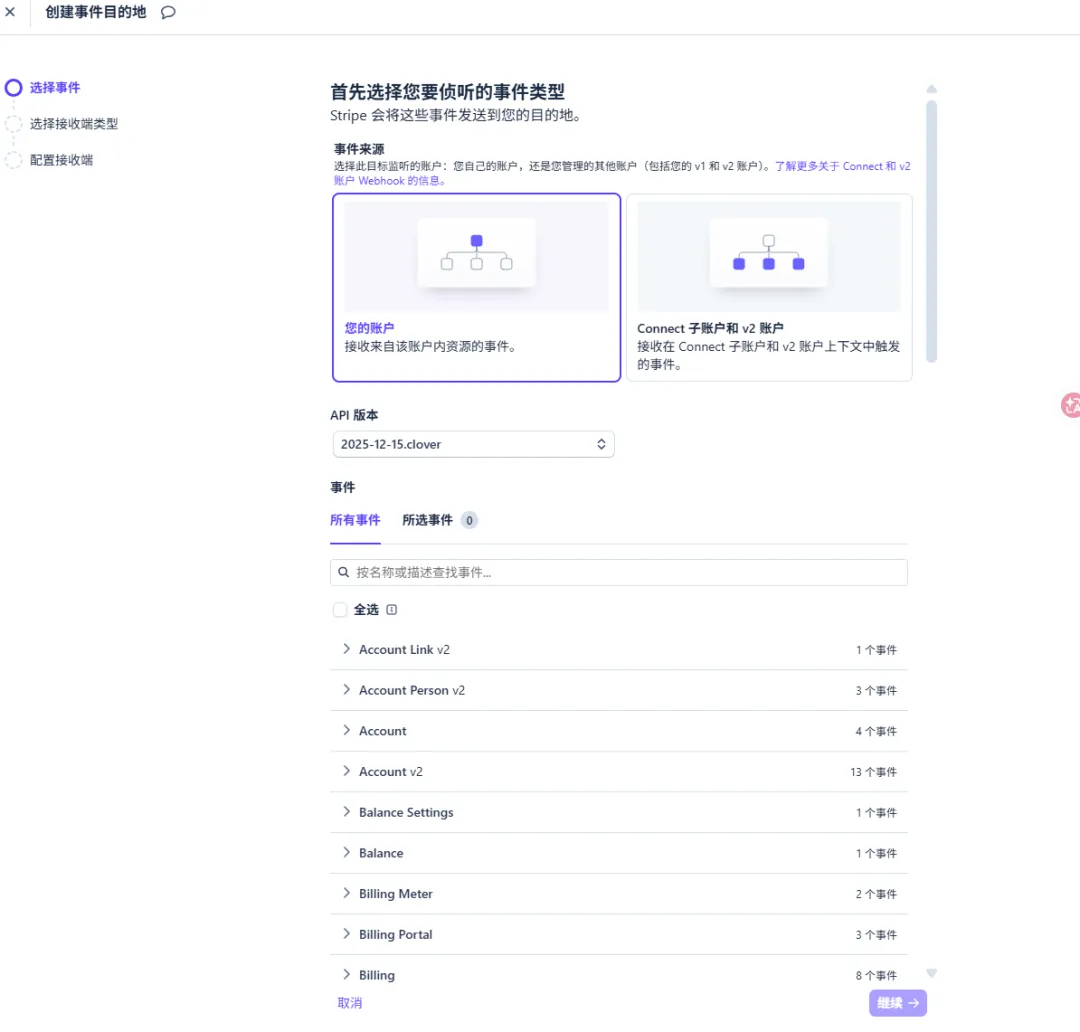
Just select these — any extra ones will be ignored by the proxy.
| Category | Event | Purpose |
|---|---|---|
| Checkout | checkout.session.completed | Credits purchase, one-time purchase, first subscription charge |
| Customer | customer.subscription.created | Subscription created (active / trial) |
| Customer | customer.subscription.updated | Subscription status change (active/trialing/past_due/paused) |
| Customer | customer.subscription.deleted | Subscription cancelled / expired |
| Invoice | invoice.paid | Subscription renewal successful |
| Invoice | invoice.payment_failed | Subscription renewal failed |
Then, select the Webhook endpoint.
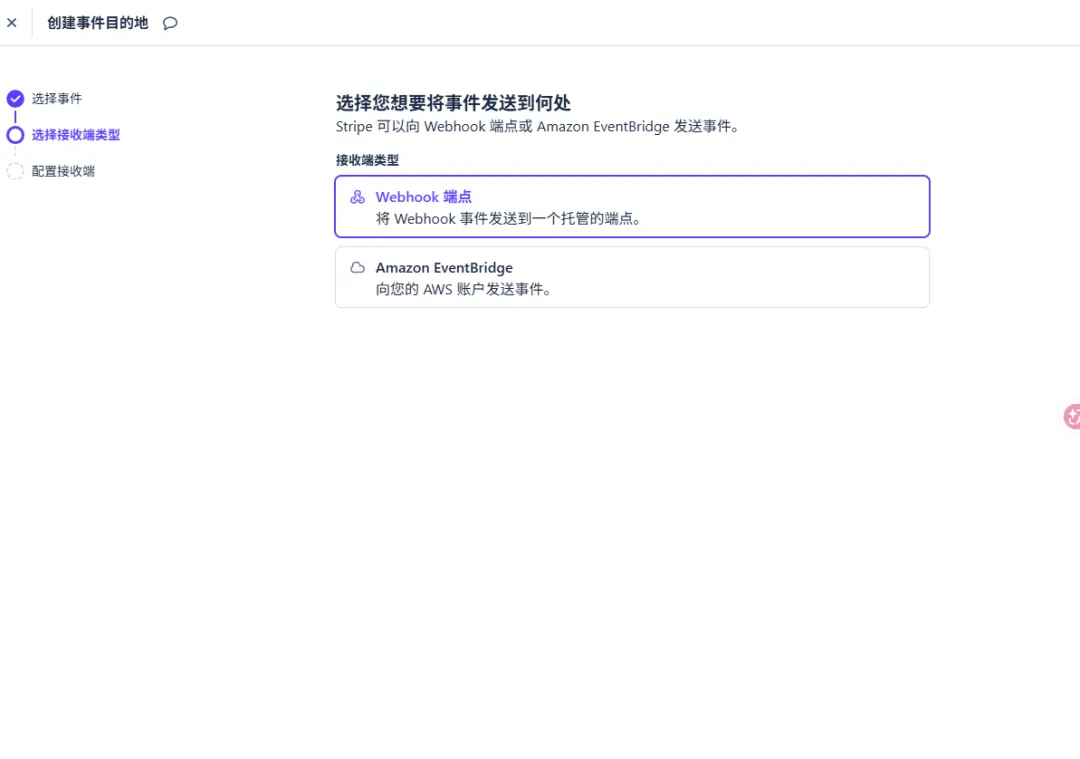
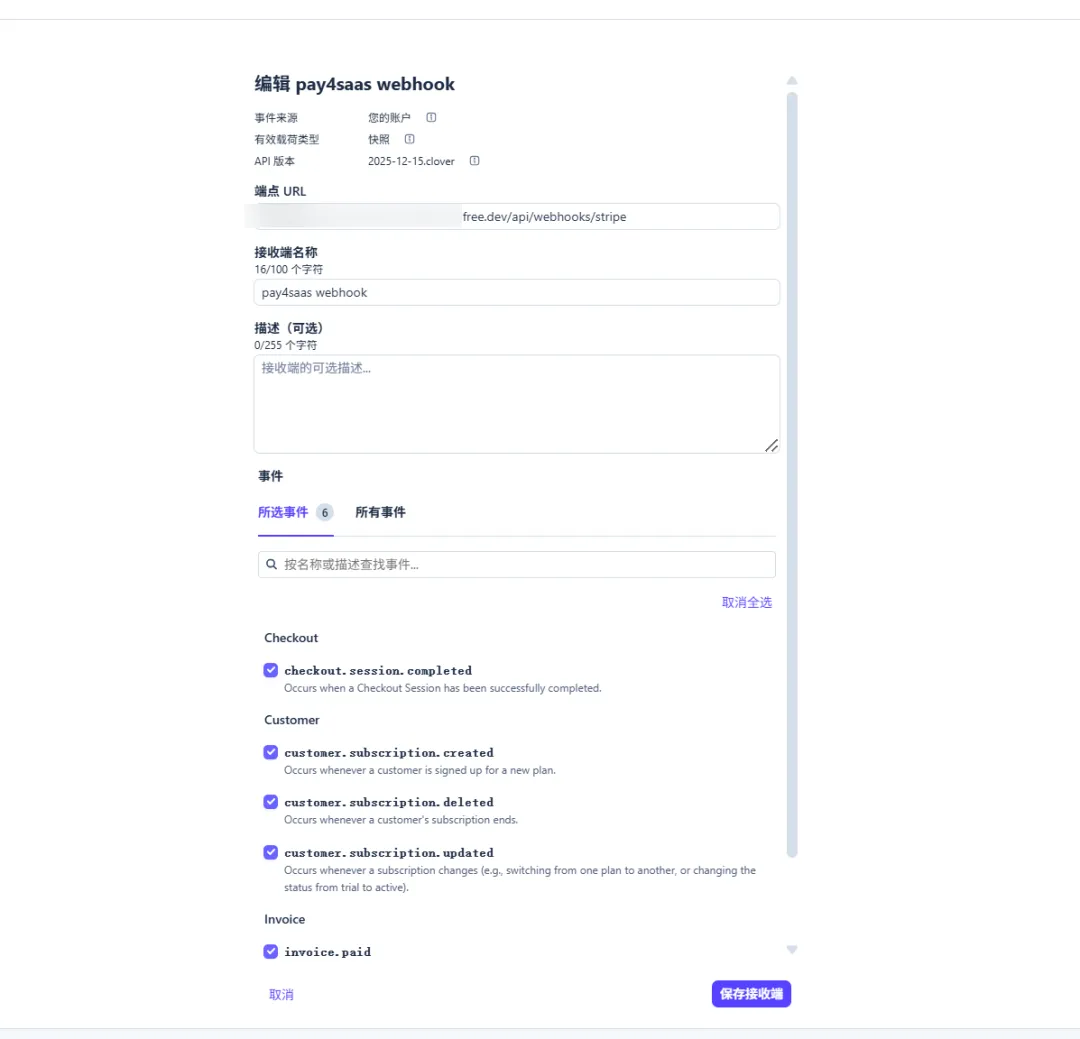
Name the endpoint "pay4saas webhook" for now. The endpoint URL is your tunnel domain (e.g. ngrok) + /api/webhooks/stripe. For production, the Webhook URL will be: https://yourdomain.com/api/webhooks/stripe.
Then, grab the signing secret on the right.
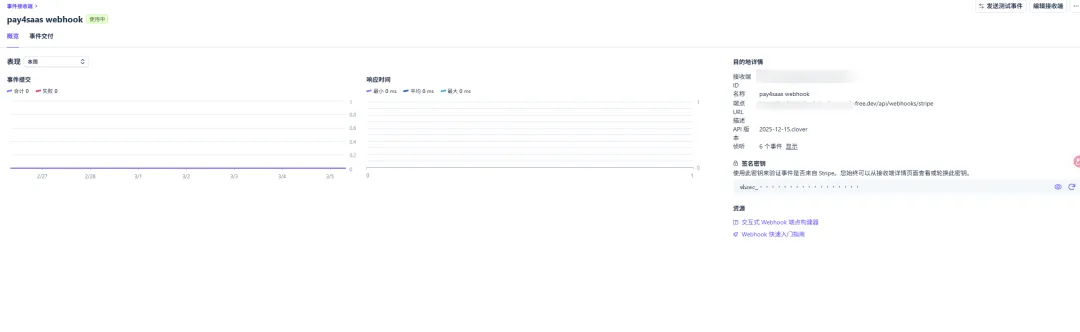
Write it into your environment variables.
STRIPE_WEBHOOK_SECRET=whsec_xxx3. Create Products
Go back to the dashboard: Product Catalog → Create Product.
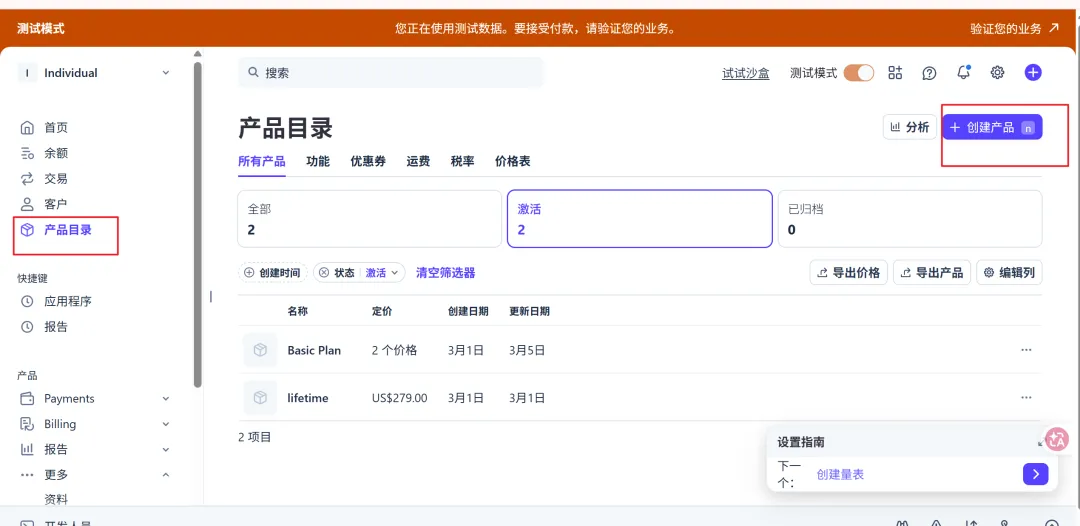
There are 2 cases — subscription and non-subscription products are created differently.
1) Subscription Products
For example, create a Pro plan named "Pro Plan". If it's the same feature set with different billing cycles (e.g. monthly / yearly), you can put them under one product.
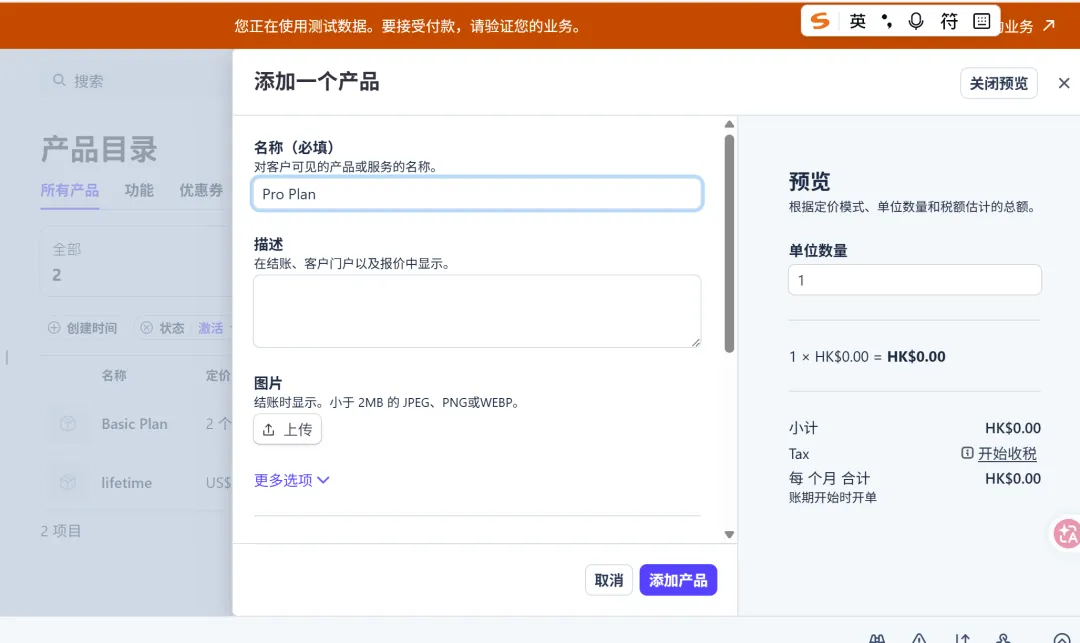
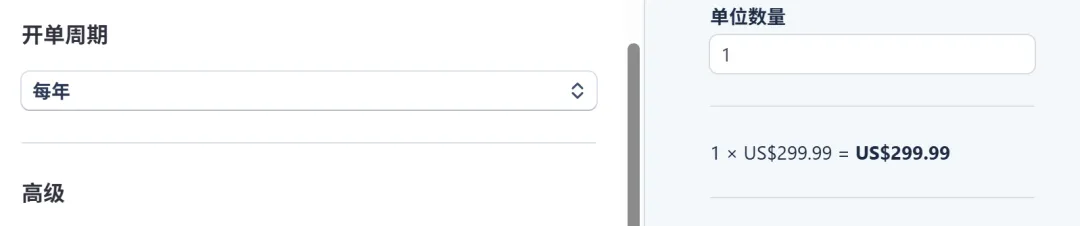
Select the cycle, fill in the price, choose the currency, and set the billing period to match the cycle.
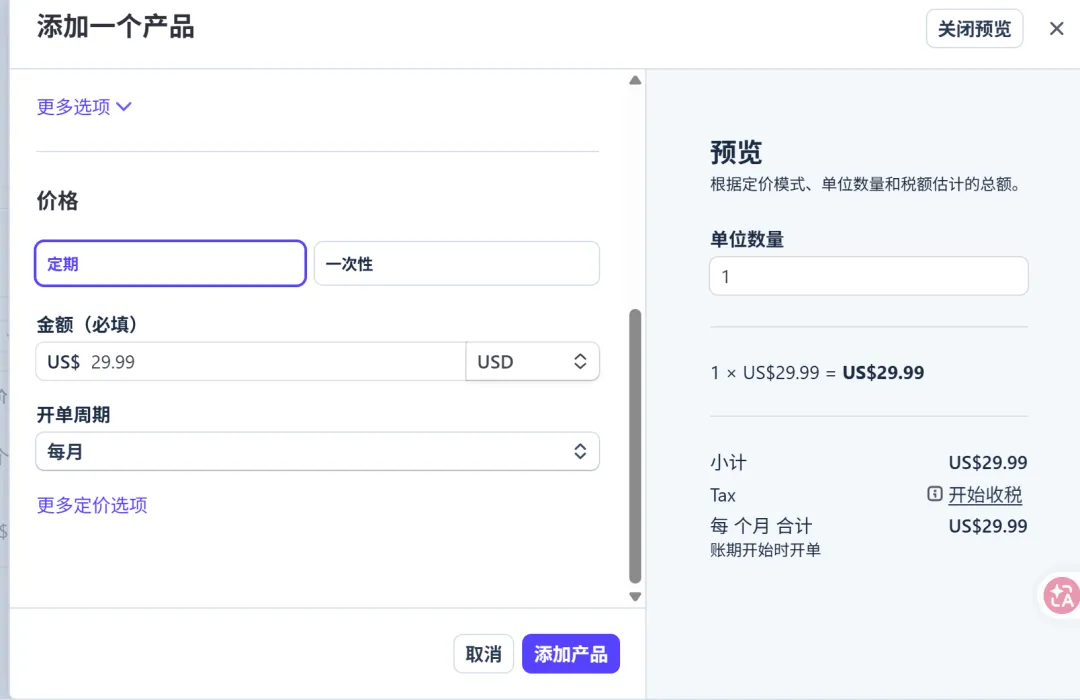
After saving, it's ready. Continue editing the product to add a yearly option.
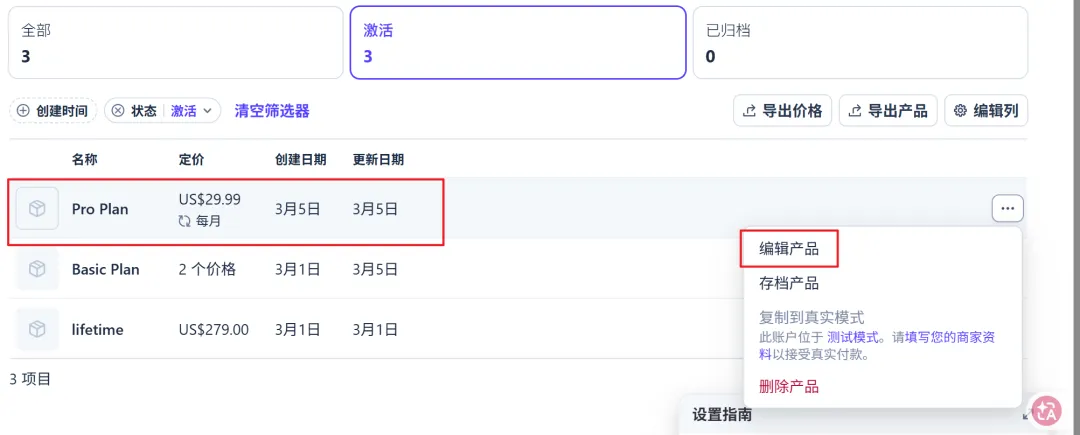
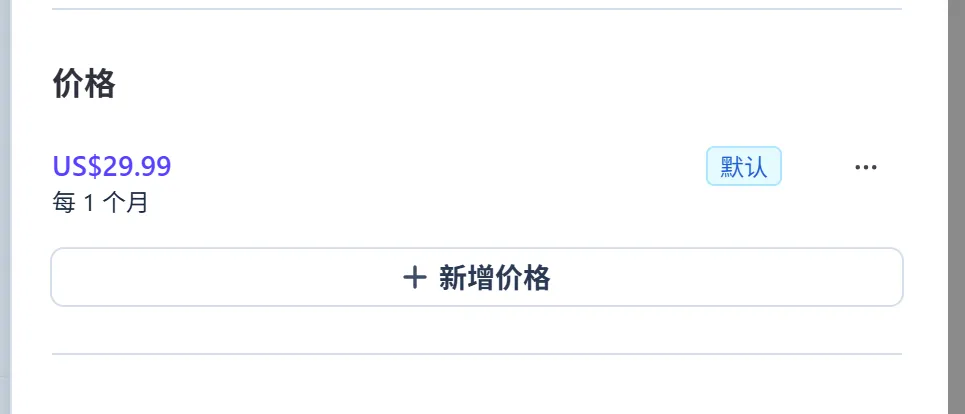
Add a new price.
Fill in the price.
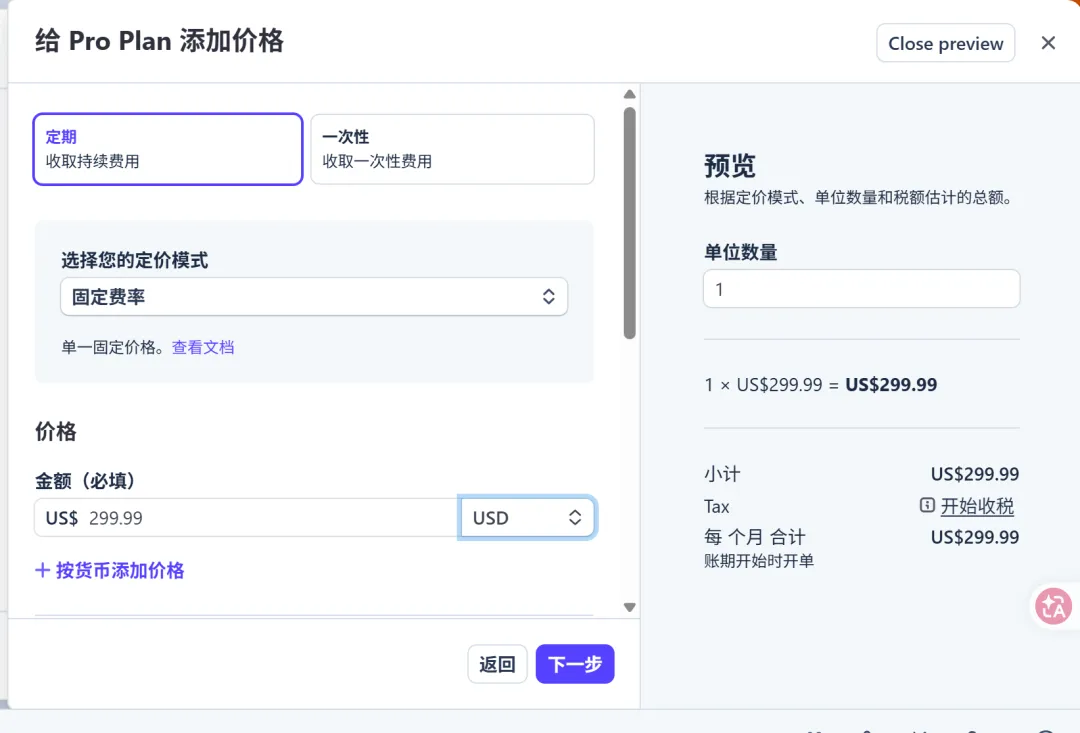
Set the billing period to yearly.
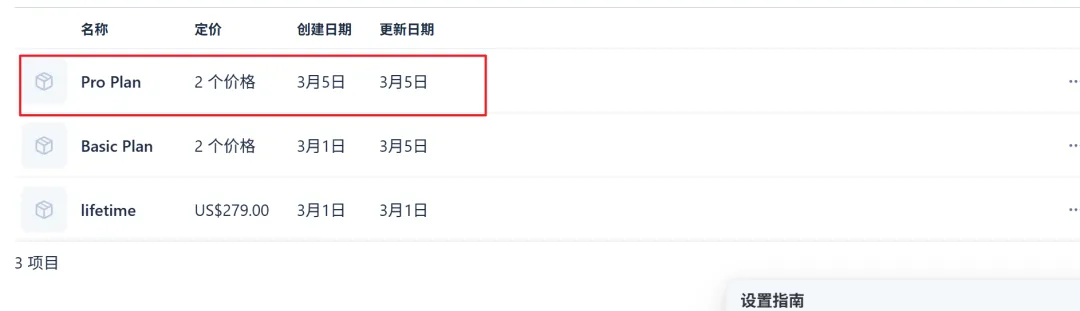
Then, open the product.
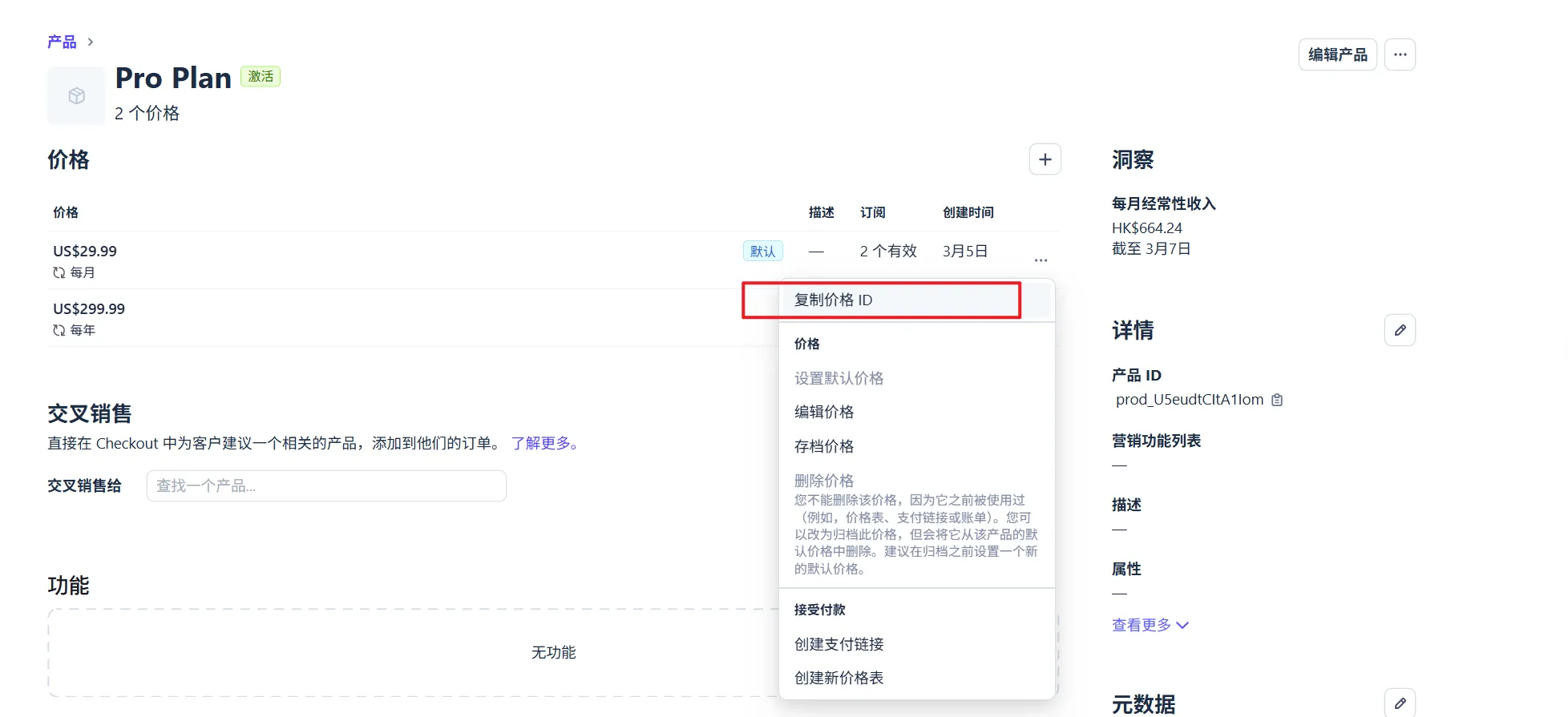
Copy the Price ID and add it to your environment variables.
# STRIPE_SUB_*_MONTHLY/YEARLY — the * suffix is flexible and customizable.
# This is the recommended naming convention. Match the keys to those configured in `config/payment.ts`.
STRIPE_SUB_BASIC_MONTHLY=price_xxx
STRIPE_SUB_BASIC_YEARLY=price_xxx
STRIPE_SUB_PRO_MONTHLY=price_xxx
STRIPE_SUB_PRO_YEARLY=price_xxx
STRIPE_SUB_MAX_MONTHLY=price_xxx
STRIPE_SUB_MAX_YEARLY=price_xxx
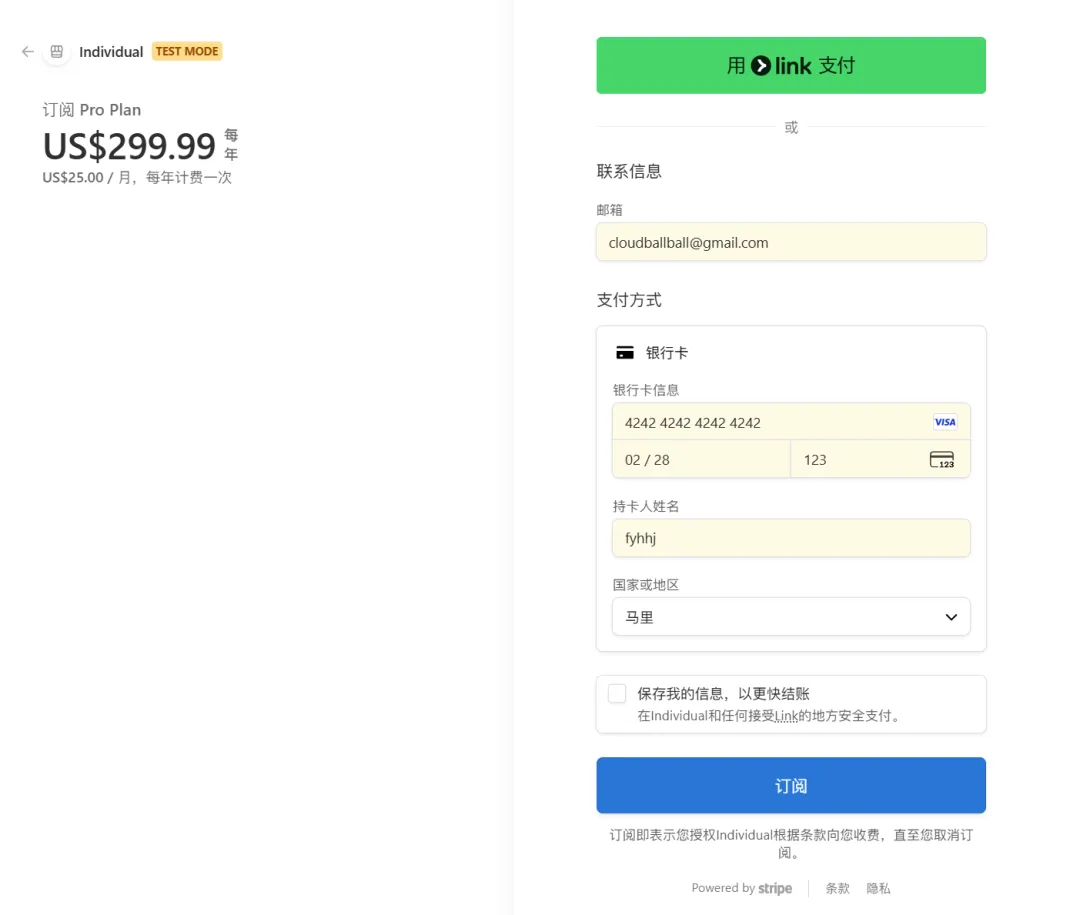
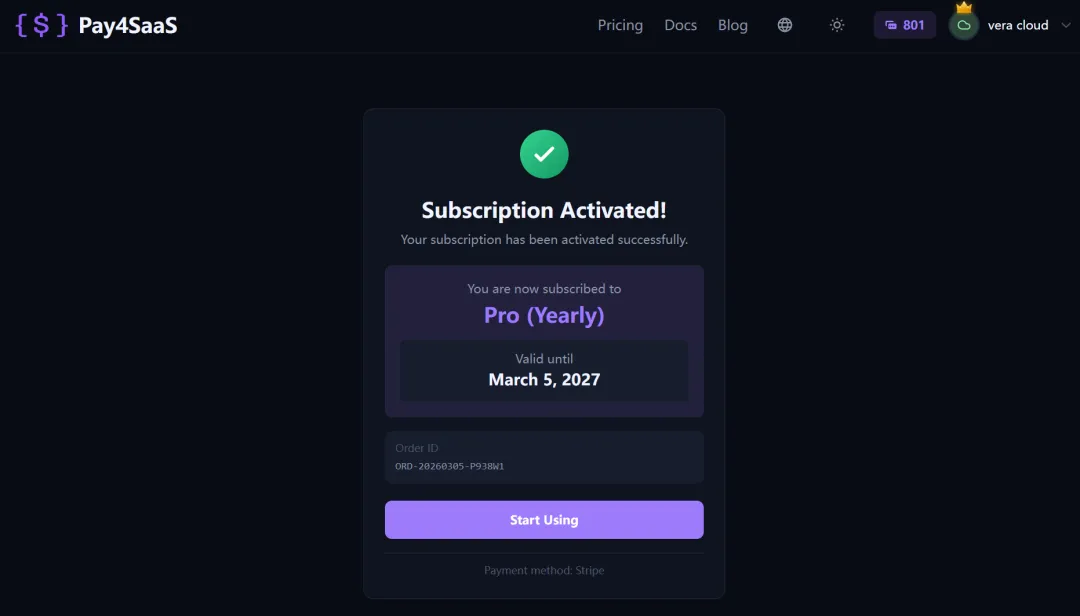
The code was finished a few days ago — let's test it. Select Year, Pro plan.
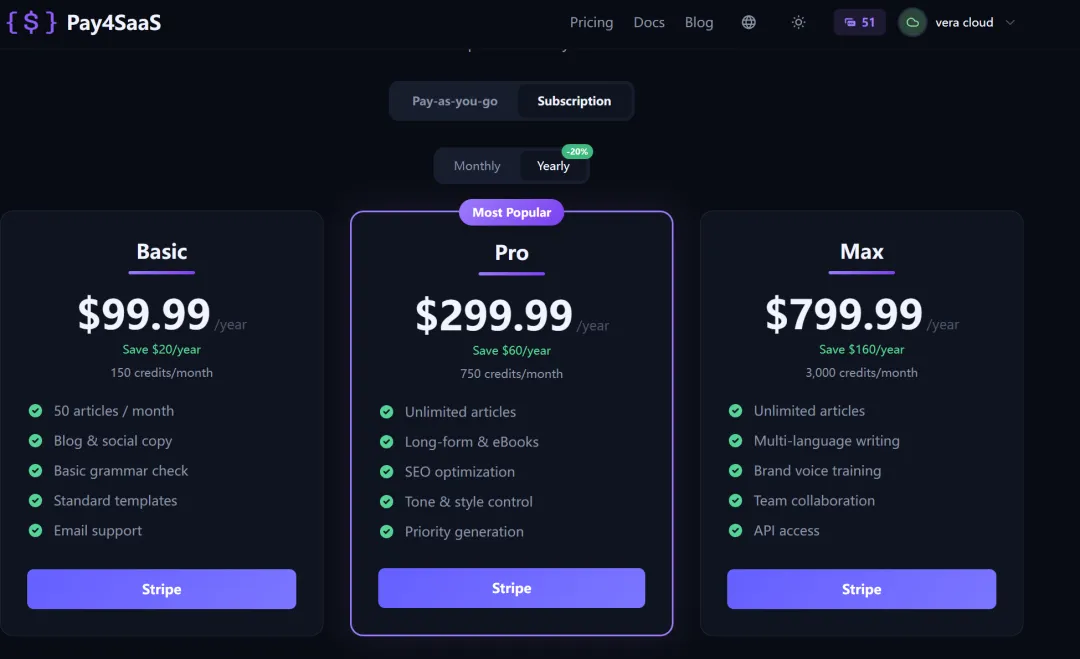
Test card: 4242 4242 4242 4242, expiry 02/28, cardholder name can be anything, CVC 123. Select a non-US region to avoid having to fill in an address.
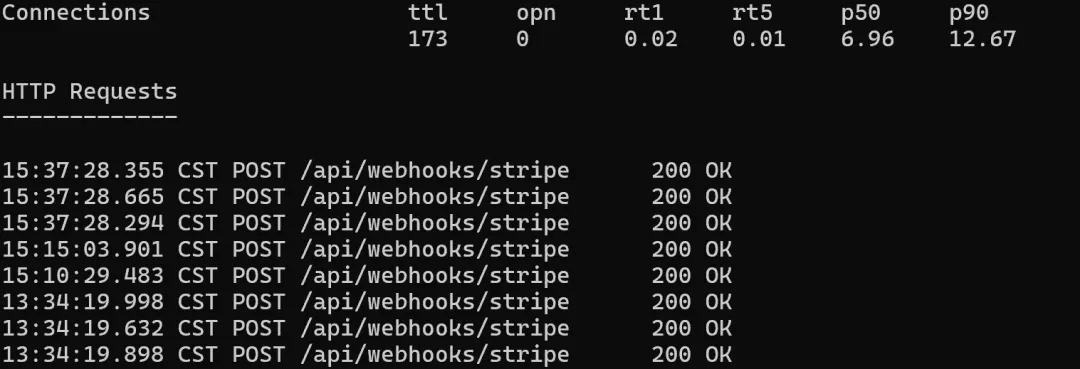
After payment, webhook received OK.
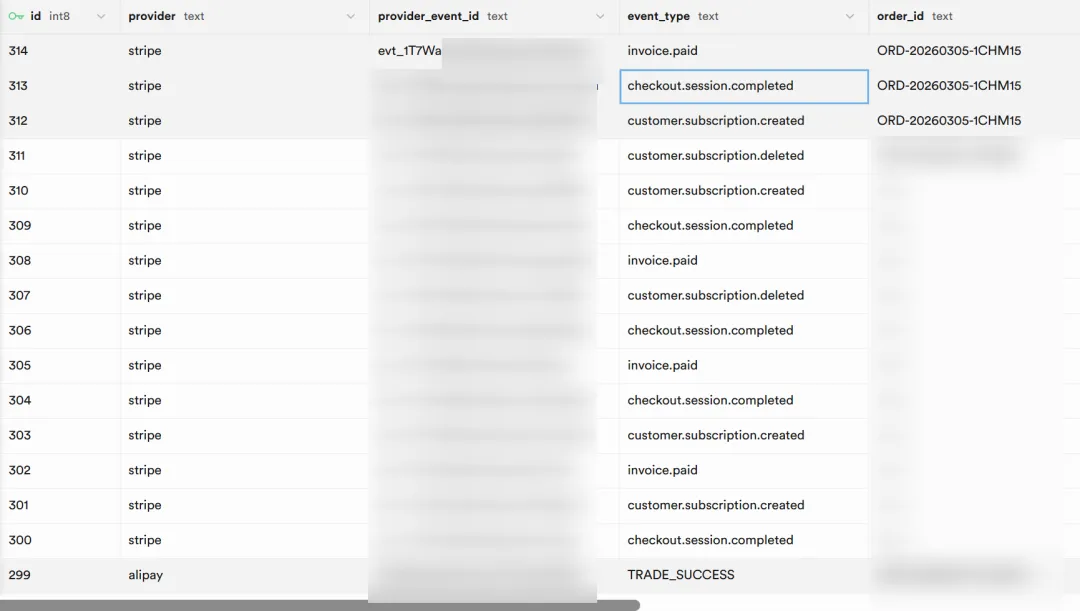
Backend webhook status OK.
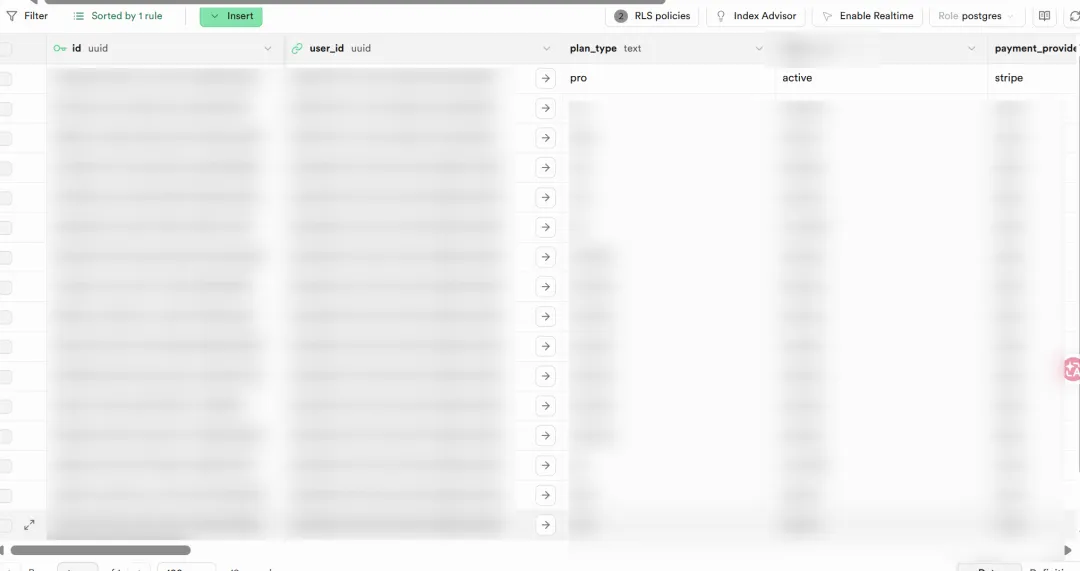
Subscription data OK.
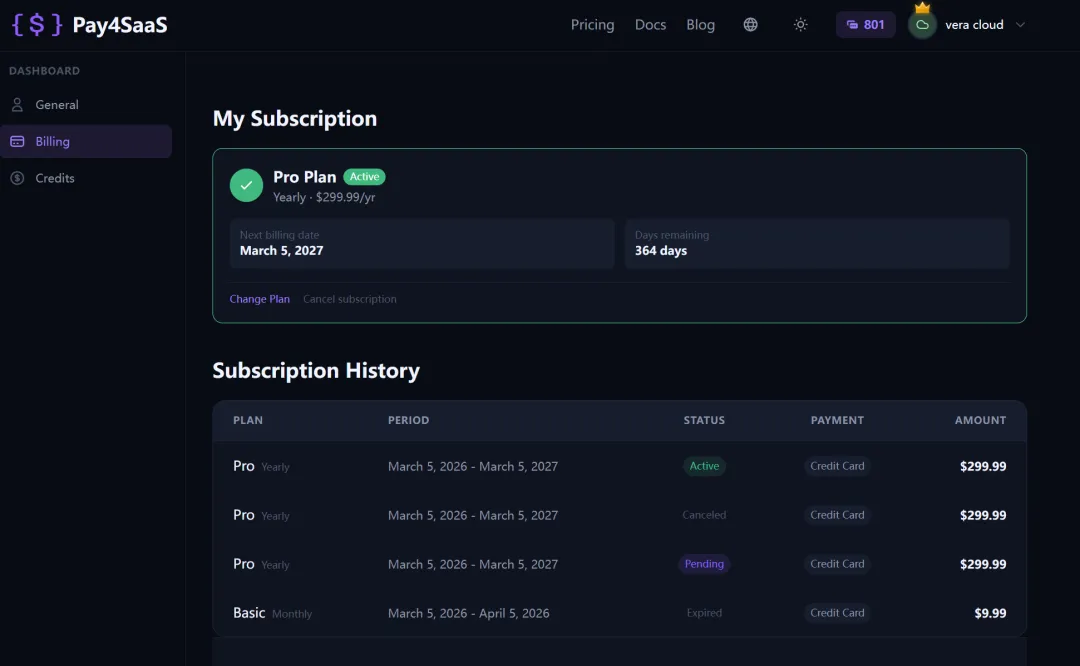
Page display OK.
Billing page.
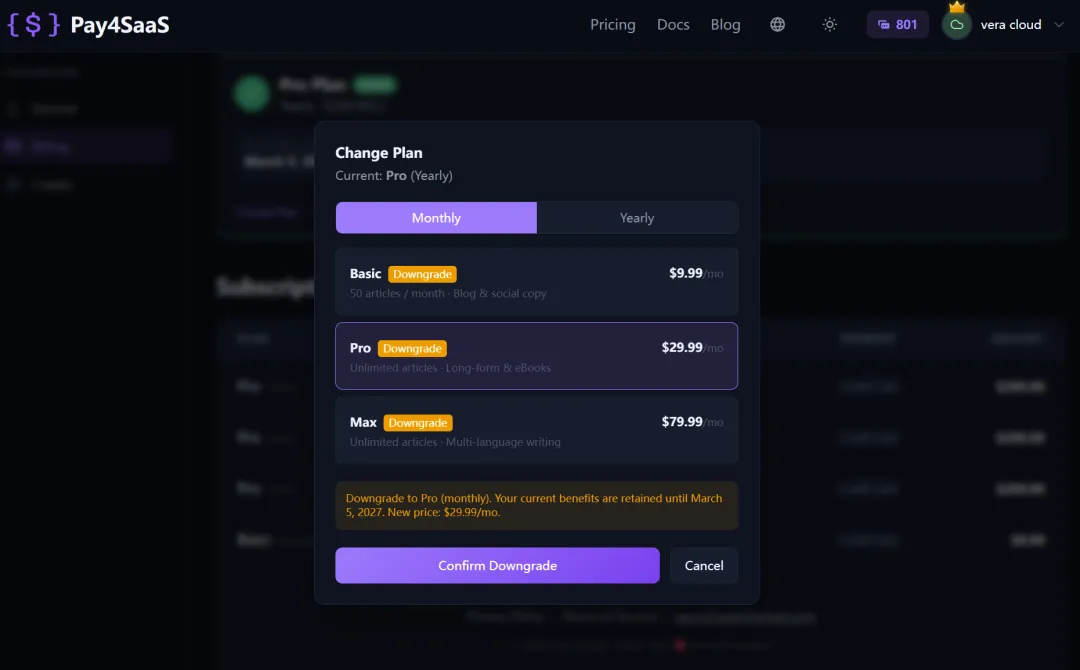
Upgrade / downgrade supported.
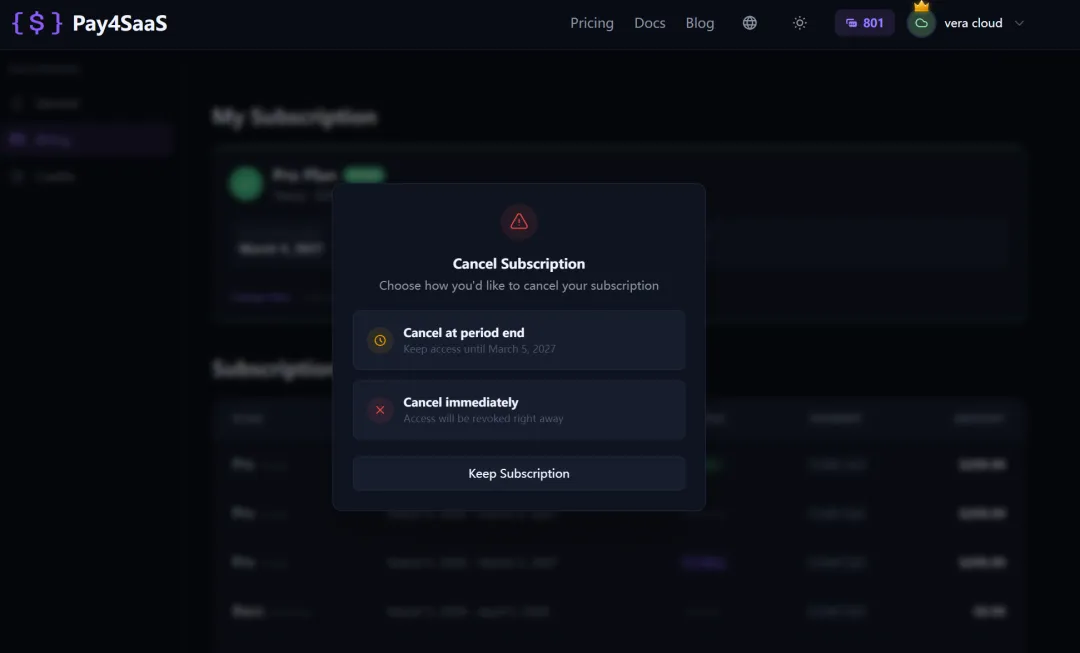
Cancellation supported.
2) Non-Subscription Products
For example:
- Credits packages.
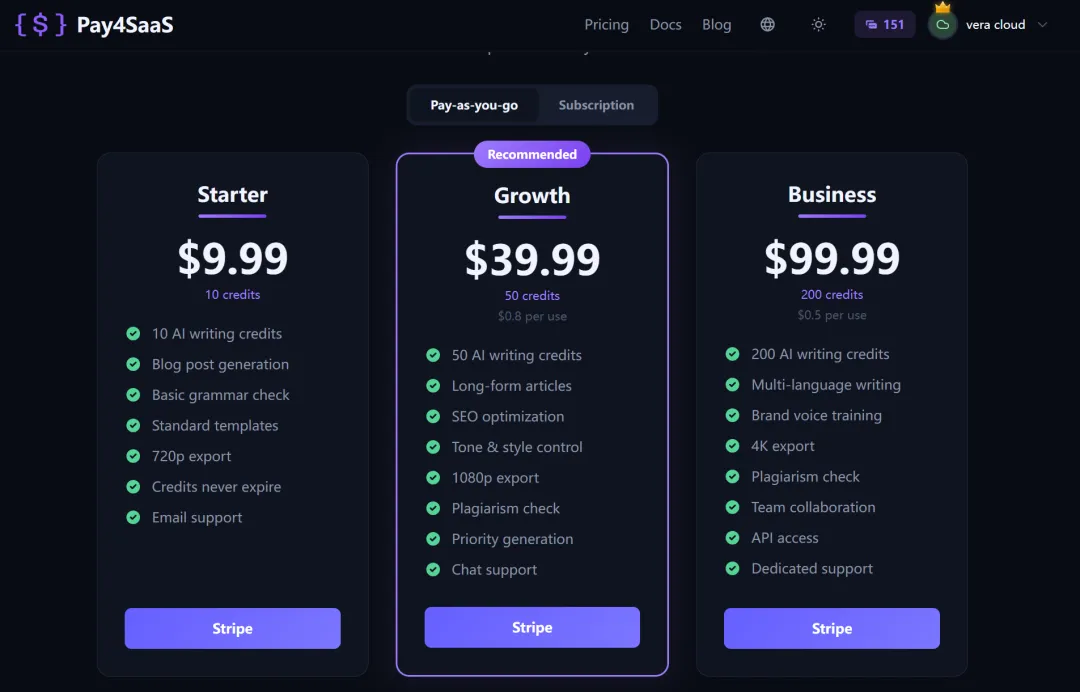
- Lifetime one-time purchases.
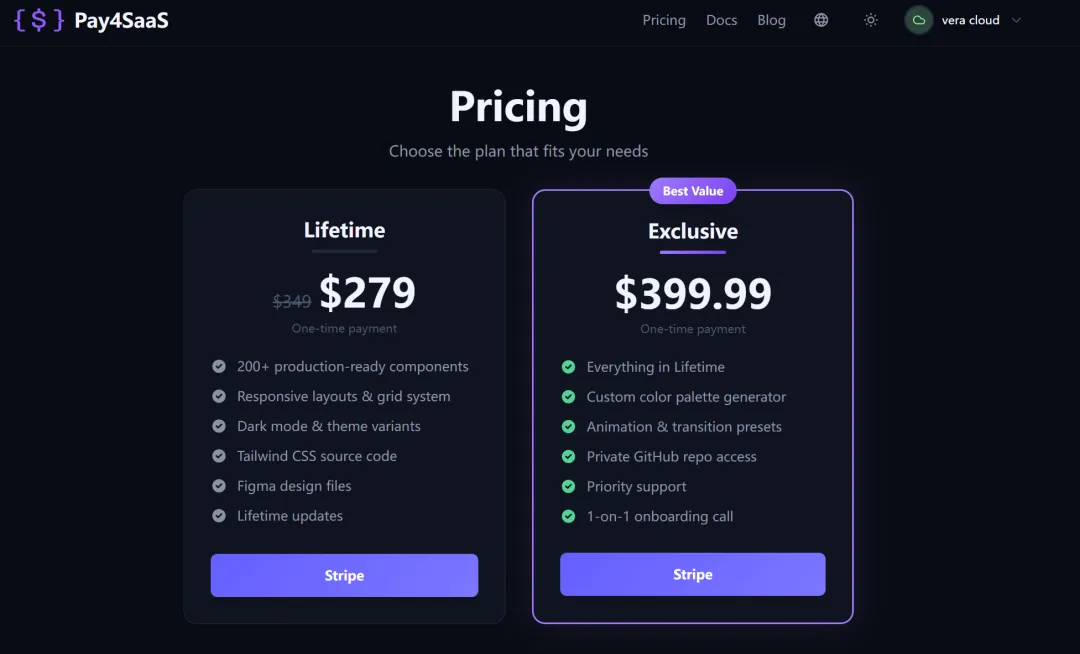
These need to be created as separate products. There's no monthly/yearly cycle — each product is its own item. The key difference when creating them is to select one-time instead of recurring. Fill in the price and select the currency.
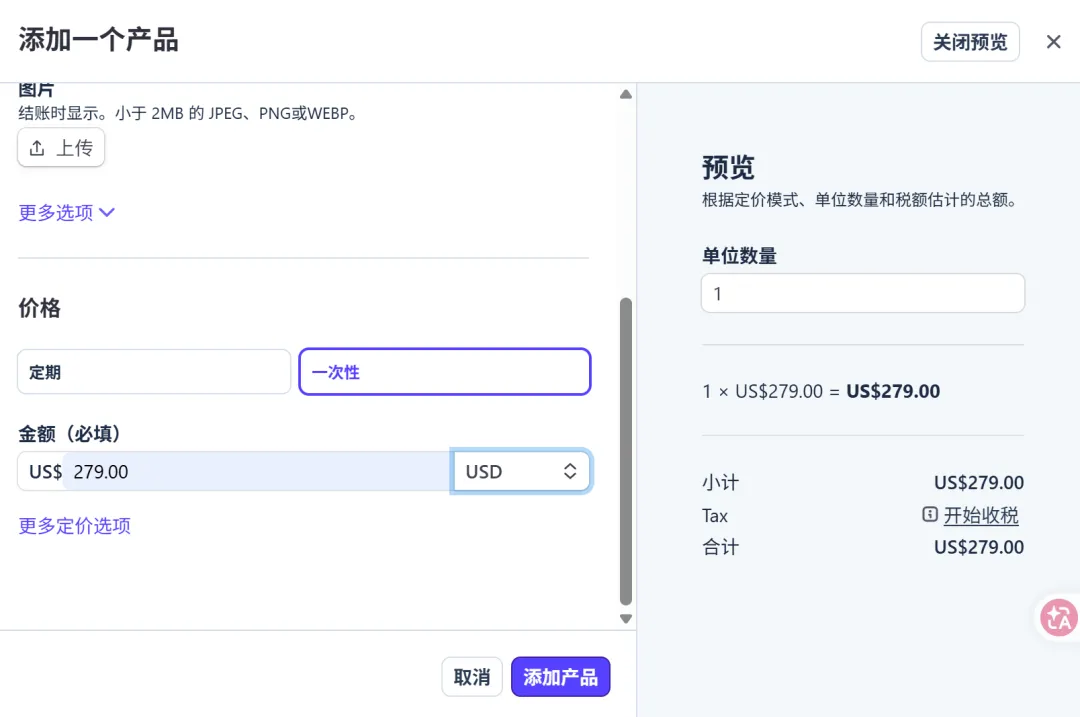
Configure them as follows:
## credits   STRIPE_CREDITS_* — the * suffix is flexible and customizable.
# Match the keys to those configured in `config/payment.ts`.
STRIPE_CREDITS_BASIC=
STRIPE_CREDITS_PRO=
STRIPE_CREDITS_MAX=

## lifetime   STRIPE_LIFETIME_* — the * suffix is flexible and customizable.
# Match the keys to those configured in `config/payment.ts`.
STRIPE_LIFETIME_STANDARD=
STRIPE_LIFETIME_EXCLUSIVE=
STRIPE_LIFETIME_XXXX=
Let's test a lifetime purchase and see how it looks.
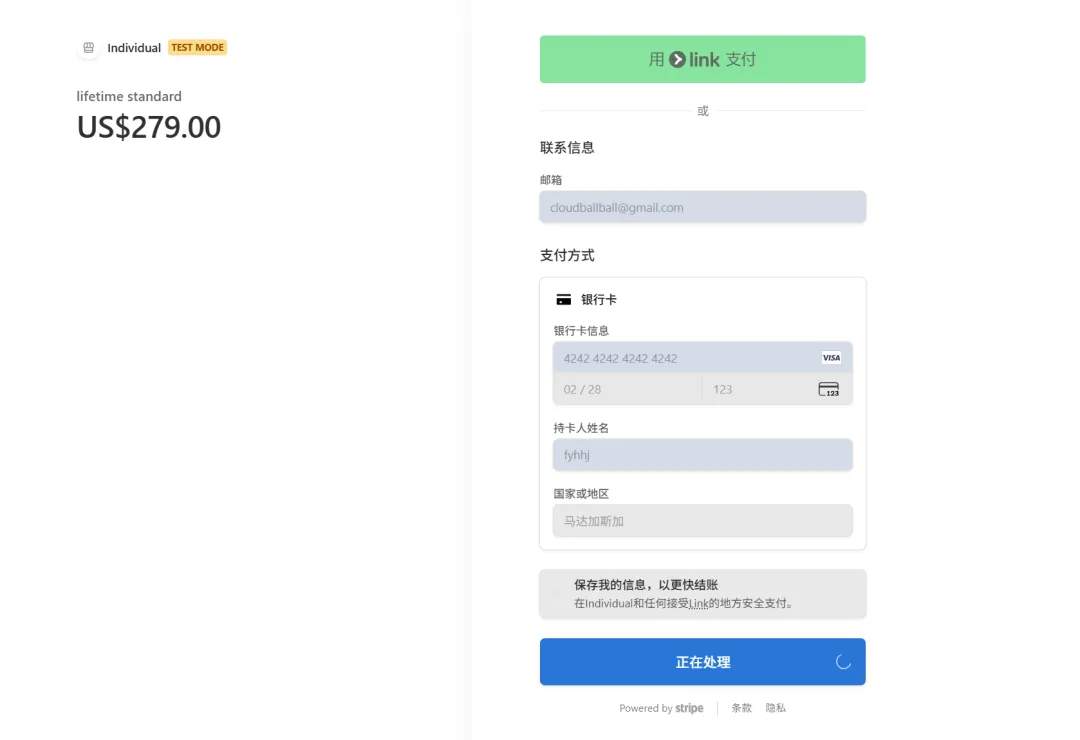
Webhook received, and the backend lifetime purchase data is in.
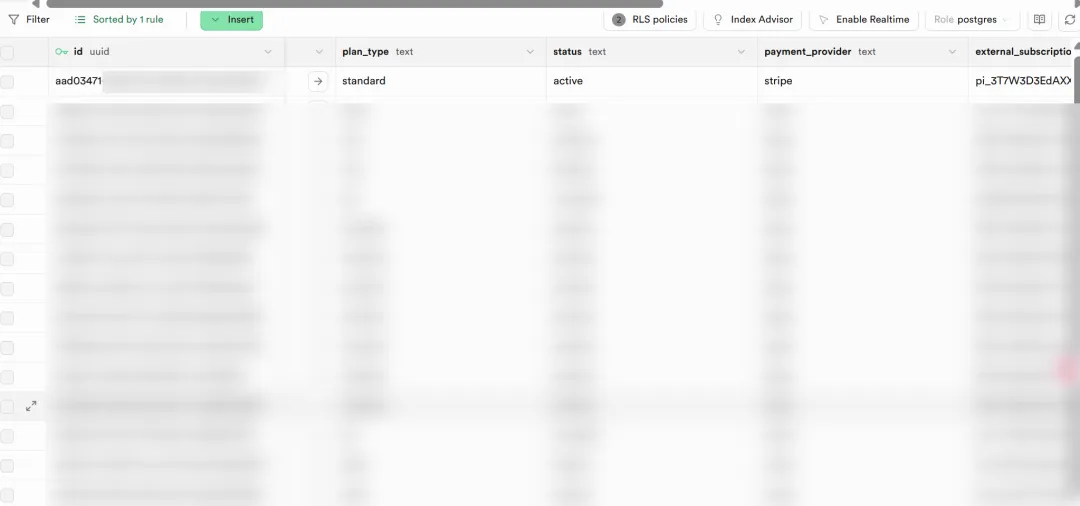
All good.