Pay4SaaS
Creem Configuration
There are 3 main parts: creating products, payment integration configuration, and submitting collection review.
01
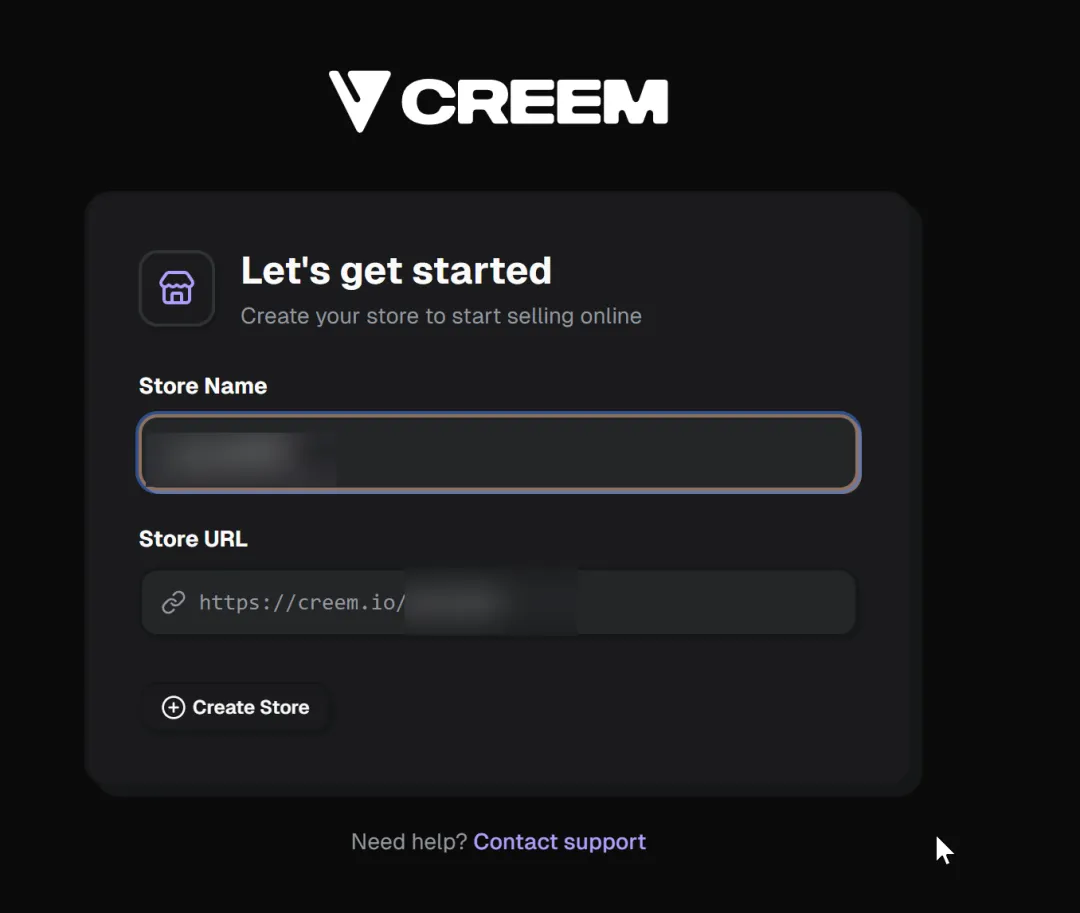
Create a store first. Website: https://www.creem.io/. After logging in, fill in the store name. I like to use camelCase naming, then create.
Create Product
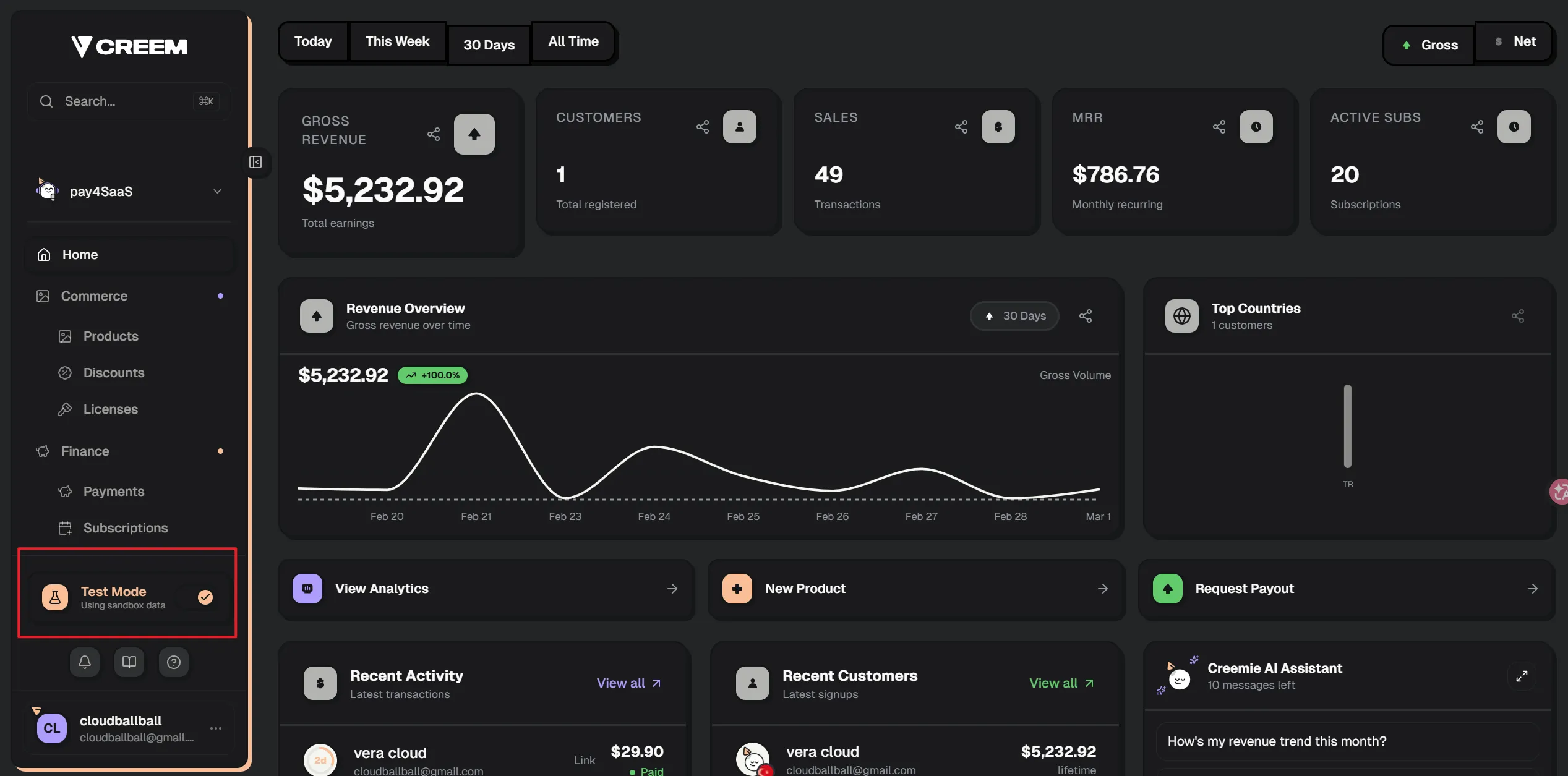
By default it's Test Mode. Before going live, uncheck it, switch to production environment, and go through this step and the next step again.
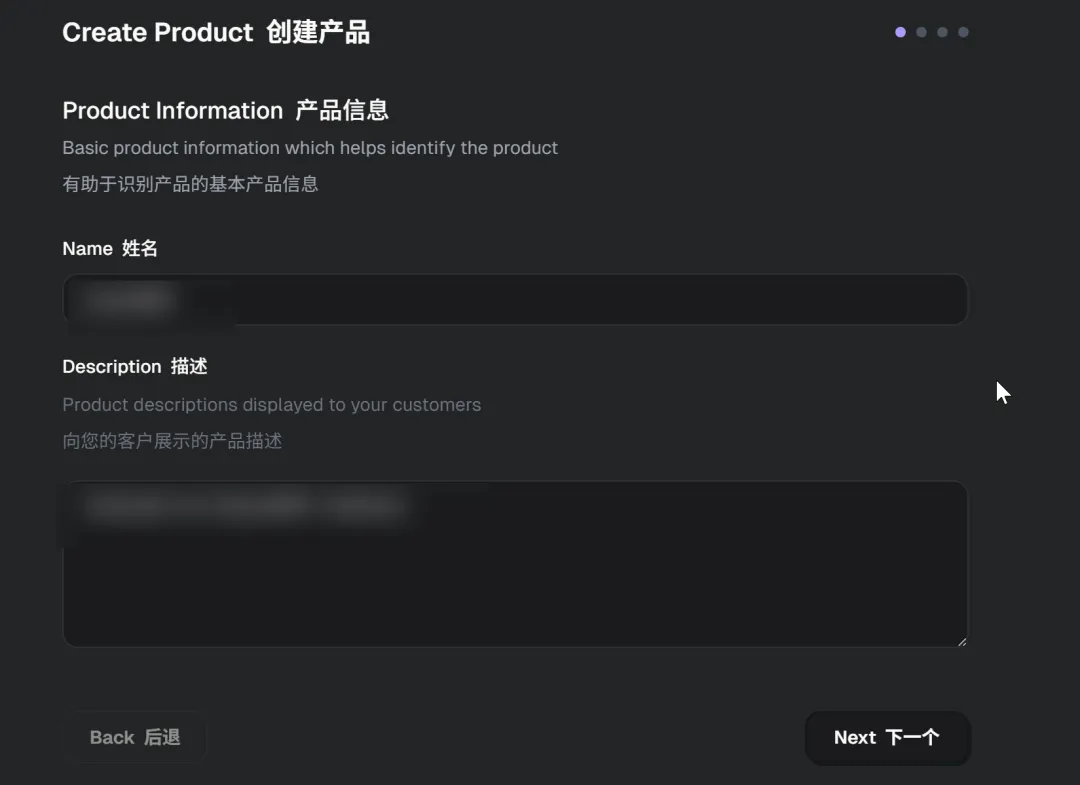
- Name: fill in the price name and price description.
- Fill in price information.
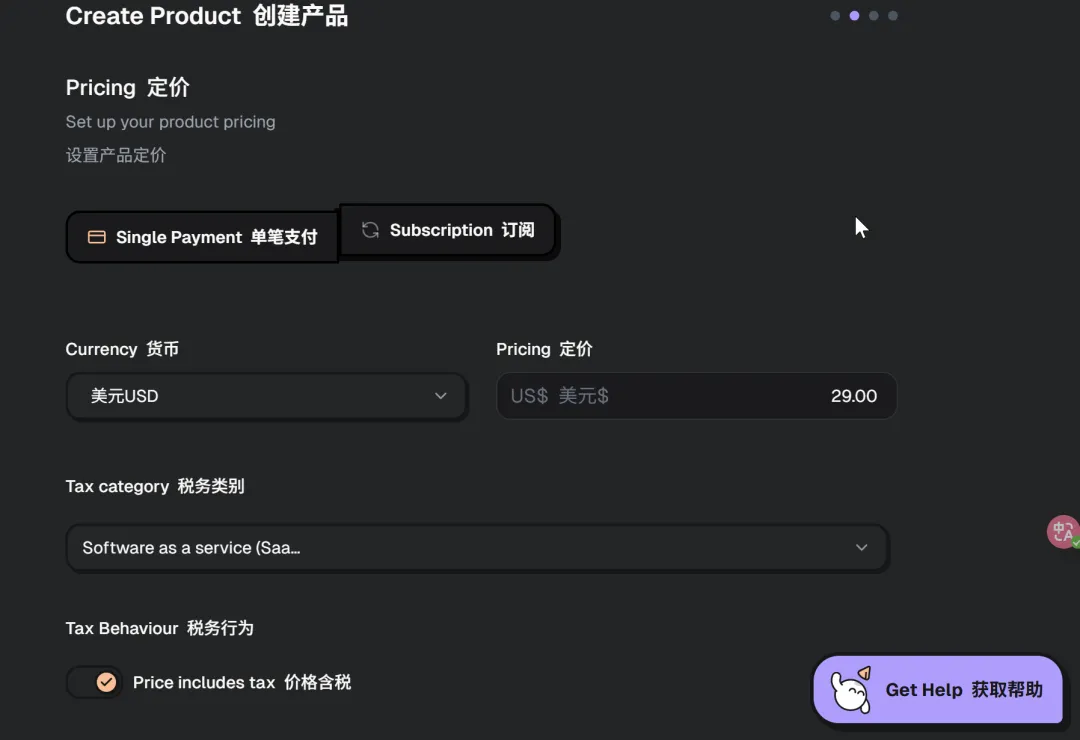
I chose one-time payment here, so I selected the first option. If you have a subscription product, choose subscription. For tax category, select SaaS. Remember to check "price includes tax" to eliminate user confusion and negative experience caused by sudden tax increases at final payment. This can greatly improve payment conversion rate and user trust, one of the best practices for SaaS pricing.
The final effect looks like this, nothing special to say about the price.
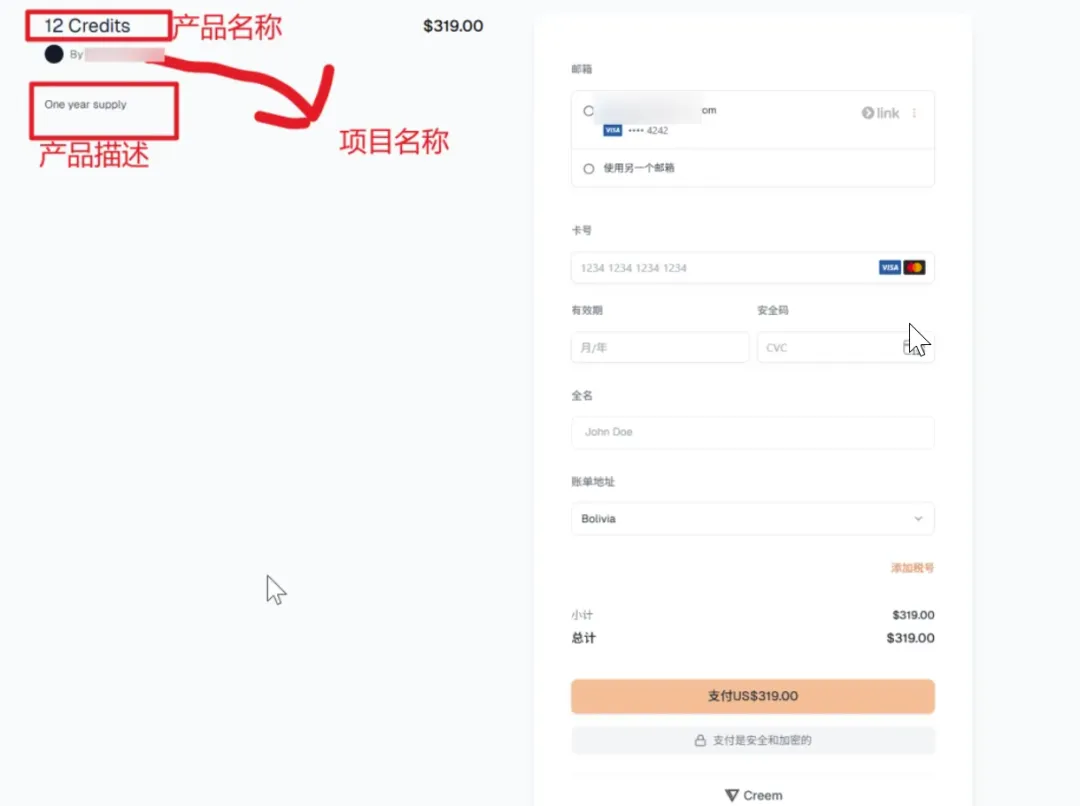
- Don't upload images for now. Get the payment logic working first, then come back to change it. No need to obsess over graphics. If uploaded, it will appear below the product description.
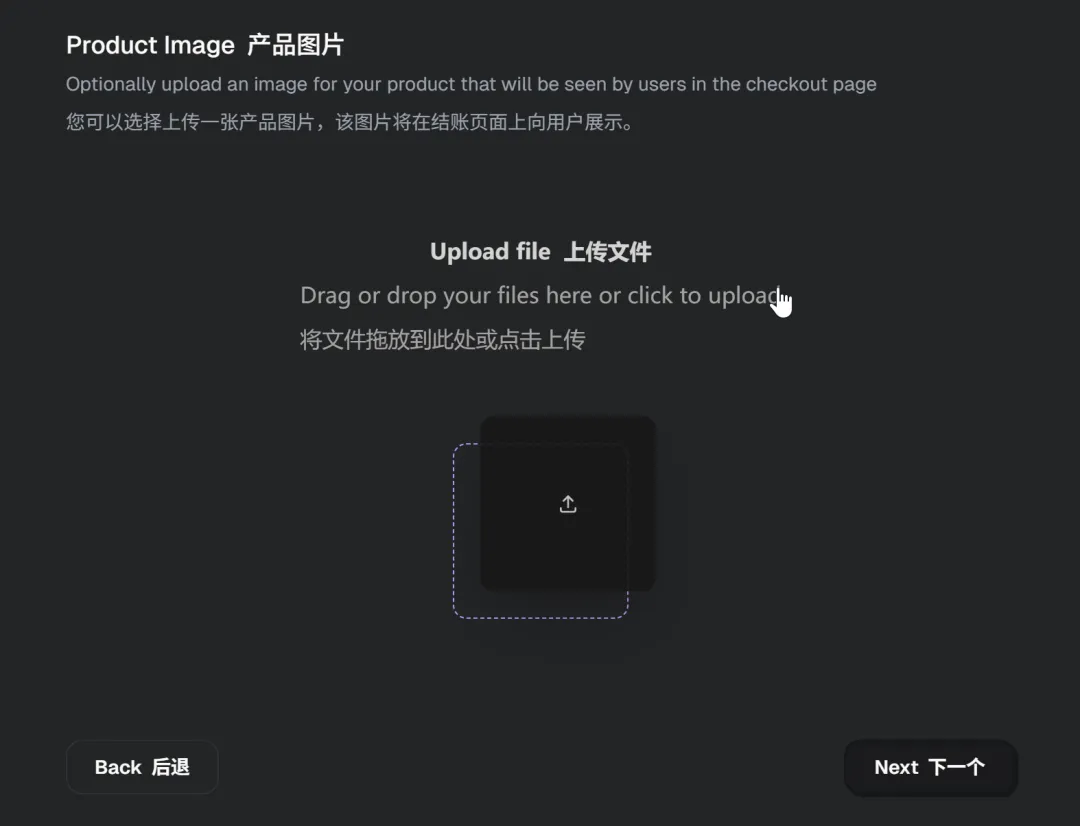
Don't select this either.
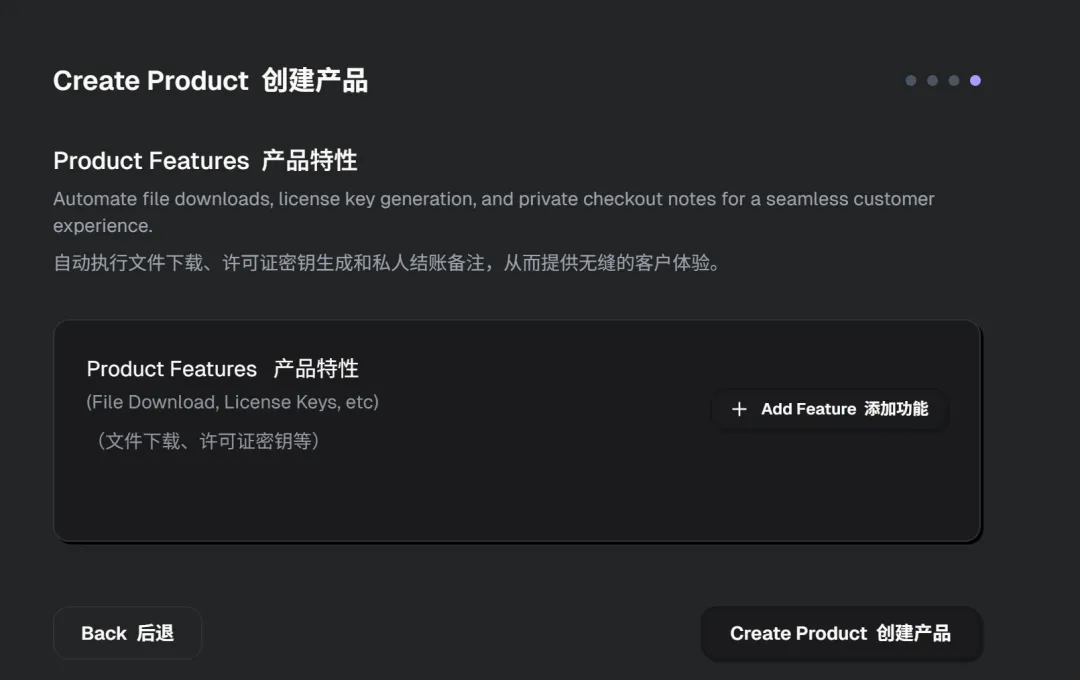
- Created successfully.
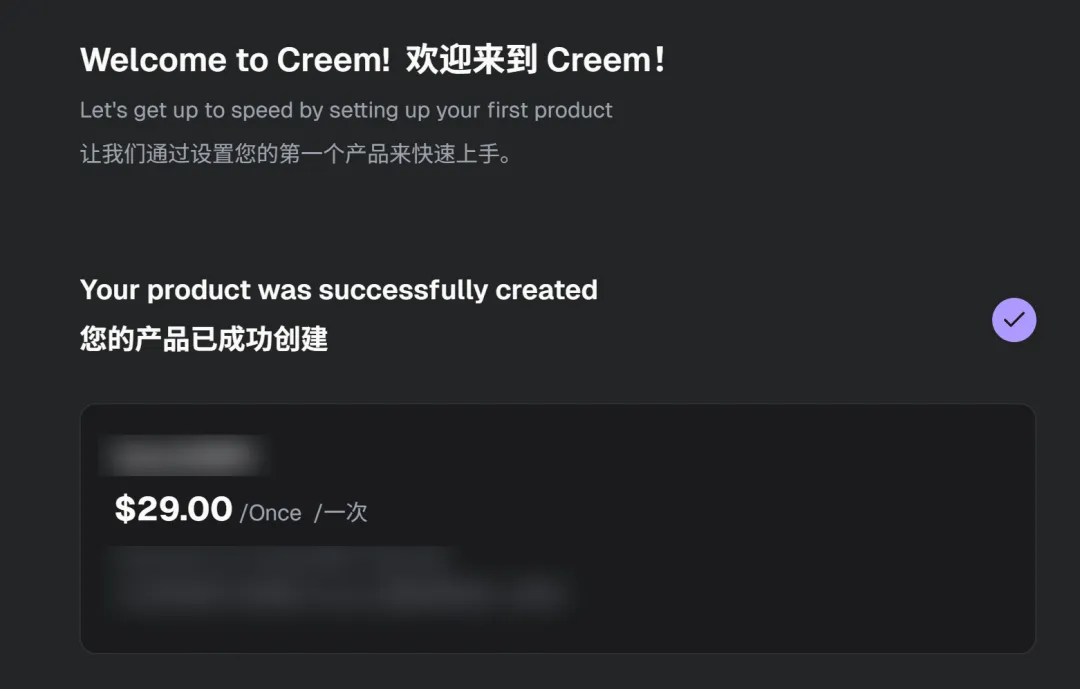
Go back to products and you can see it.
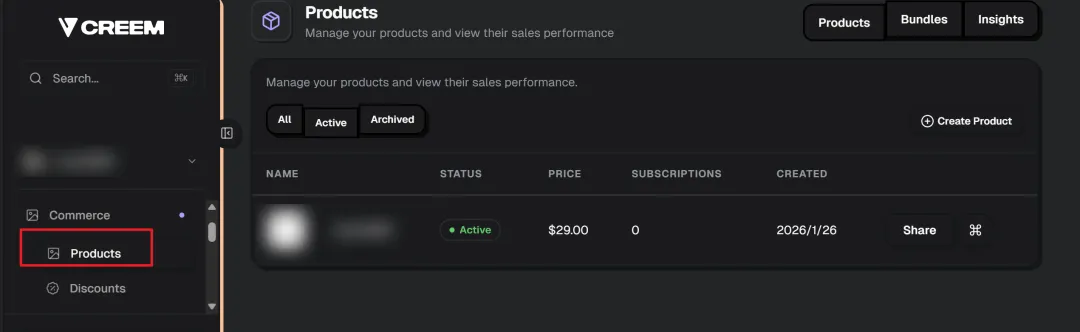
Usually there are multiple products. Click "create product" in the upper right corner to continue creating.
02
Configuration Needed for Payment Integration
Final environment variable configuration is as follows.
# creem all configuration
CREEM_API_KEY=
CREEM_WEBHOOK_SECRET=

# 4 pricing models, choose one as needed

## credits
CREEM_CREDITS_BASIC=
CREEM_CREDITS_PRO=
CREEM_CREDITS_MAX=

## subscription   subscription_unlimited/subscription_quota
CREEM_SUB_BASIC_MONTHLY=
CREEM_SUB_BASIC_YEARLY=
CREEM_SUB_PRO_MONTHLY=               ### TRIAL checkout
CREEM_SUB_NOTRIAL_PRO_MONTHLY=            ### NO TRIAL
CREEM_SUB_PRO_YEARLY=
CREEM_SUB_MAX_MONTHLY=
CREEM_SUB_MAX_YEARLY=

## lifetime
CREEM_LIFETIME_STANDARD=
CREEM_LIFETIME_EXCLUSIVE=
Let's explain them one by one.
-
CREEM_API_KEY, API Key, go to https://www.creem.io/dashboard/developers, click the eye icon and copy.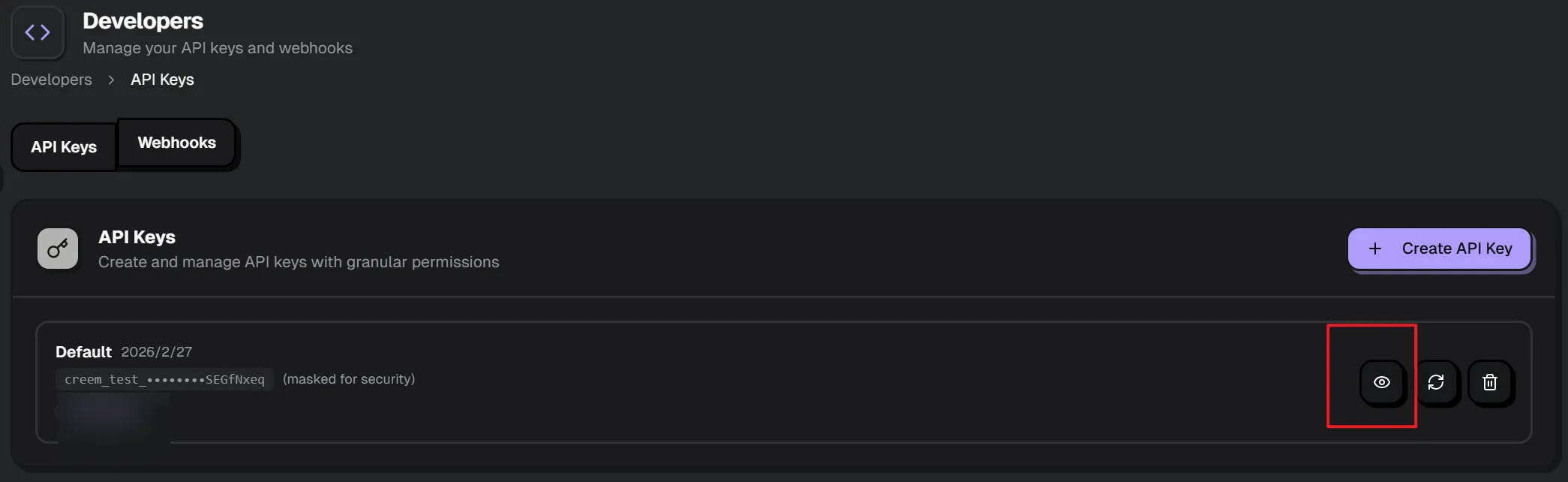
-
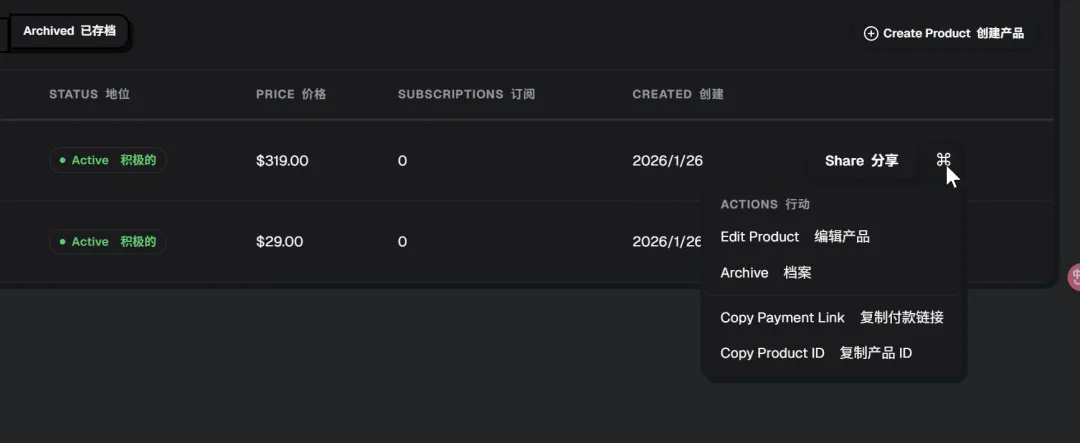
Product IDs are in the product list. I need to remind you that if you modify a product after submitting it, the ID will change. Remember to update the ID in the environment variables promptly.
-
CREEM_WEBHOOK_SECRET, webhook secret, is a shared key used for "identity verification" to prevent others from pretending to be the platform sending you callbacks.
How to generate webhook secret in local environment? You'll need ngrok — detailed steps are covered in the Webhook docs. Then, find this and start creating.
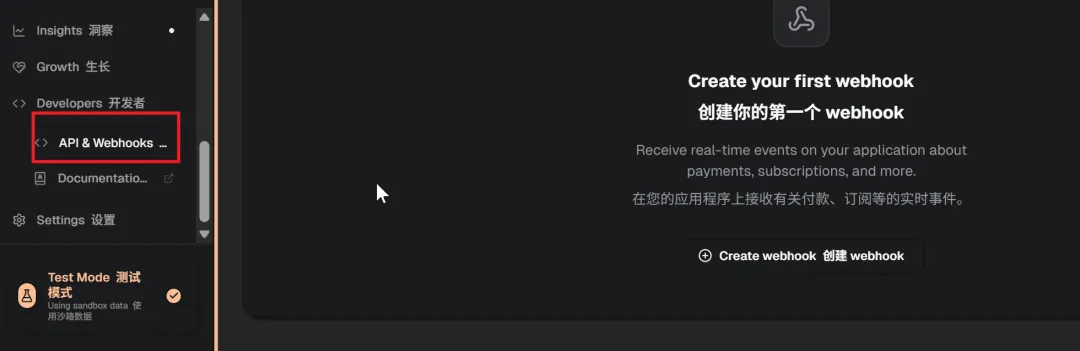
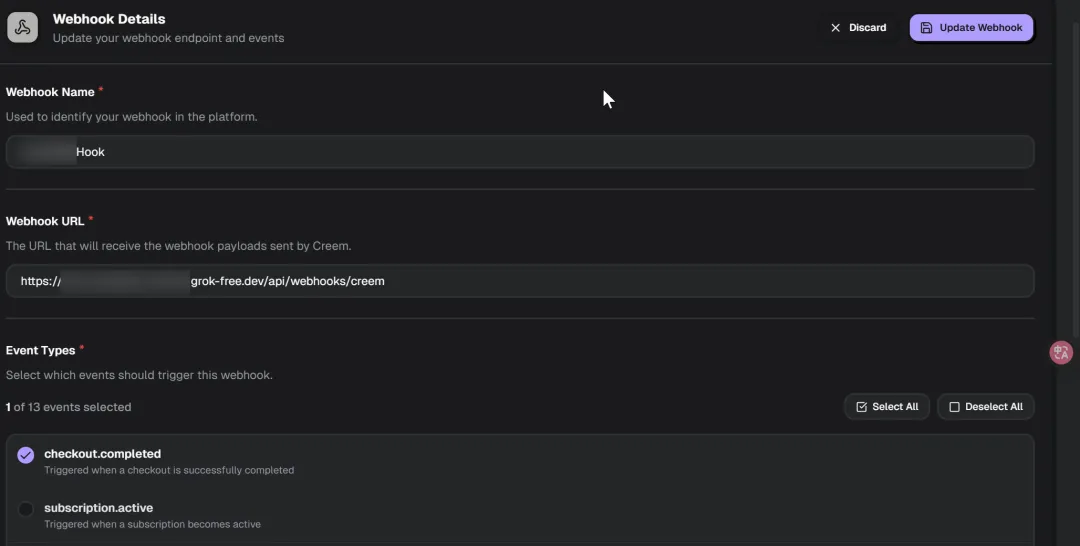
Name it using domain + hook, like Pay4SaaS hook. The URL is the just-generated tunnel address + ngrok domain + /api/webhooks/creem. For the production address version of the project: https://yourdomain.com/api/webhooks/creem.
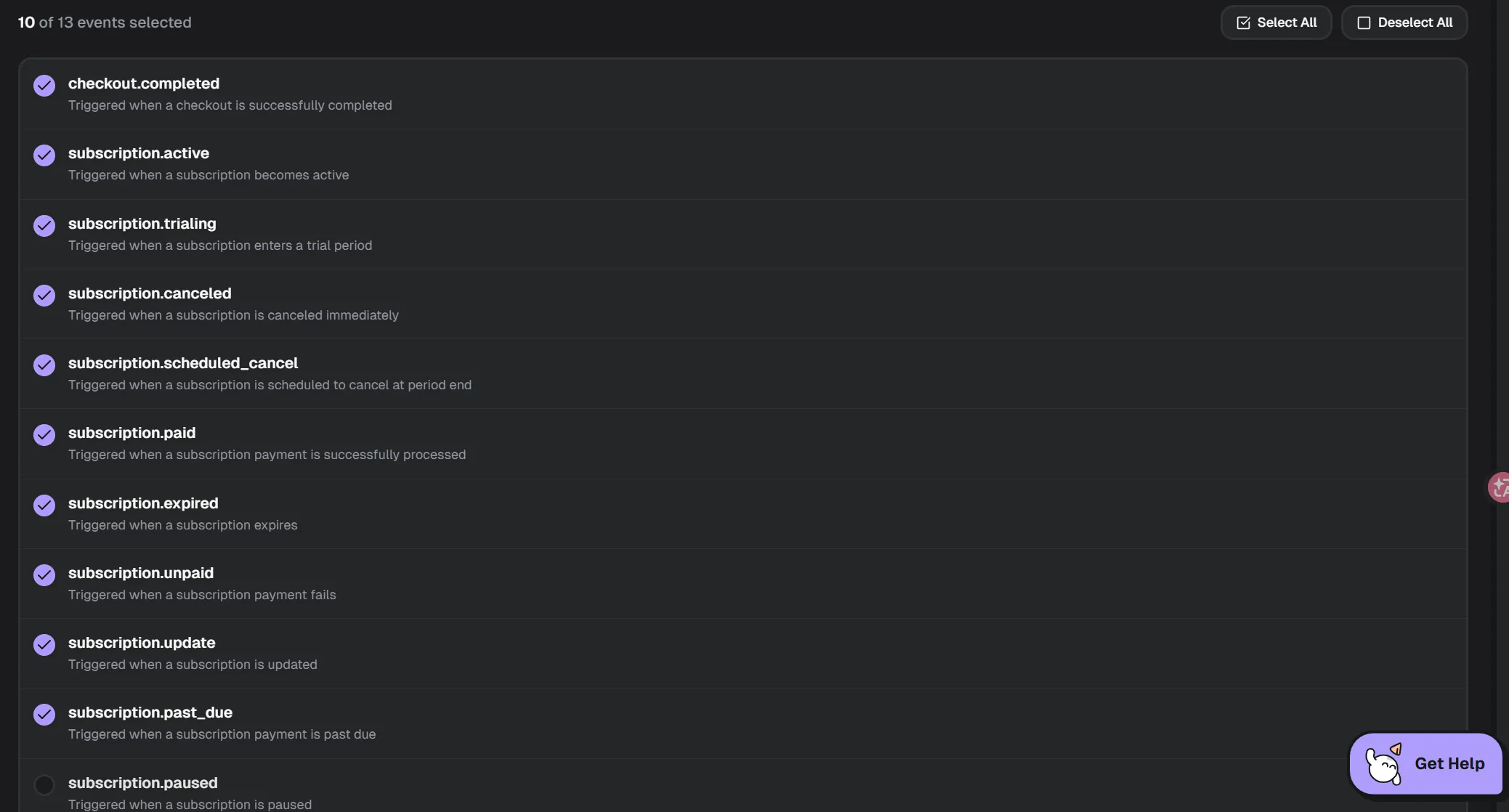
These 10 events are enough.
After saving, open it and you'll see the sign secret. Write it in CREEM_WEBHOOK_SECRET.

03
Submit Collection Account for Review
That is, setting up payment collection.
- Find Balance.
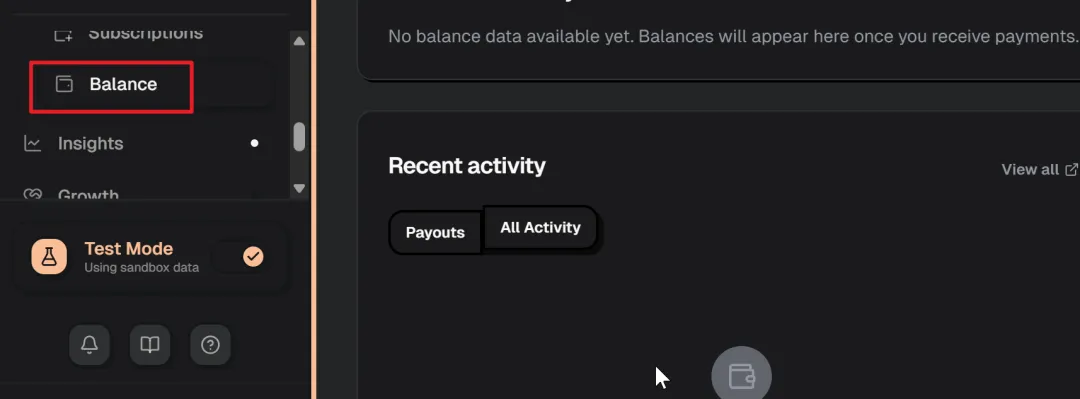
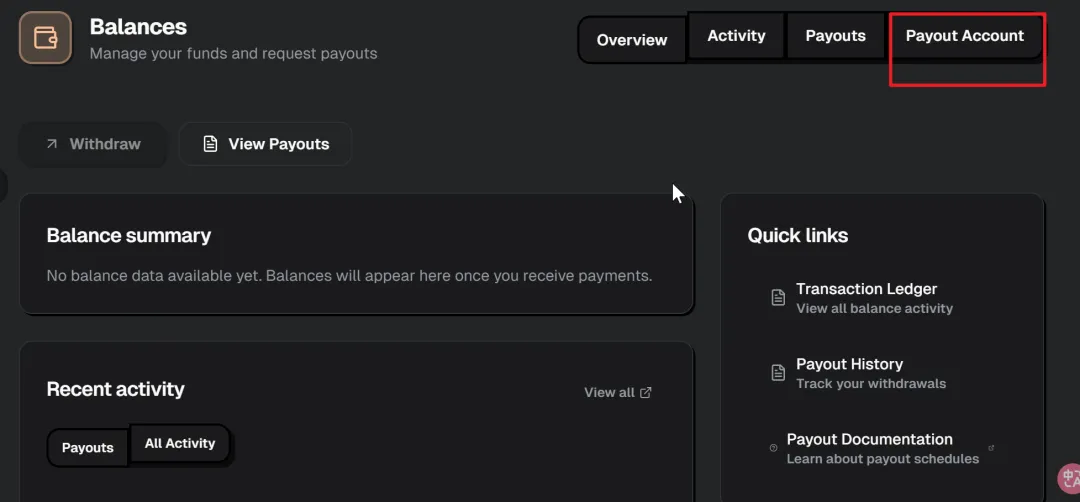
- Click Payout accounts.
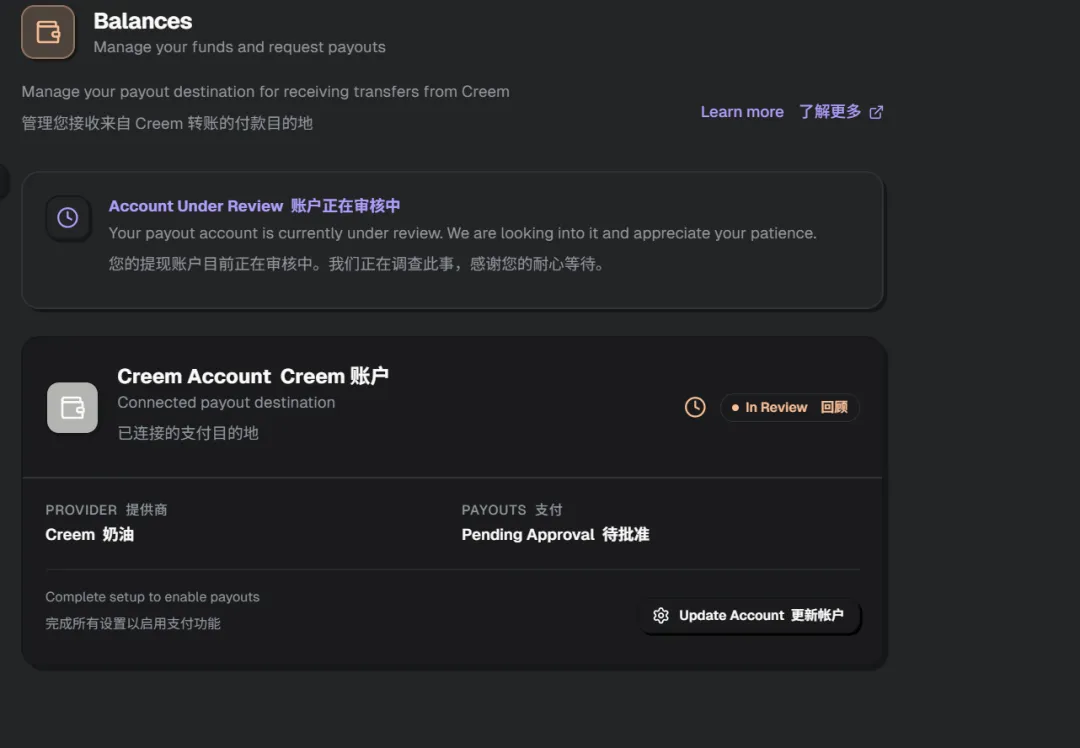
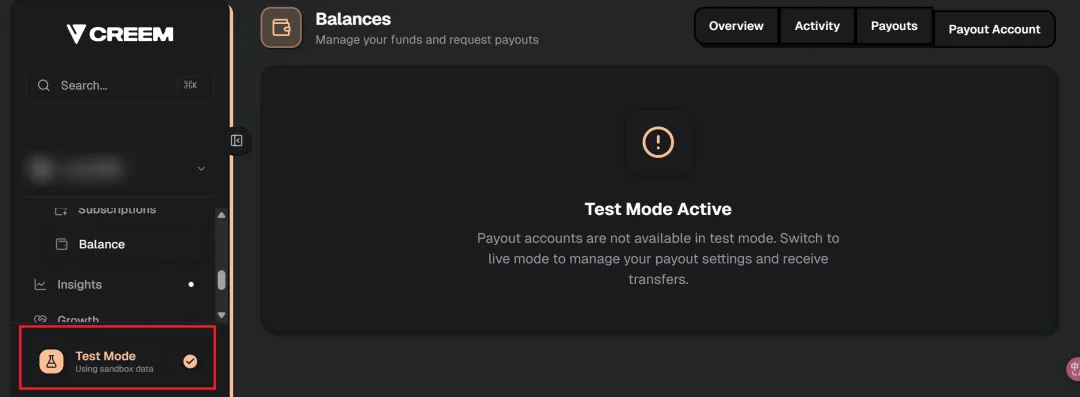
If this appears, it means you're in test environment. Turn off the mode on the left.
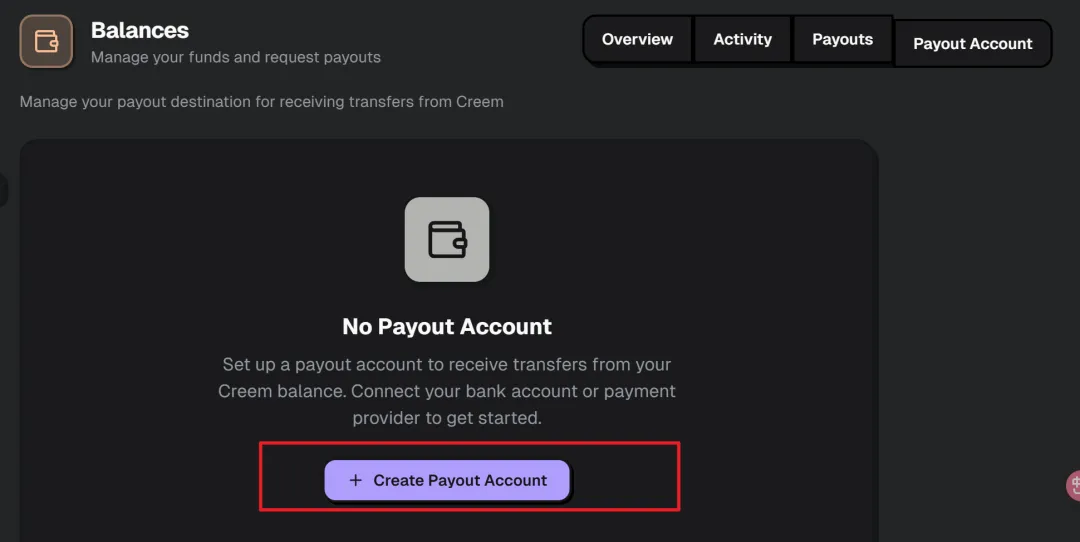
Then you can create a payout account.
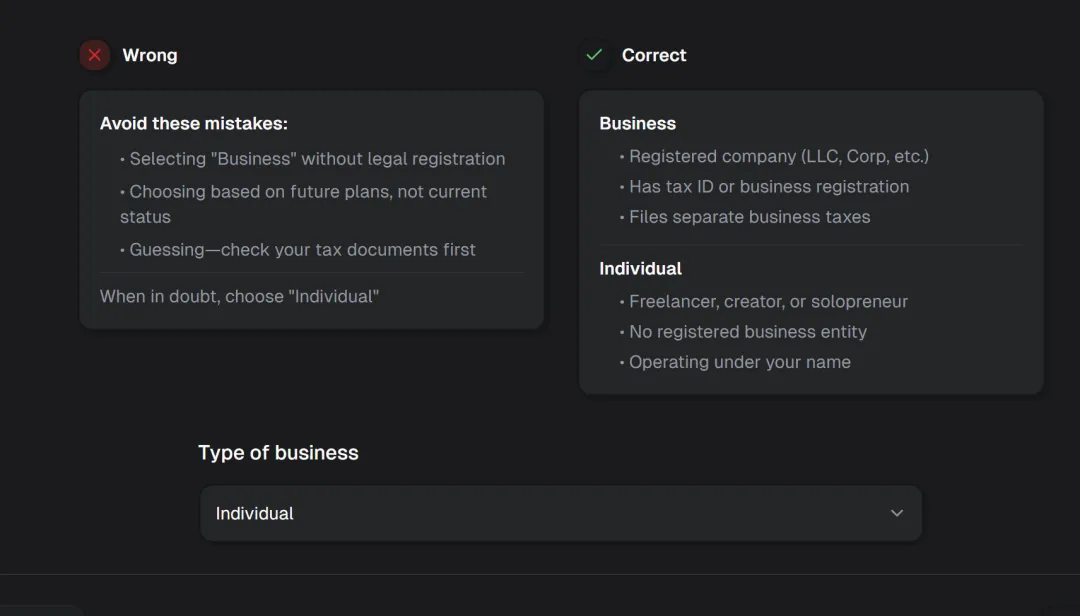
- I chose individual because I don't have a registered company.
- For tax purposes, I chose China.
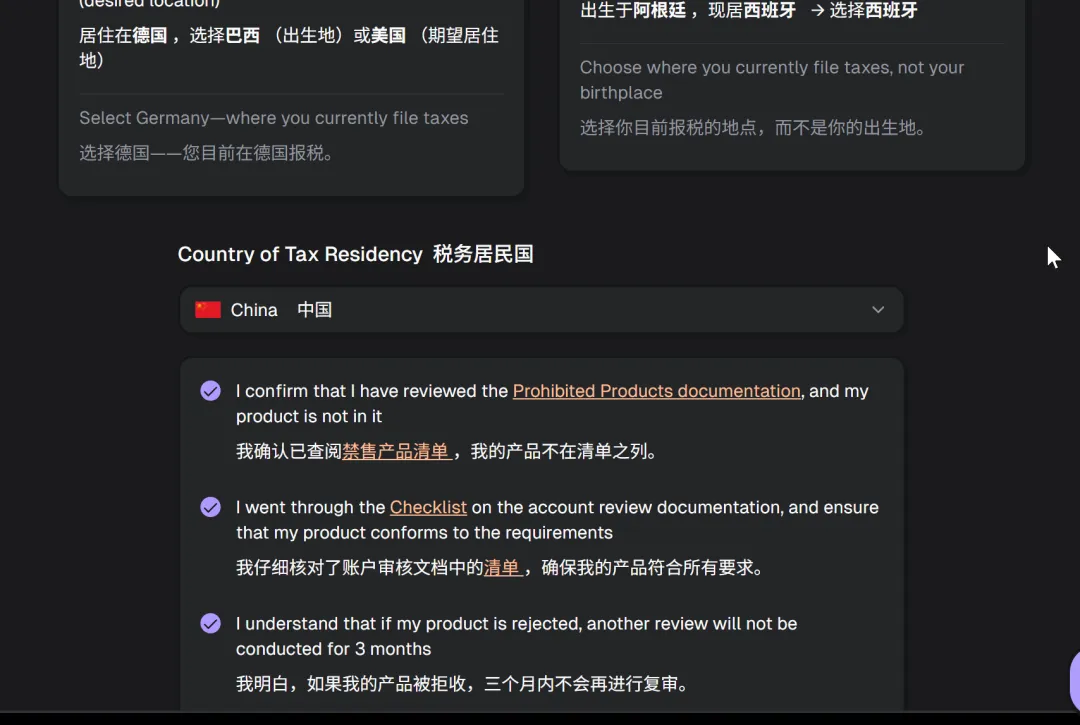
- Check website situation.
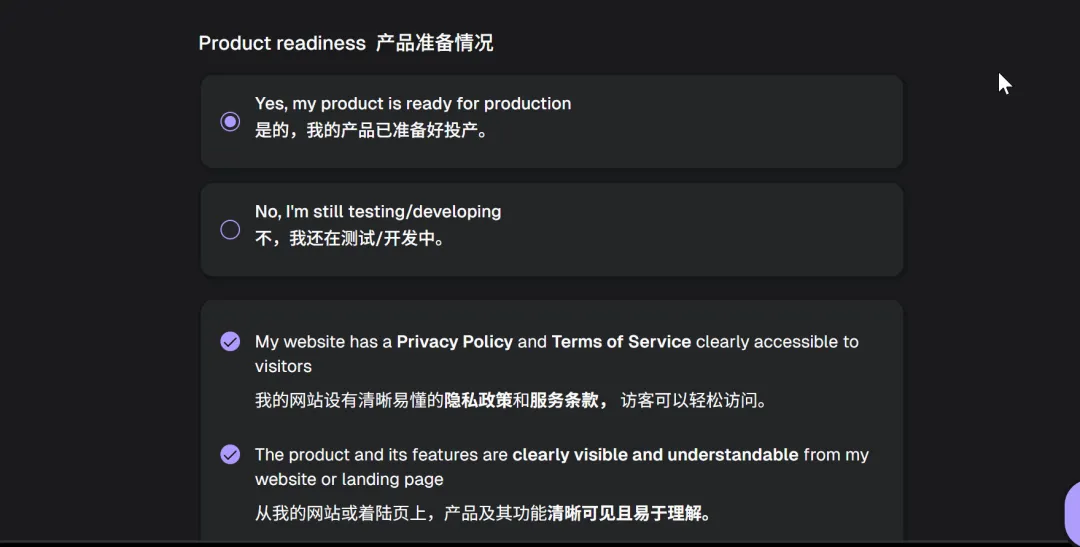
- Fill in information truthfully.
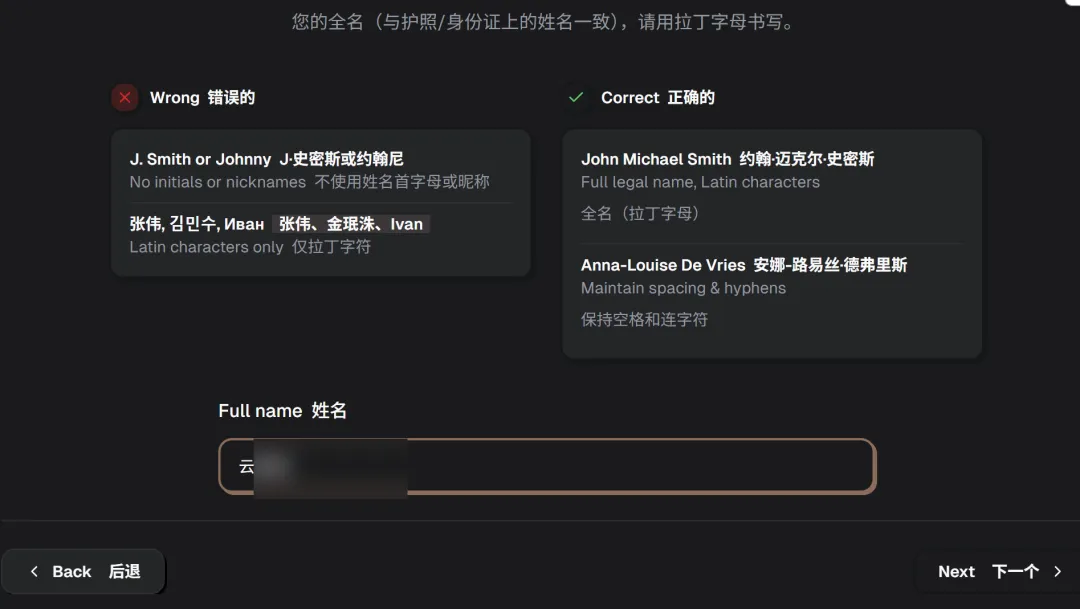
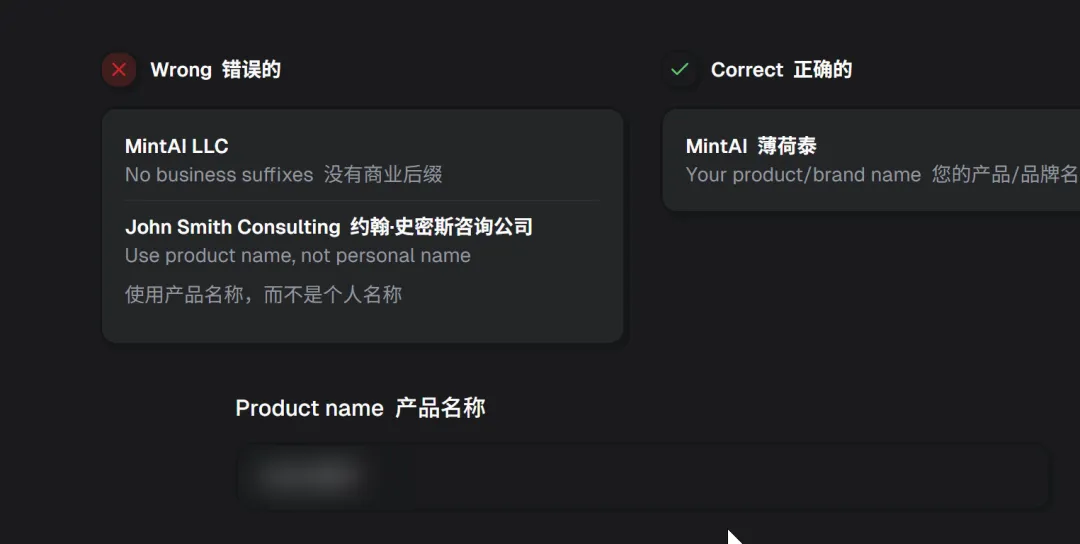
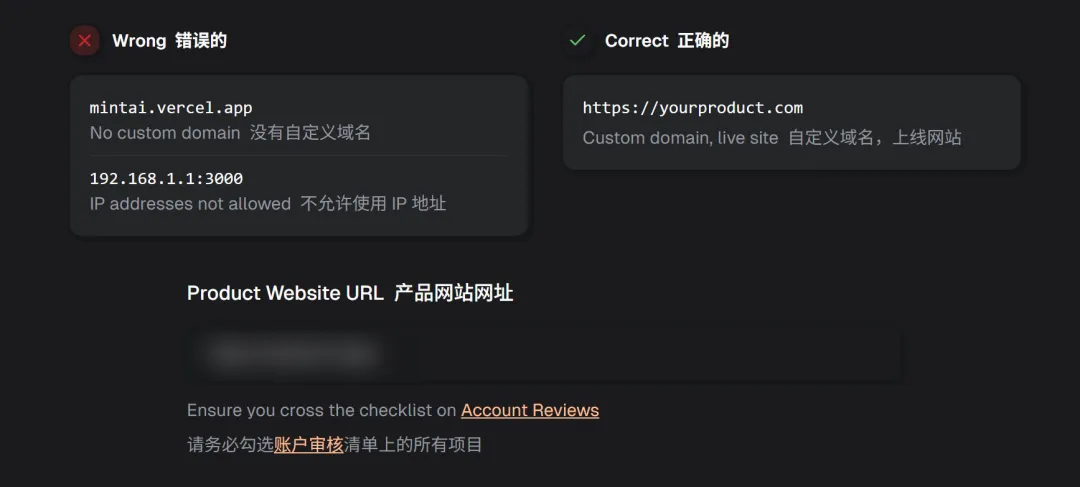
Let me mention this: check if the website is fully prepared. Actually, if you've written everything carefully before, this will almost always pass. Don't click account review in this popup, or you'll have to redo everything you just filled in. Open the checklist below in a new tab.
Reference checklist: https://docs.creem.io/merchant-of-record/account-reviews/account-reviews
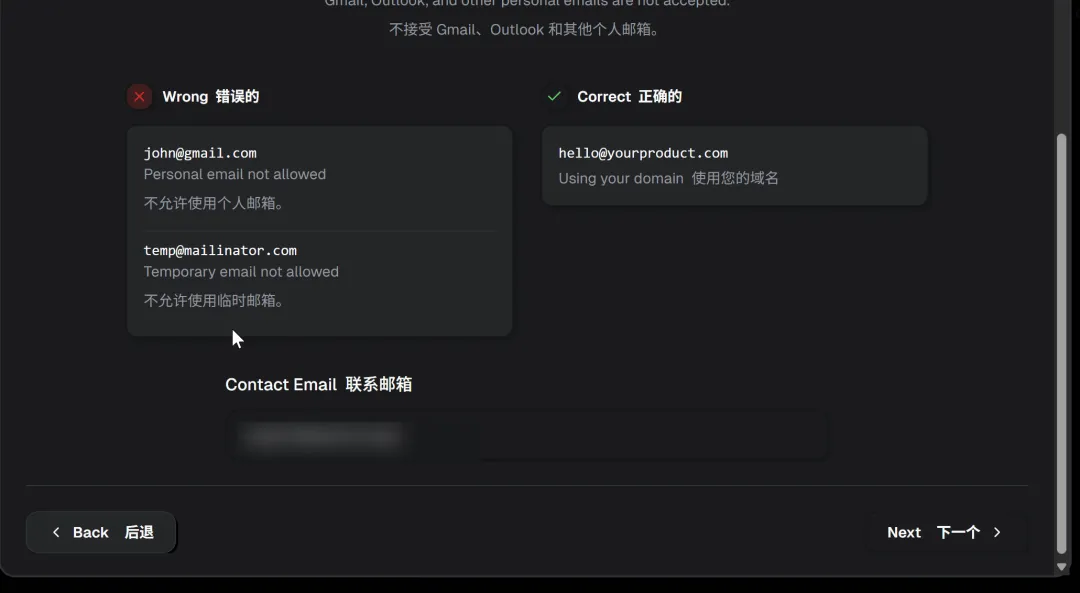
Email.
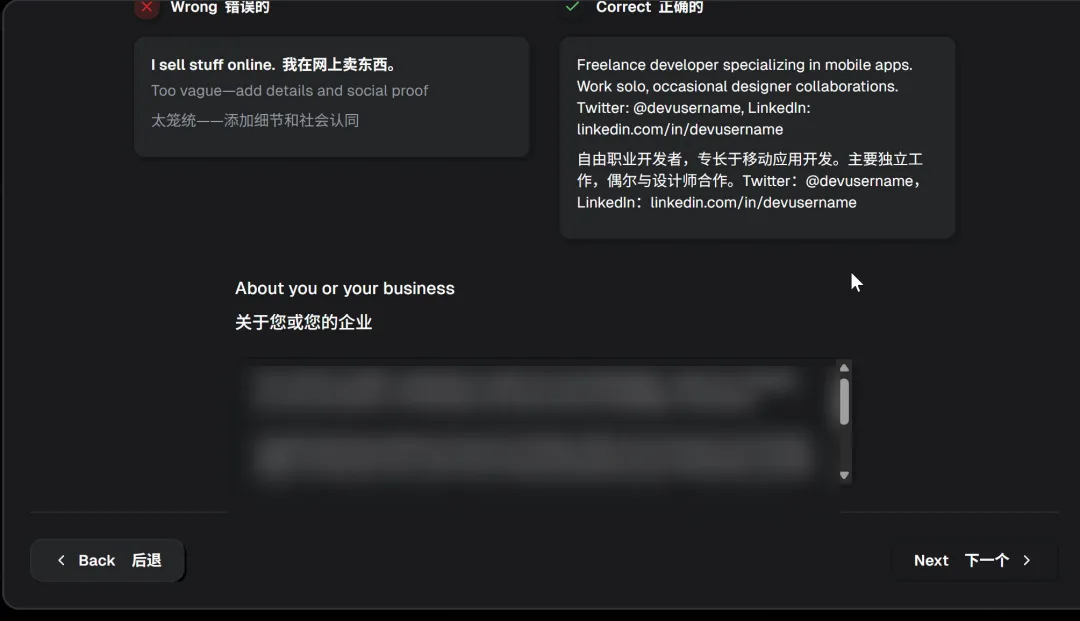
Introduce yourself.
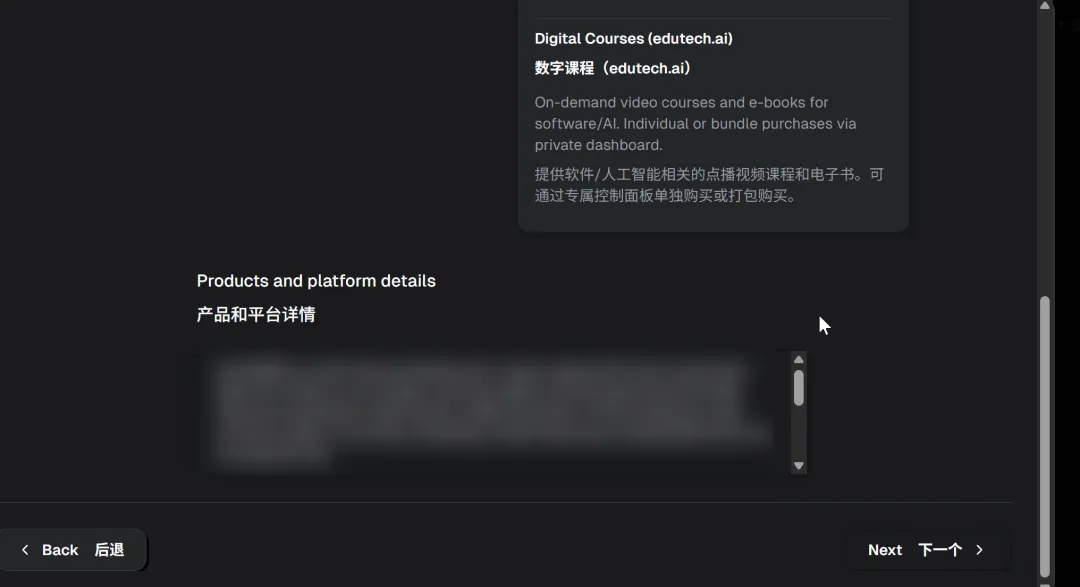
Product description, this is from the background of the requirements document.
Compliance tools, check all.
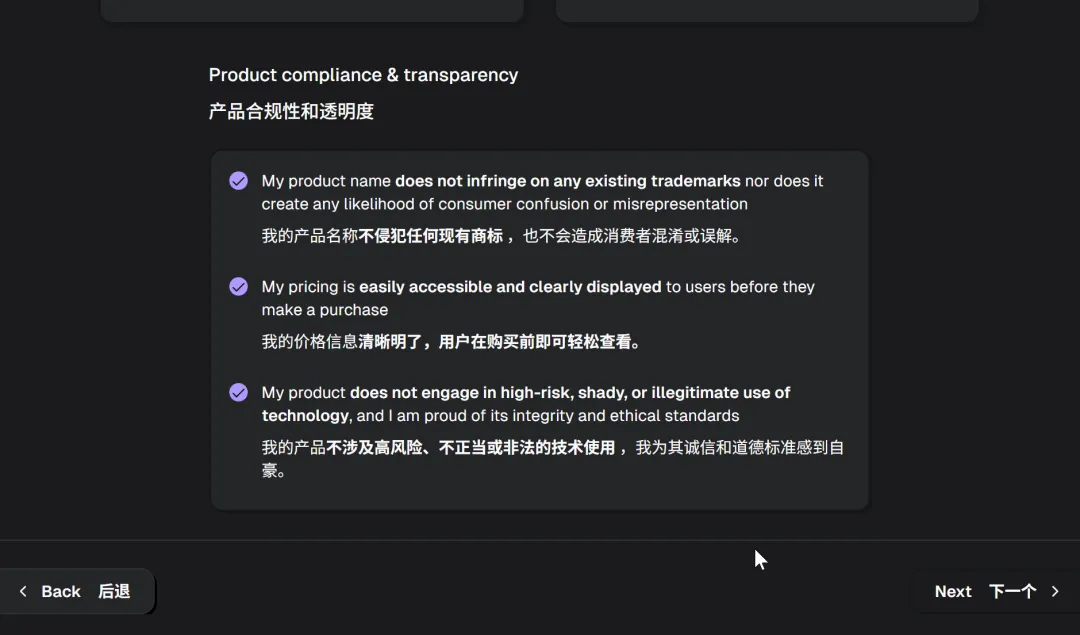
Just getting started.
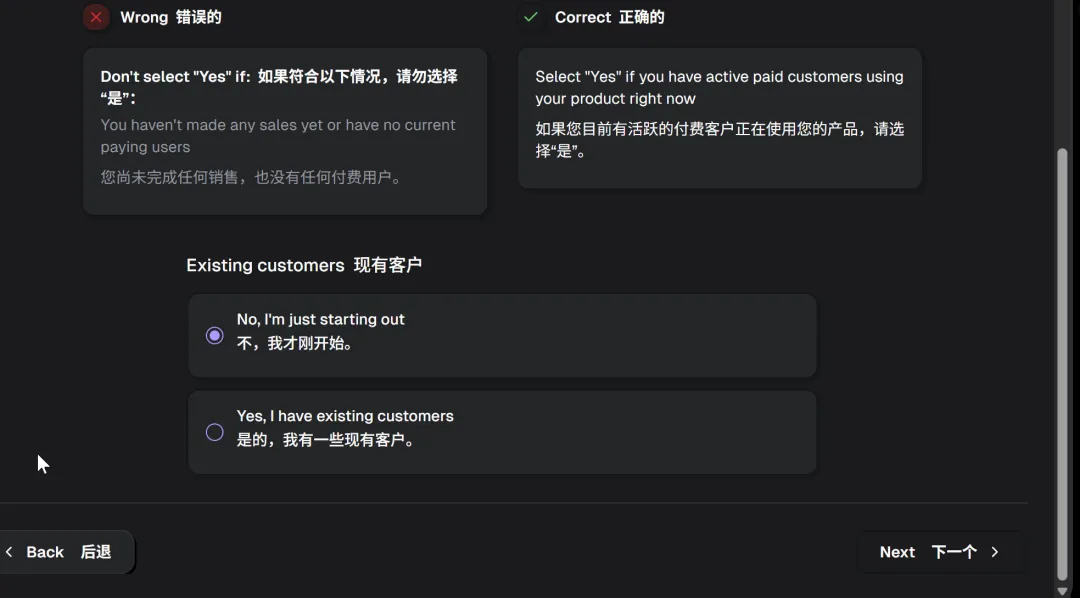
Check truthfully.
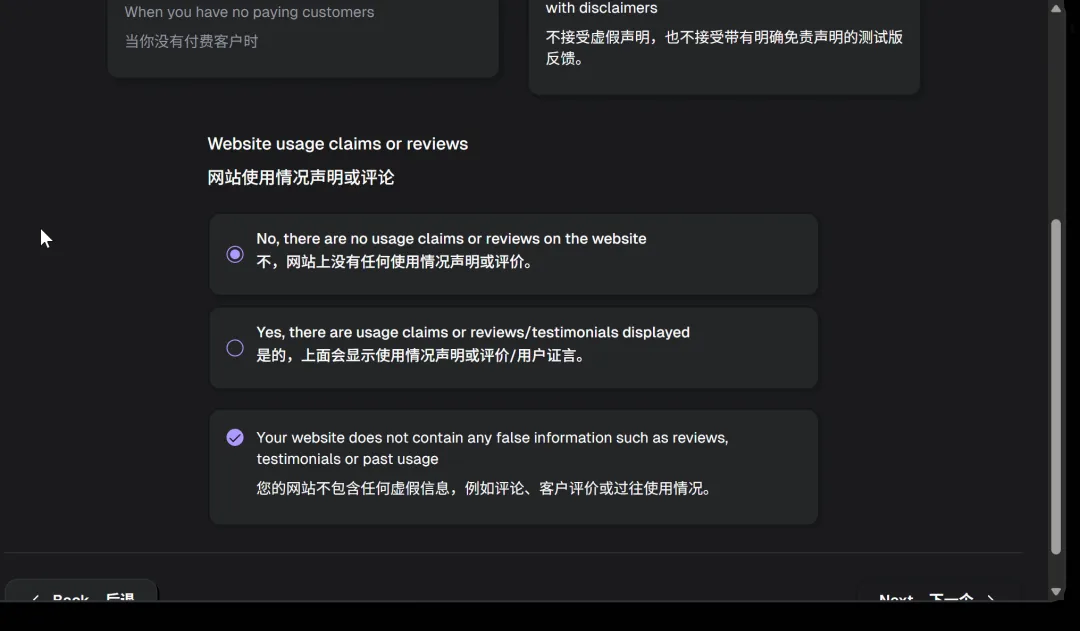
My website is non-AI.
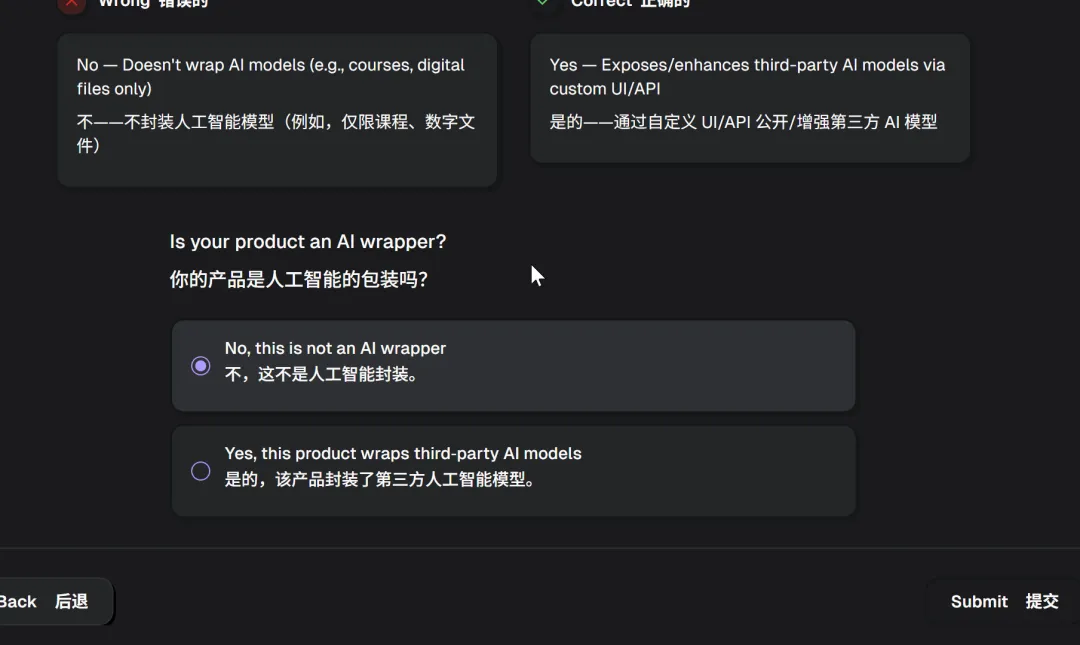
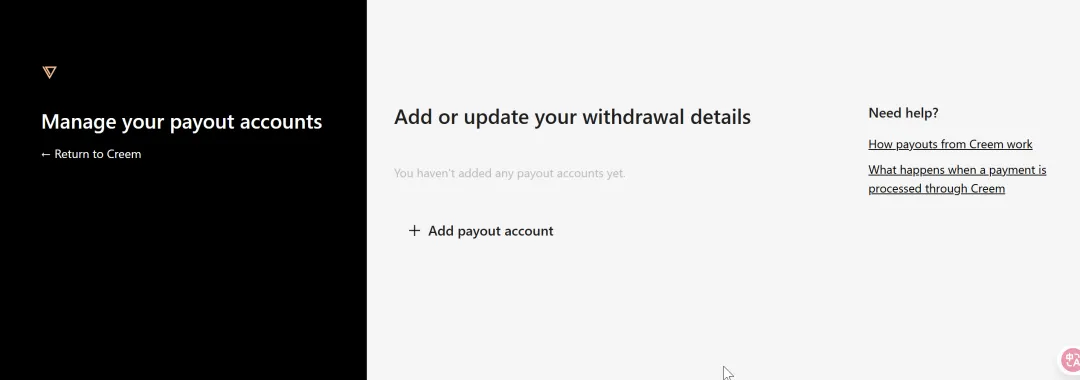
- Add collection account.
Add.
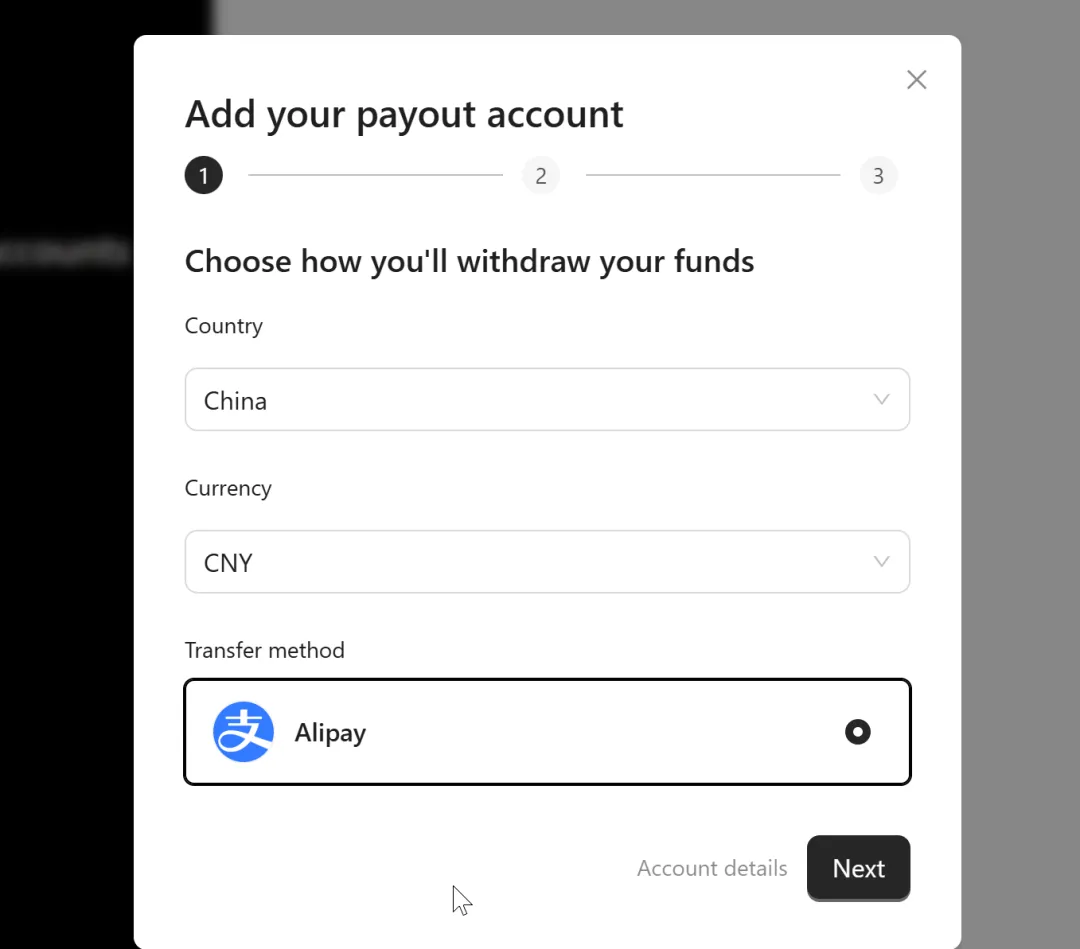
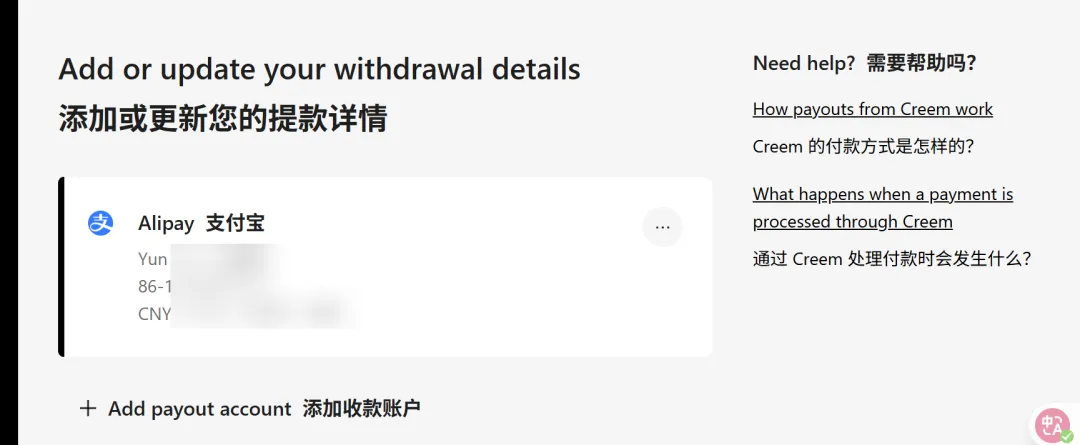
I chose Alipay.
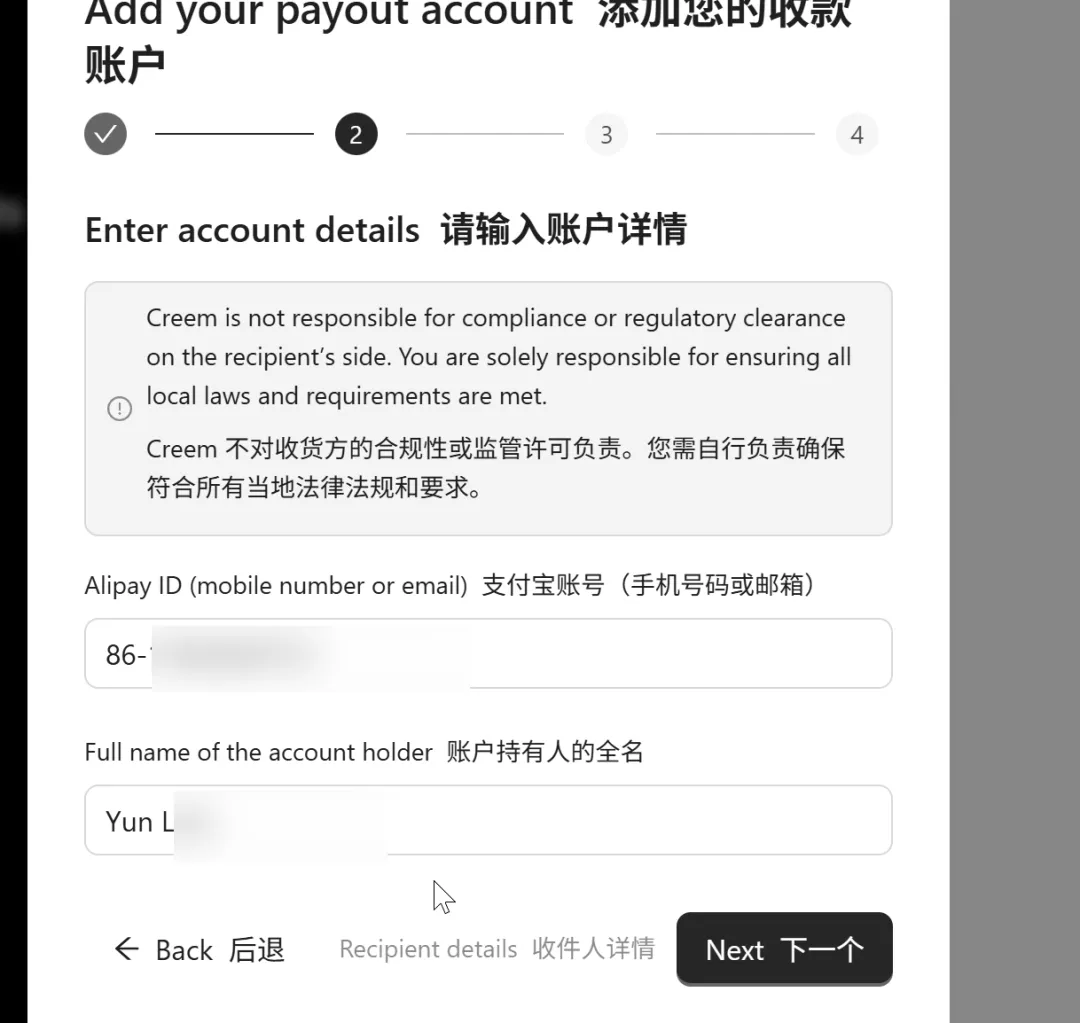
The name should be in English, all caps, last name + space + first name.
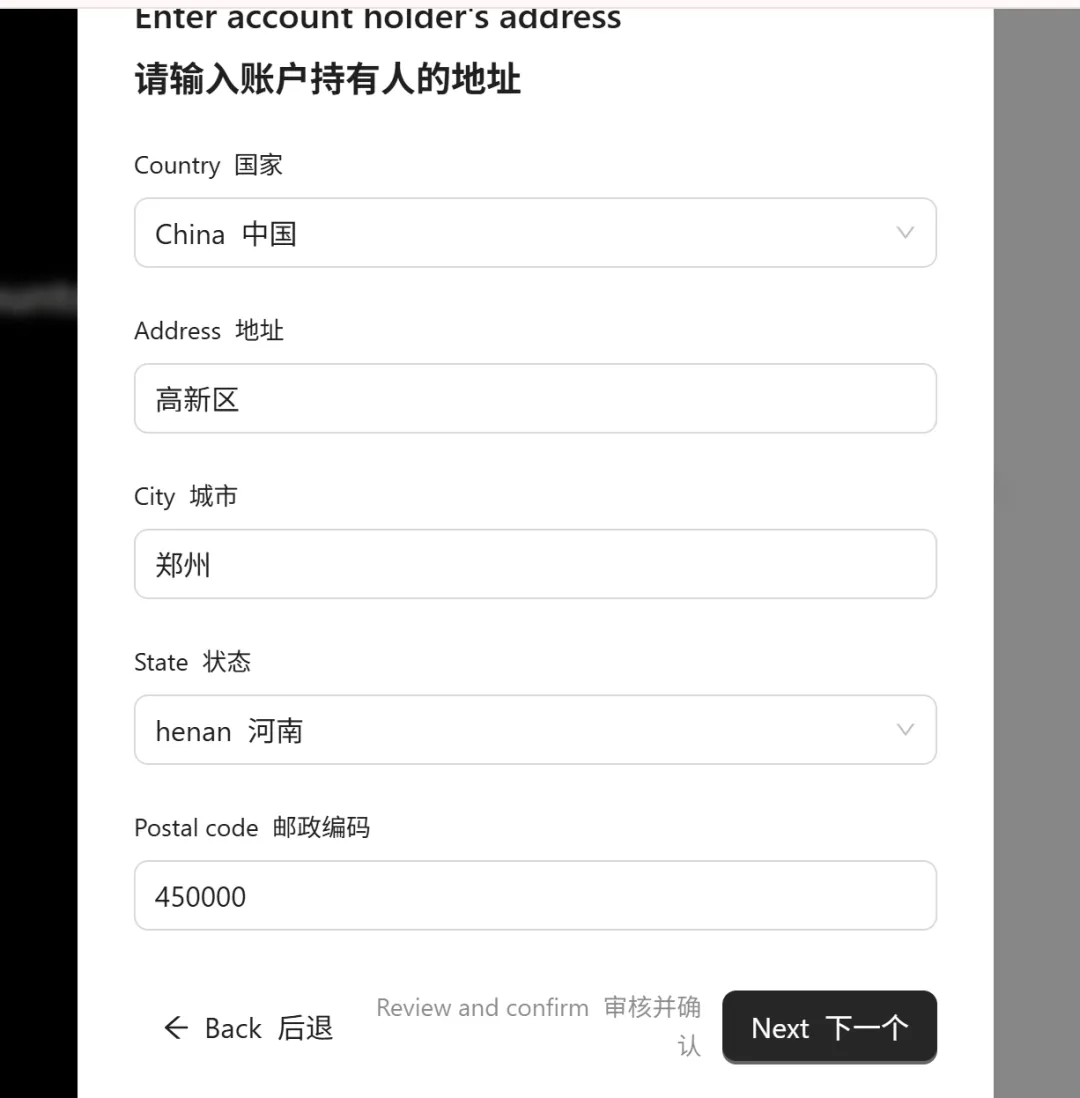
Fill in address.
Add account.
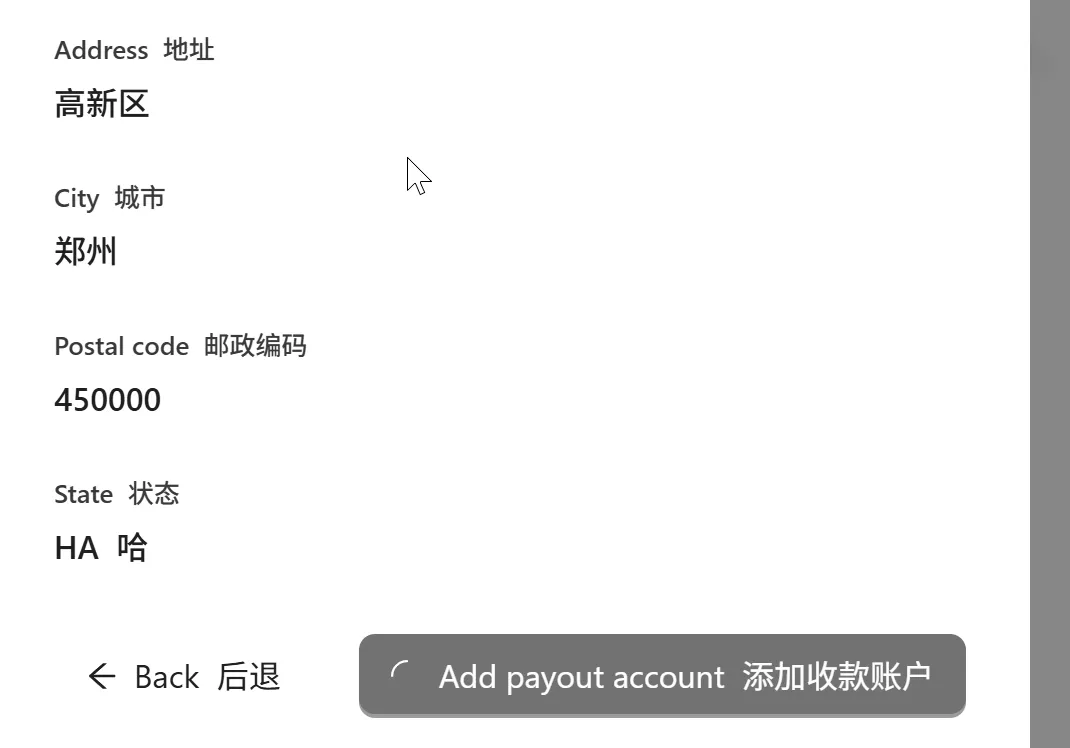
Then you have Alipay.
Next, verify email.
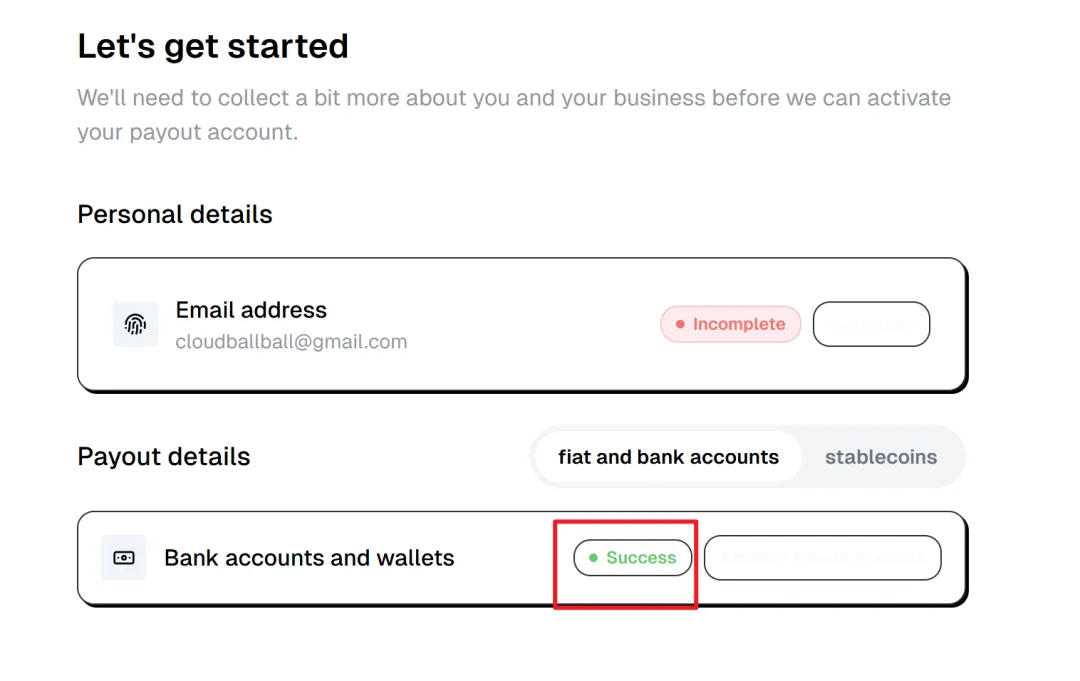
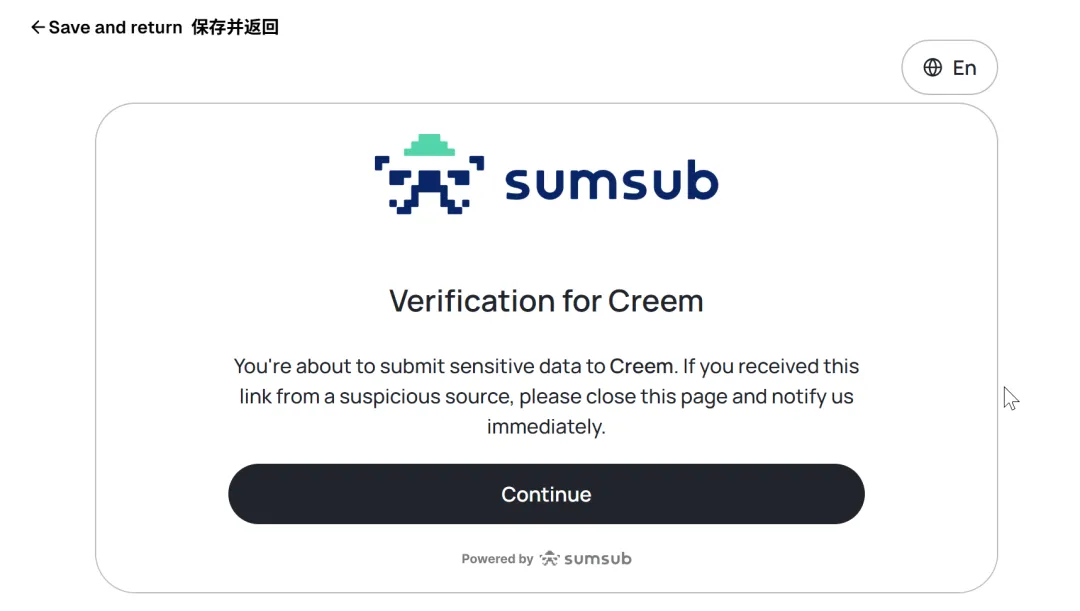
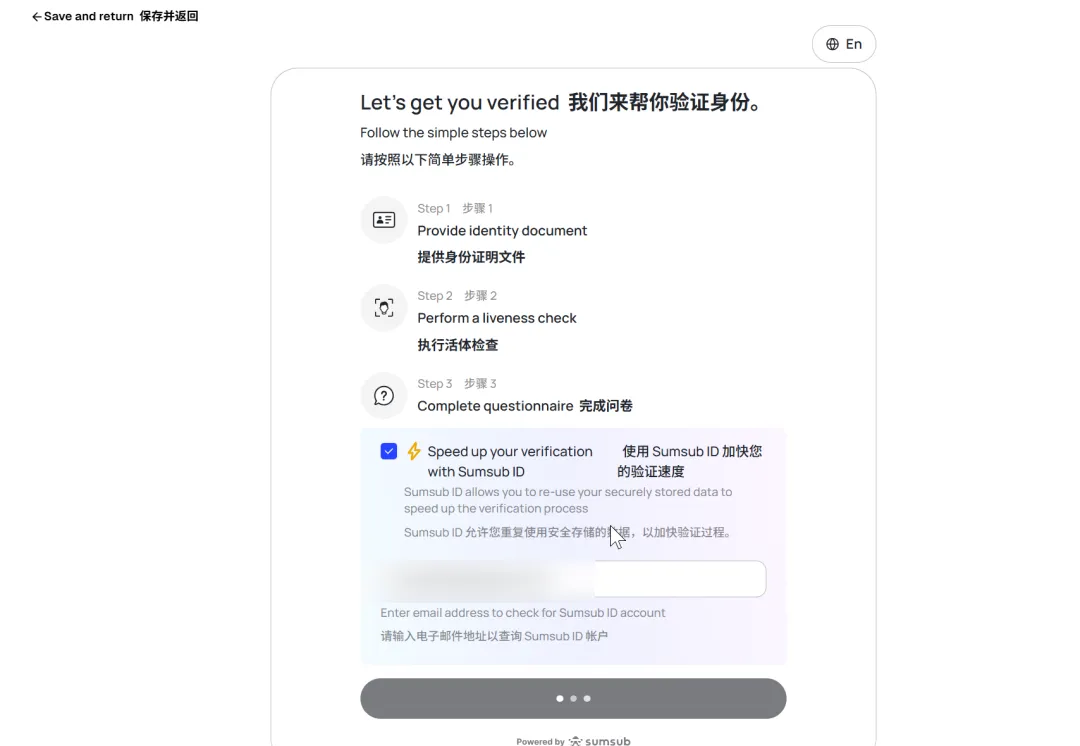
After entering the verification code, continue verification.
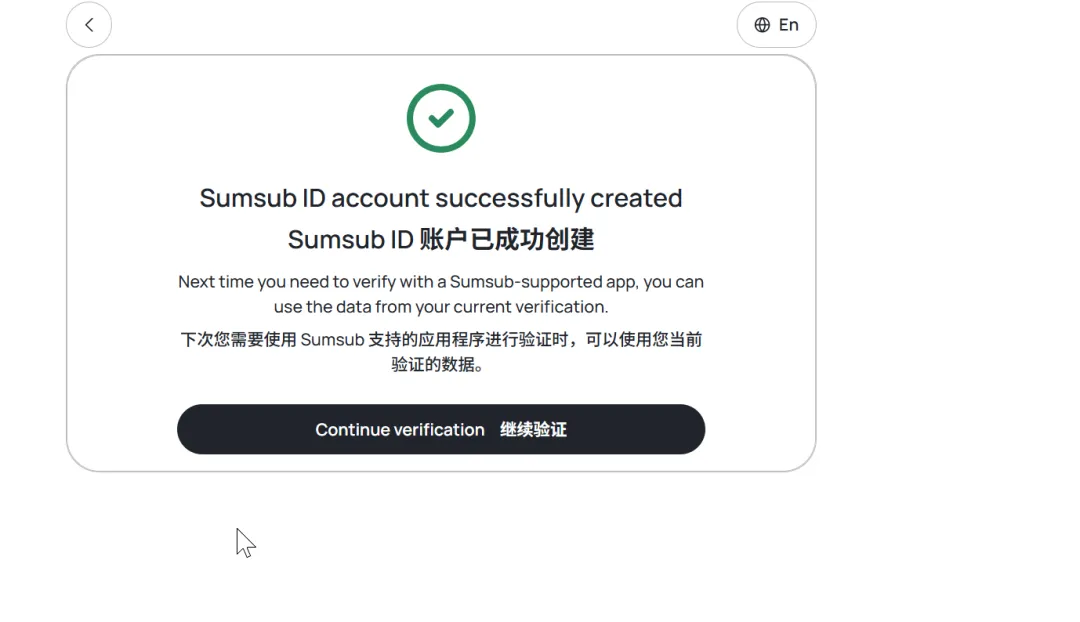
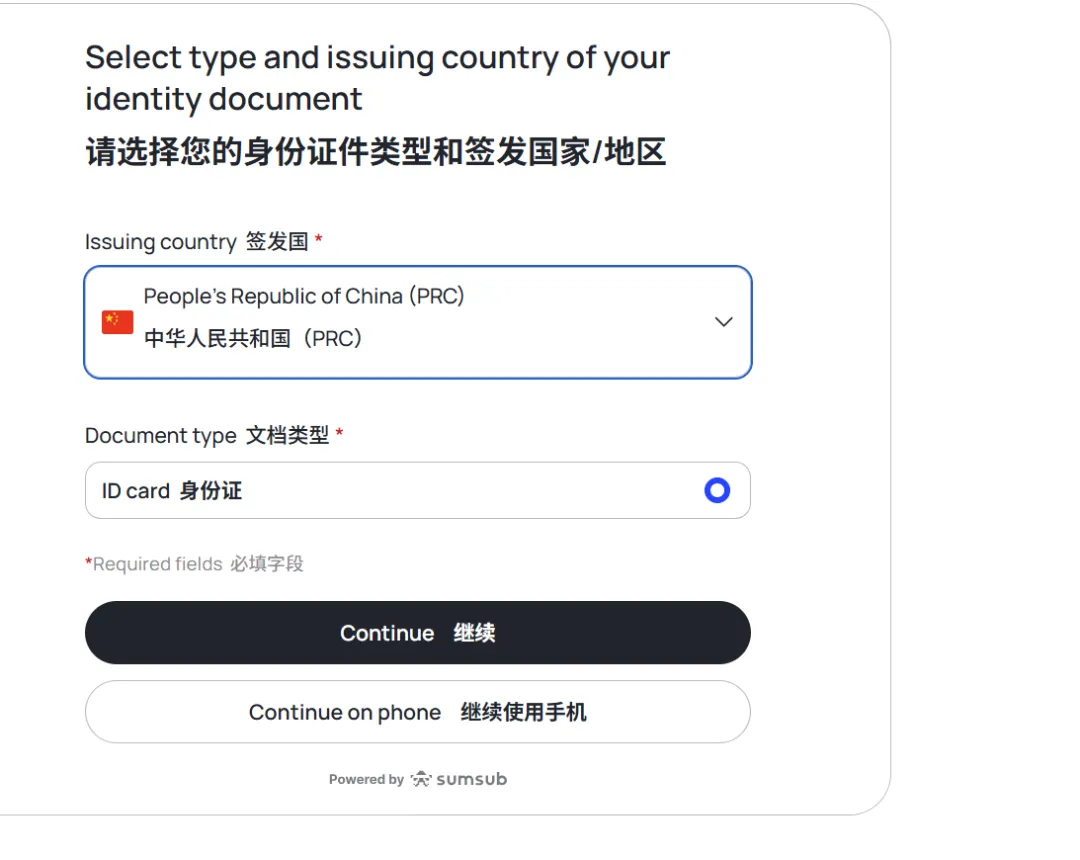
ID card photos have been on my computer desktop since I became a traffic master, quite convenient.
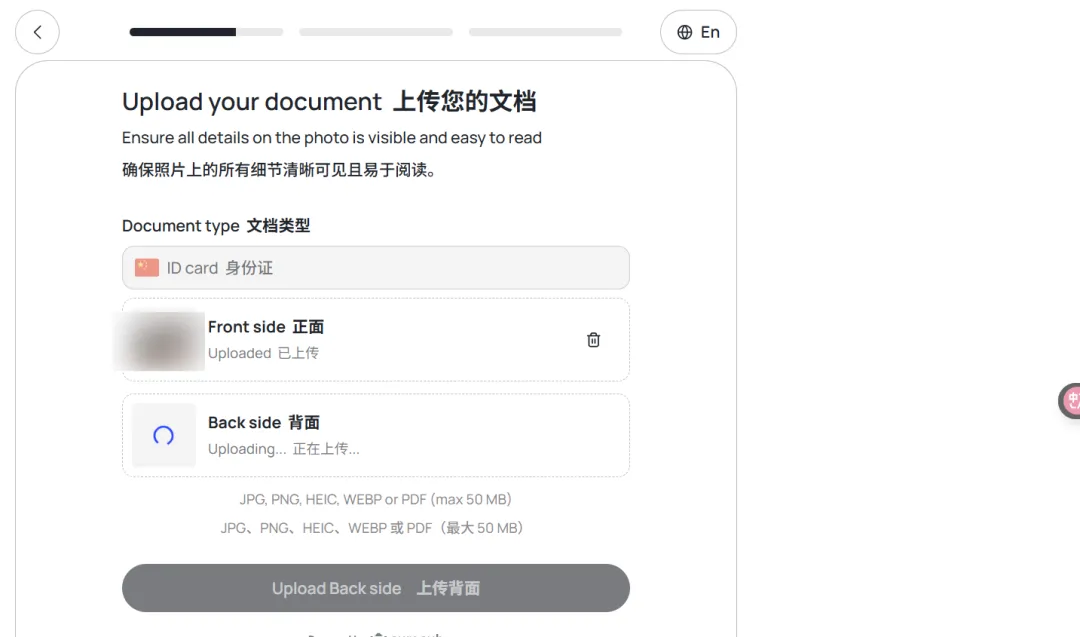
Face verification.
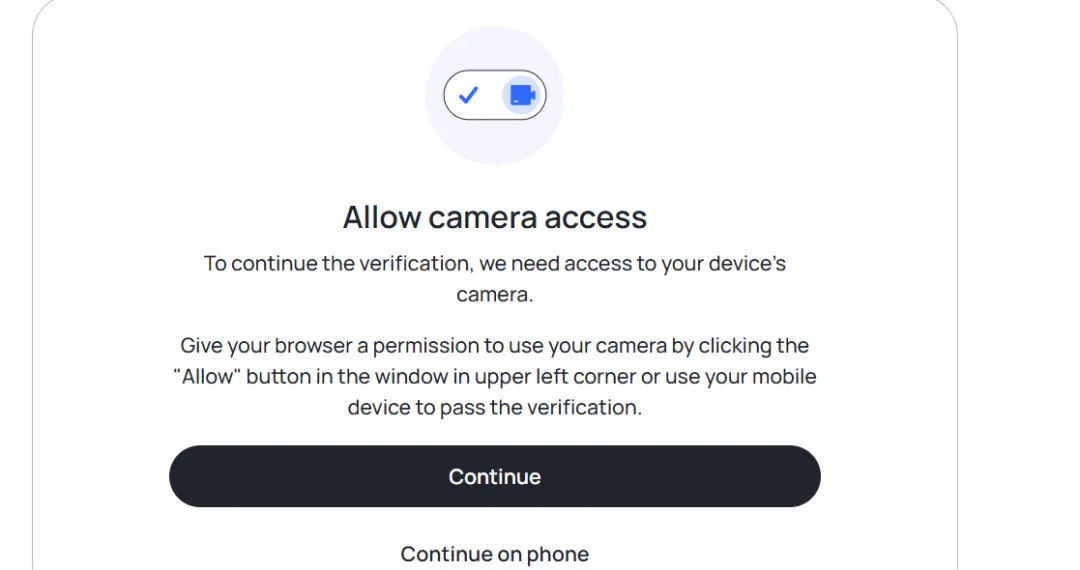
No.
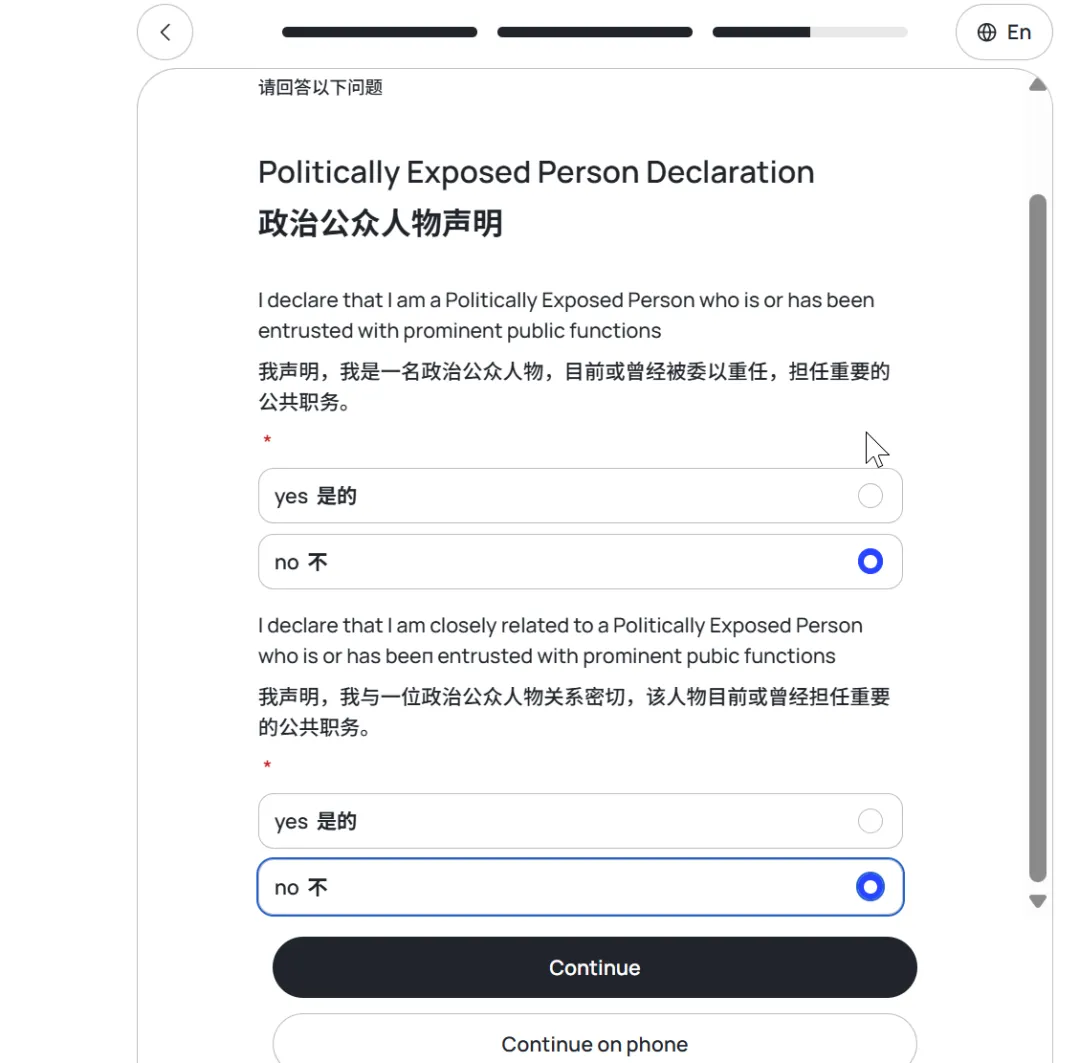
Finally verified.
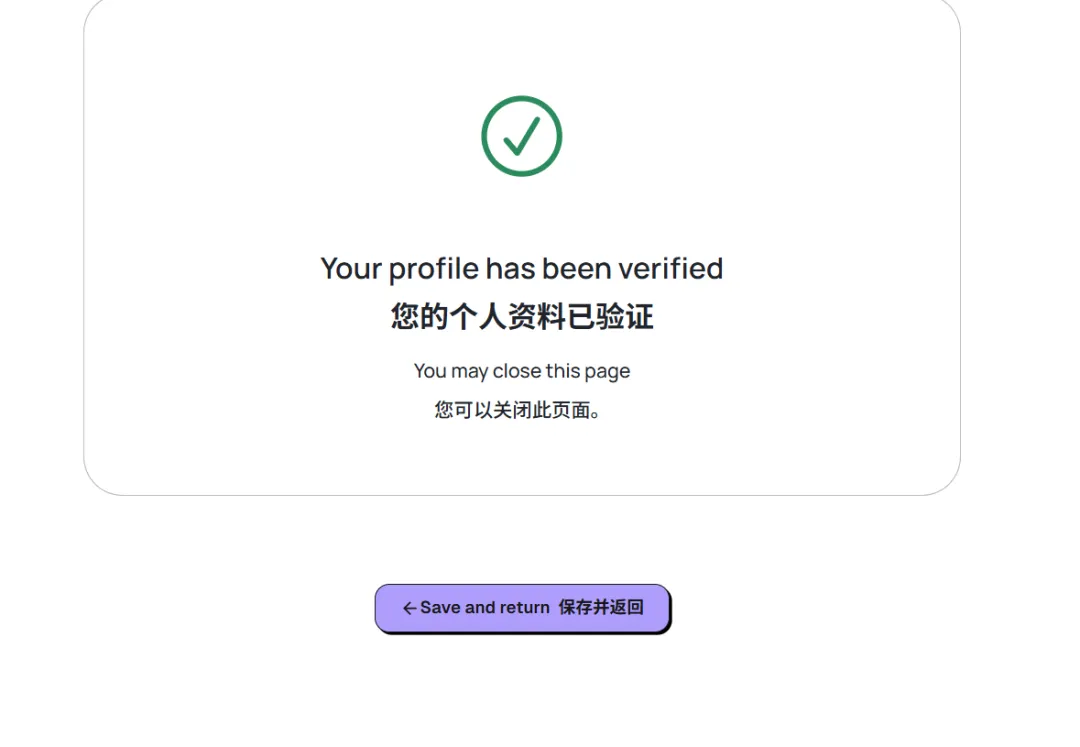
Now it's under review. My first project was approved in about 4 hours.