Pay4SaaS
Alipay Configuration
01
After domain resolution, prepare your business license and production domain, and you can start integrating Alipay.
02
1. Register for Alipay Open Platform Account
Address: https://open.alipay.com. Register a merchant account with your individual business license.
The business license is actually quite fast, about 5 working days.
2. Create Application
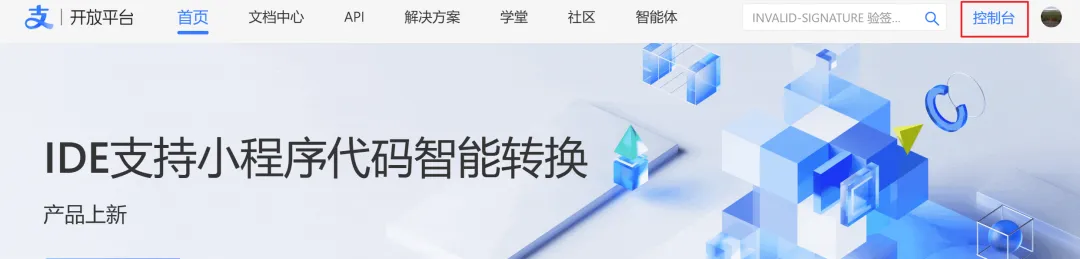
Enter the console.
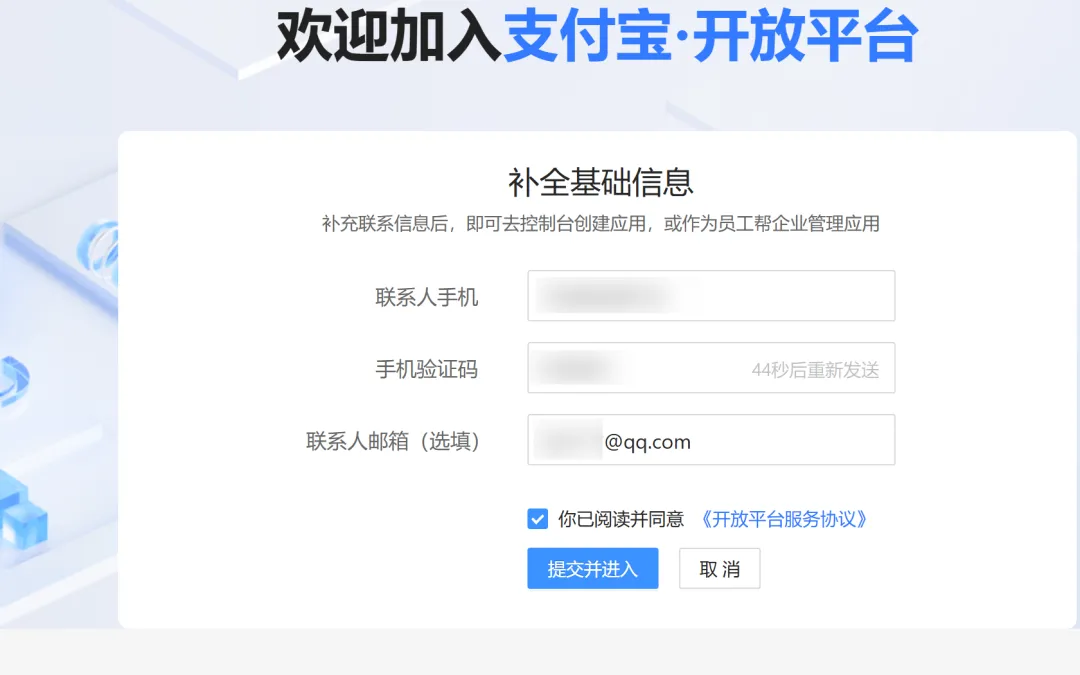
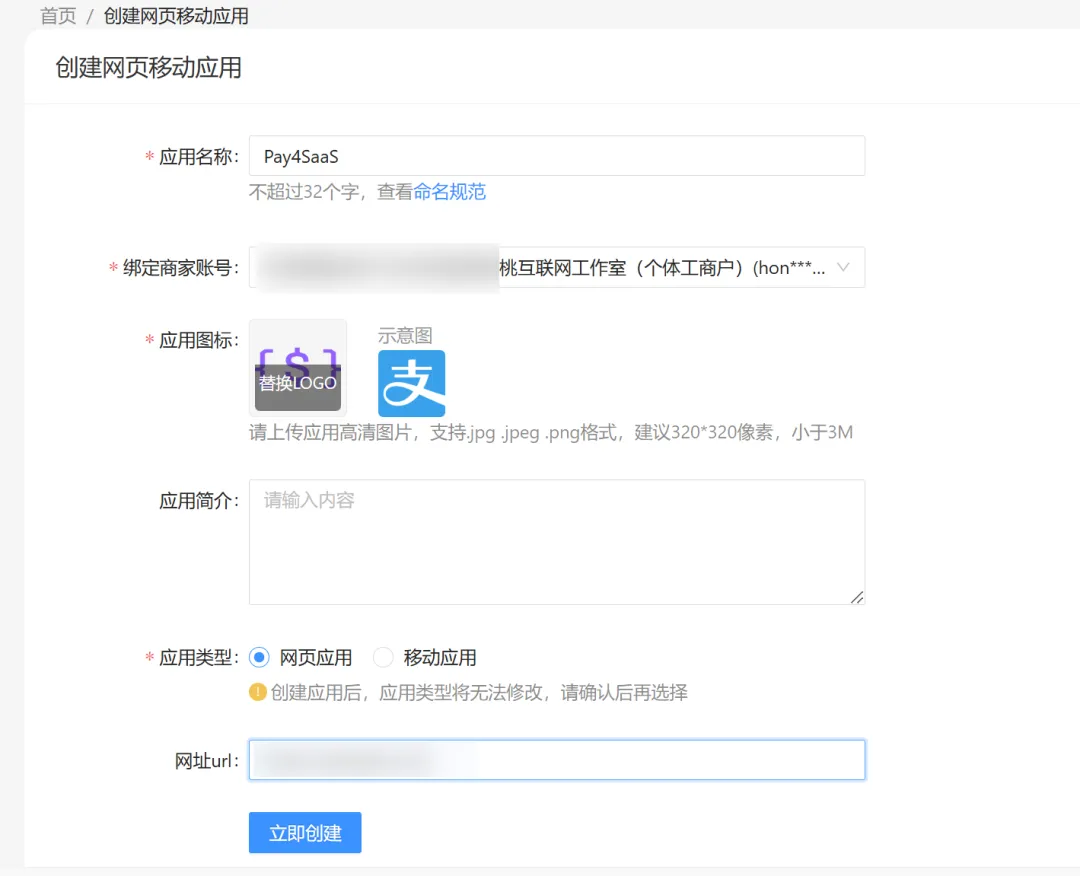
Complete the information.
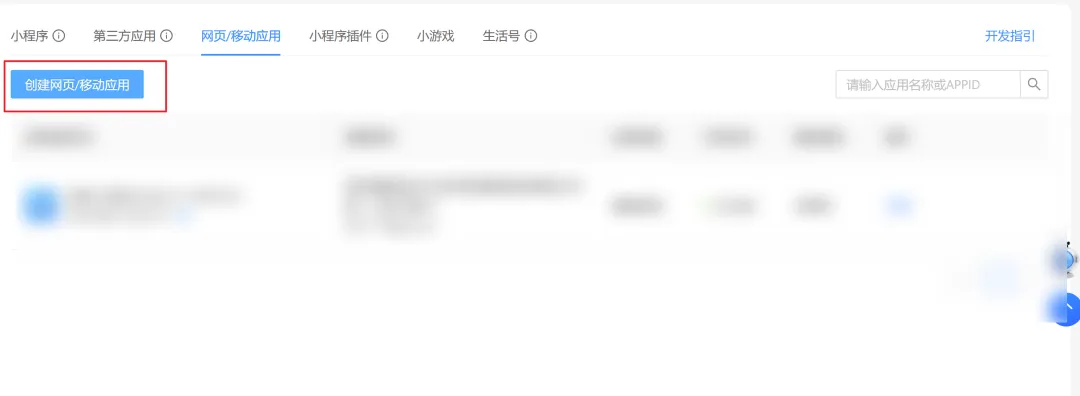
Create a web/mobile application.
Fill in the application name and upload the logo.
Then the submit for review interface appears.
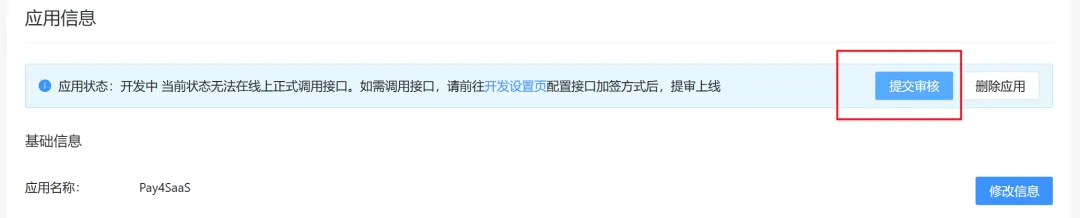
Go to configure.
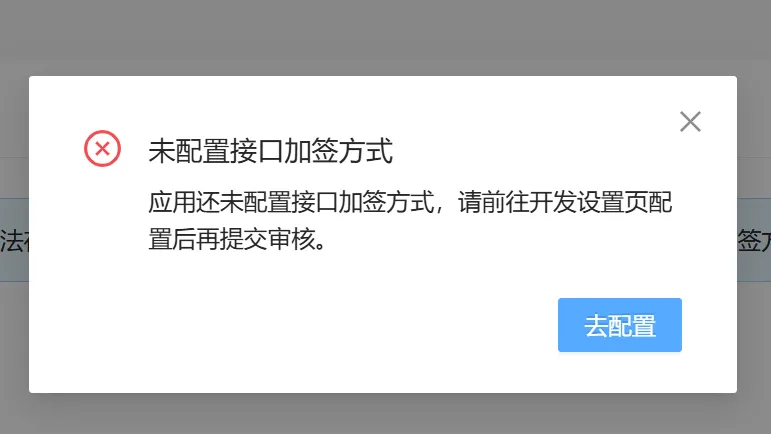
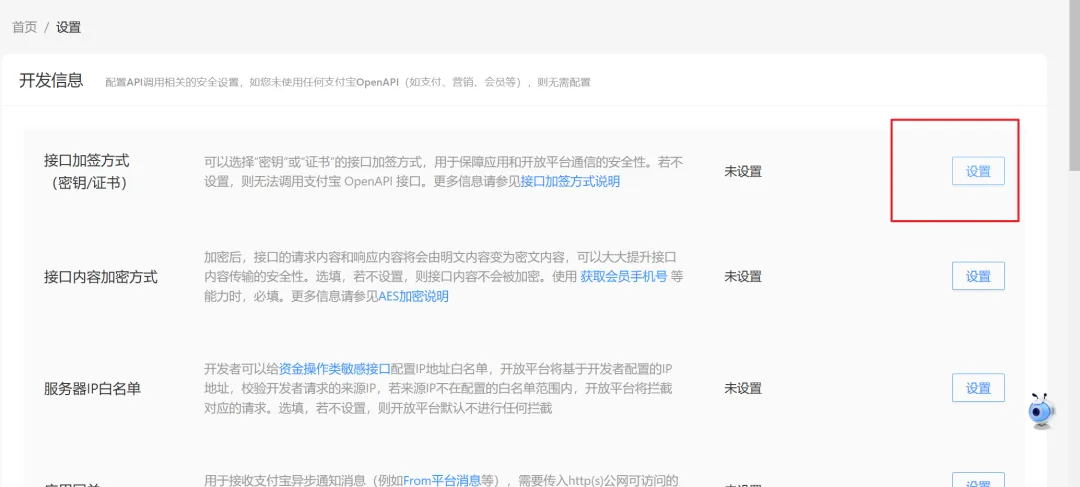
Then, configure the interface signature method.
Click Settings on the right of "Interface Signature Method".
Select Public Key Certificate method (recommended, more secure than regular public key).
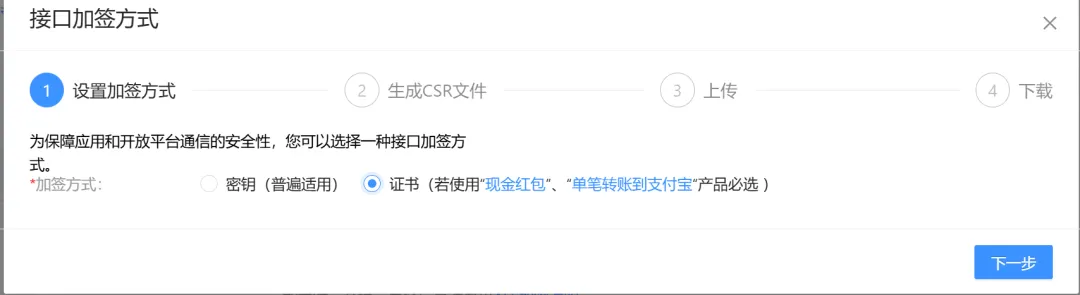
Then, follow the prompts to download Alipay's Key Tool.
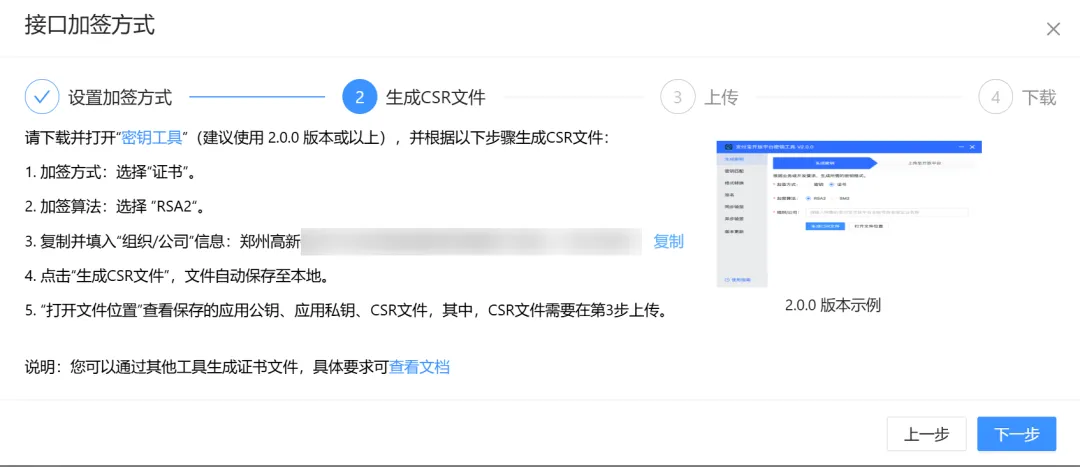
Just follow the steps in this popup.
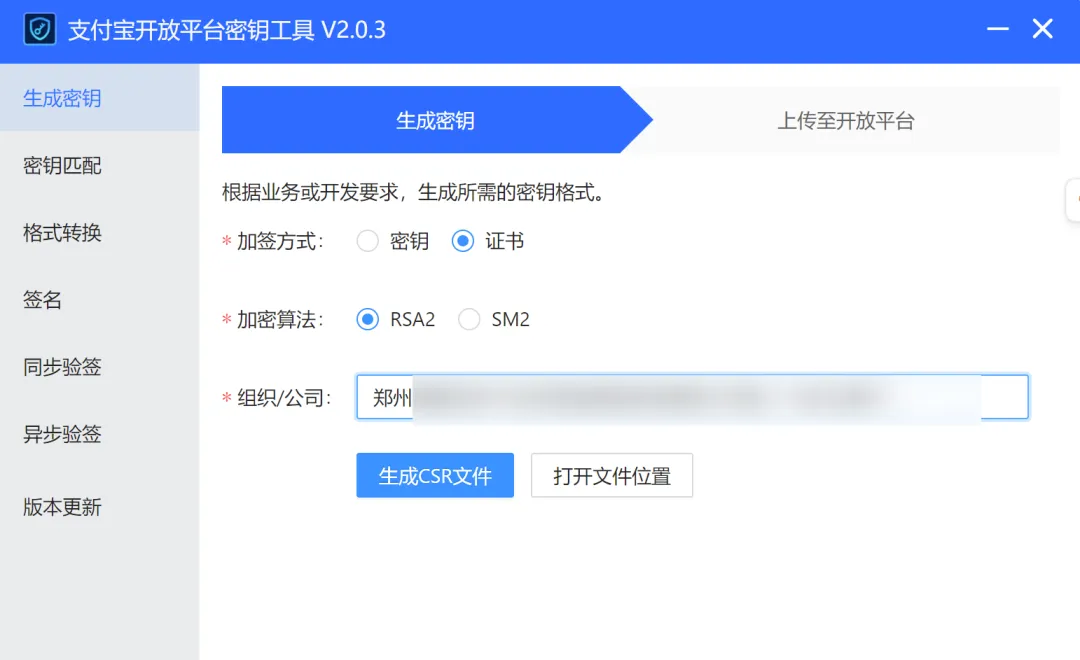
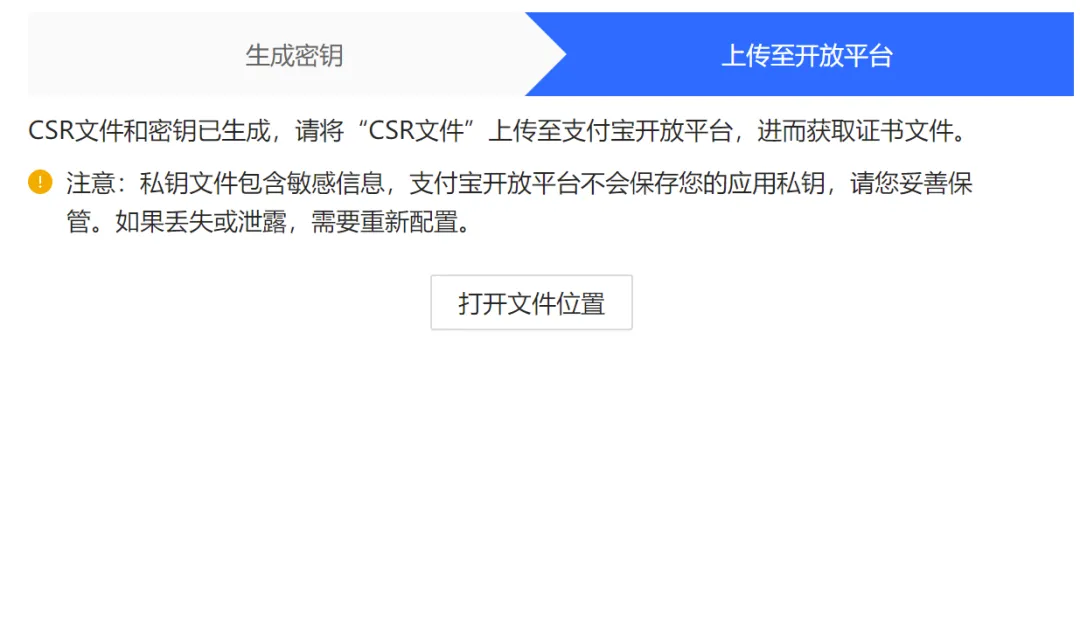
After generation, you'll get 3 files.
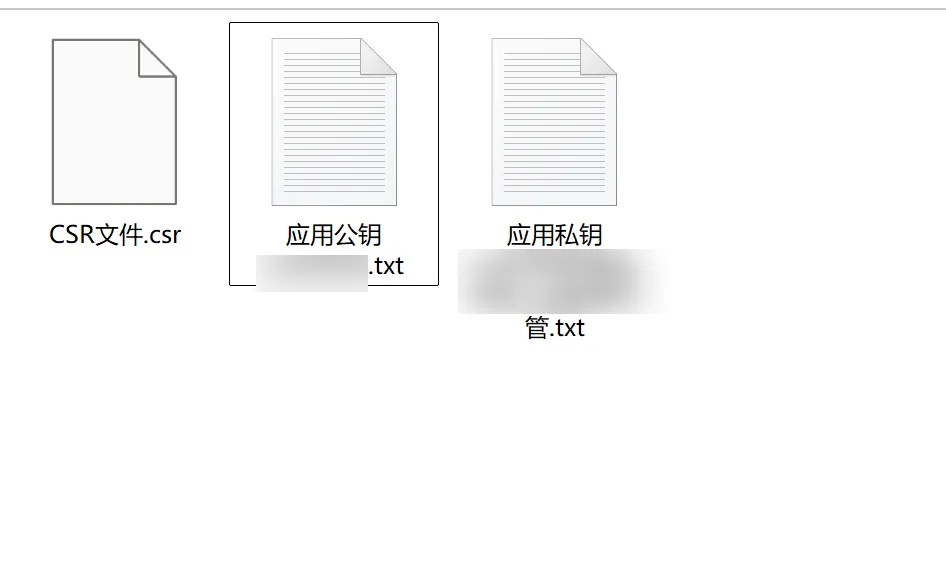
Configure the private key in your local environment variables.
ALIPAY_PRIVATE_KEY=Then upload.
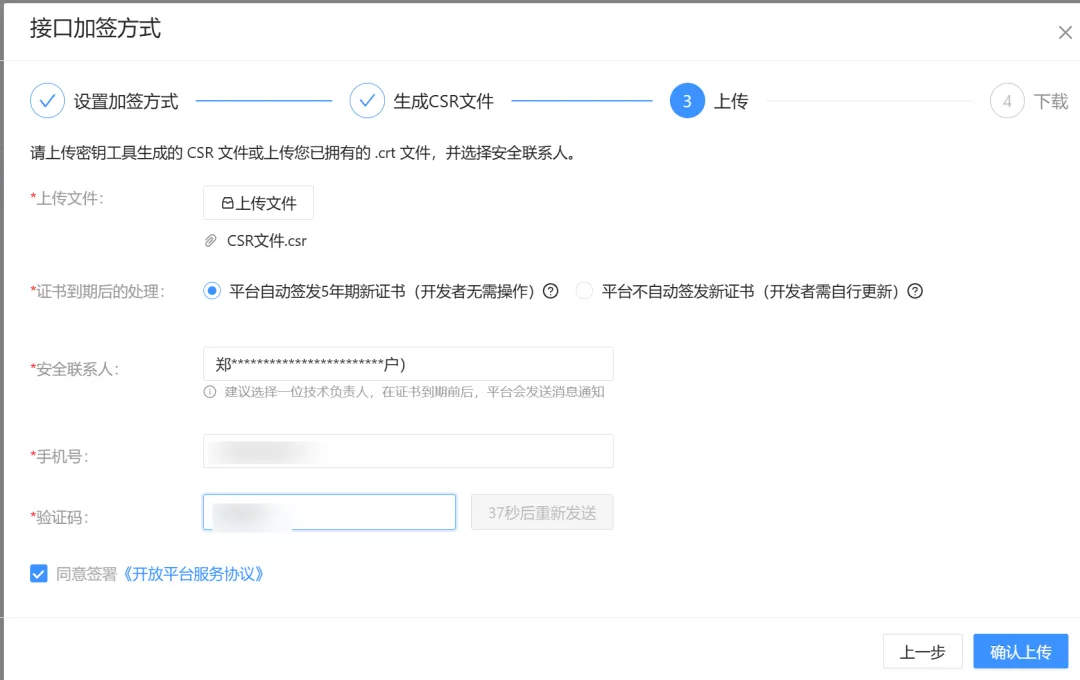
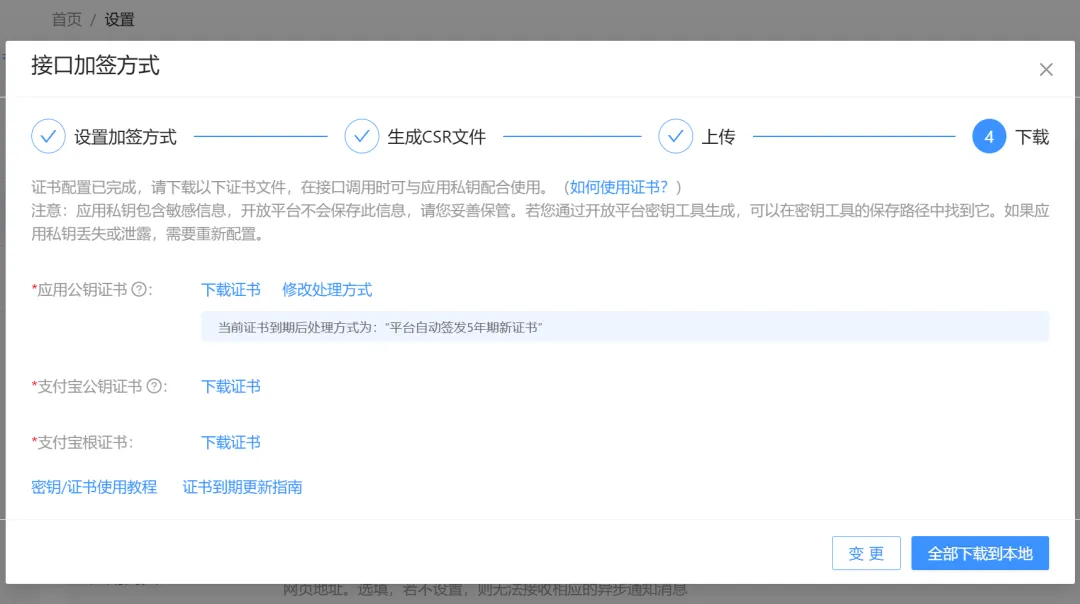
After entering the password, download the file locally.
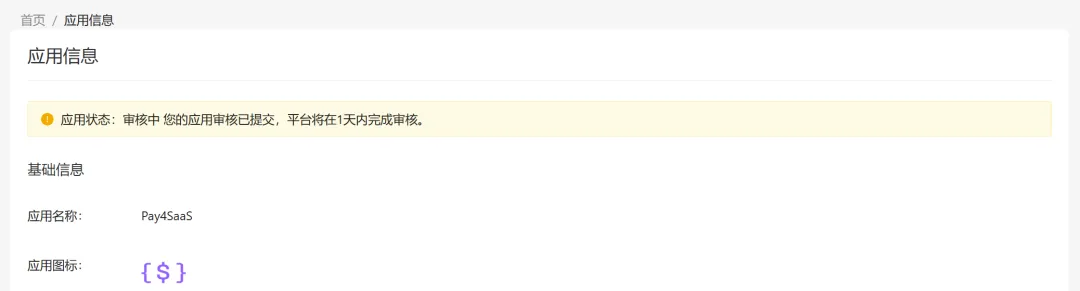
Then return to the console, open the application, and submit for review. After submission, you'll see this prompt.
3. Configure Application Gateway
The application gateway is the address where Alipay proactively notifies you. After successful payment, Alipay calls back to your server through the application gateway.
Development Settings, Application Gateway, Settings.
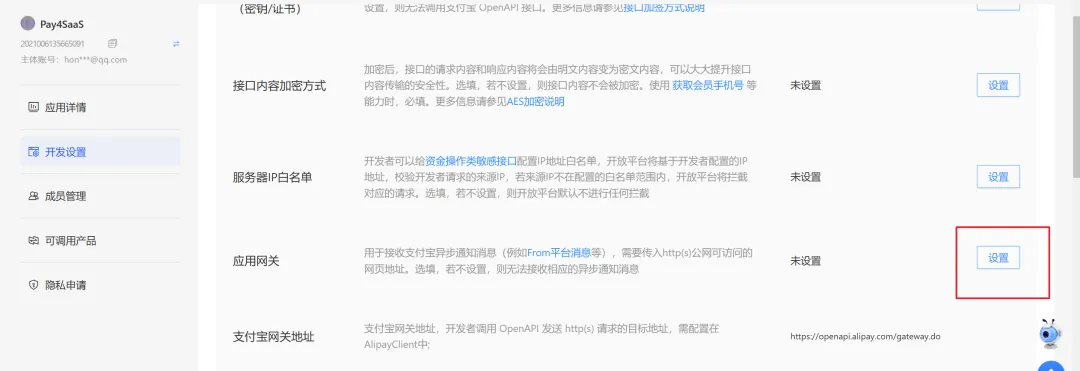
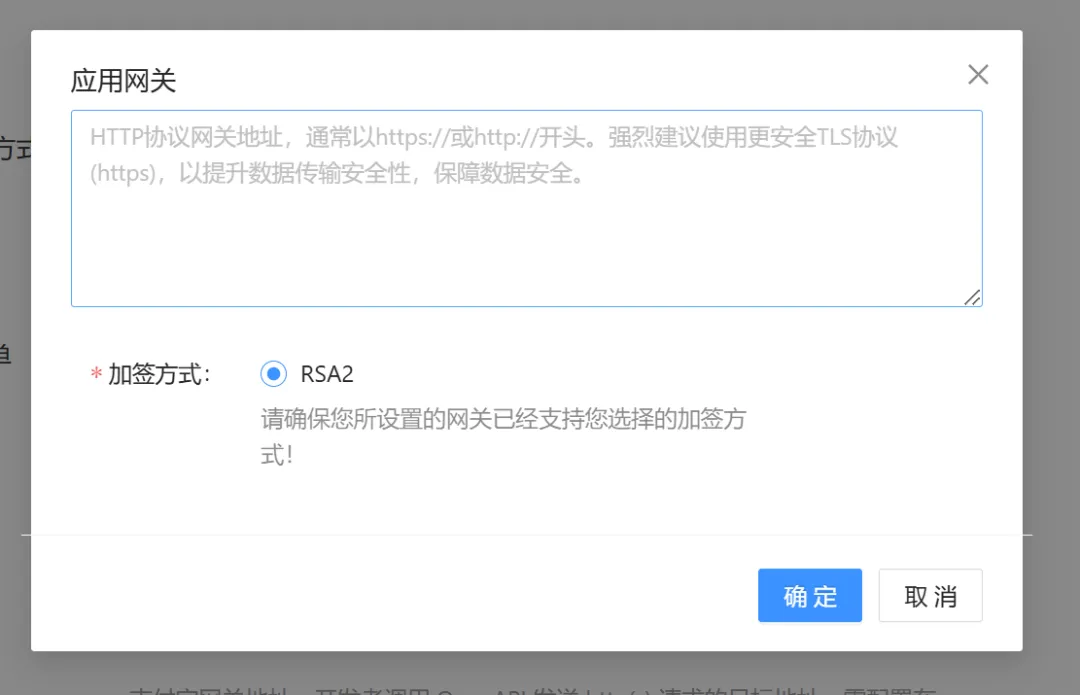
Fill in https://yourdomain.com/api/webhooks/alipay here, which is your project's webhook address. Our addresses are all unified.
4. Apply for PC Website Payment/Mobile Website Payment
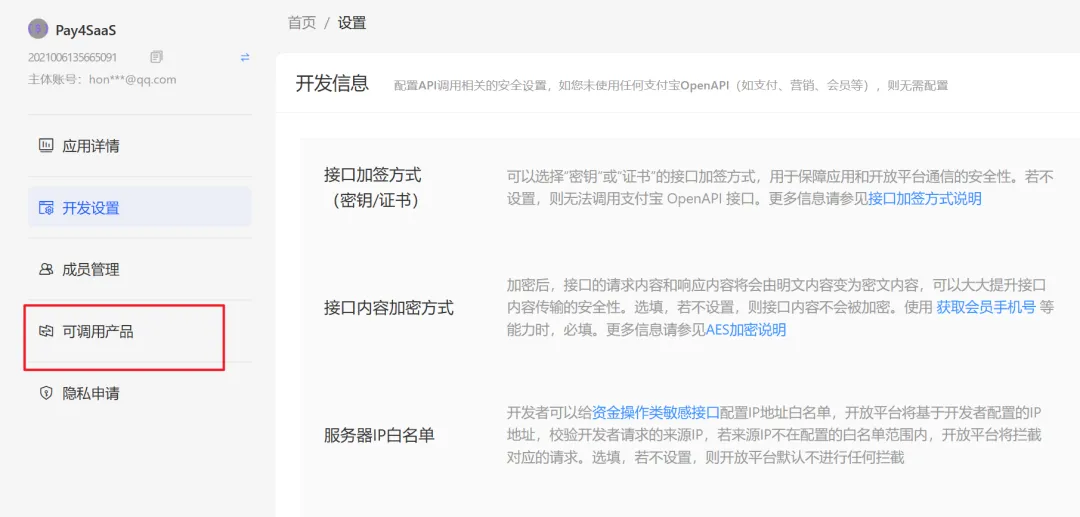
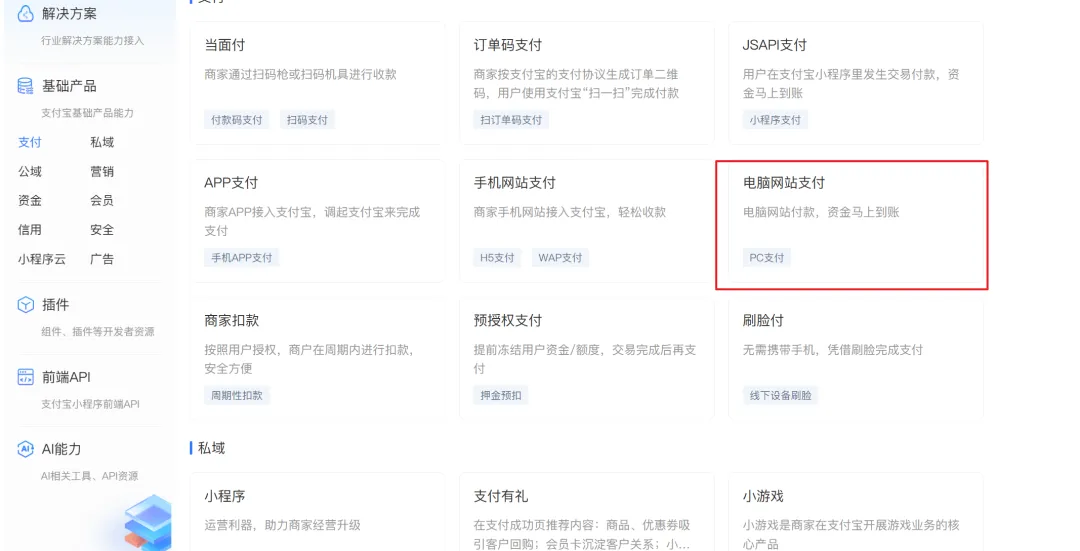
Find available products.
Get more products.
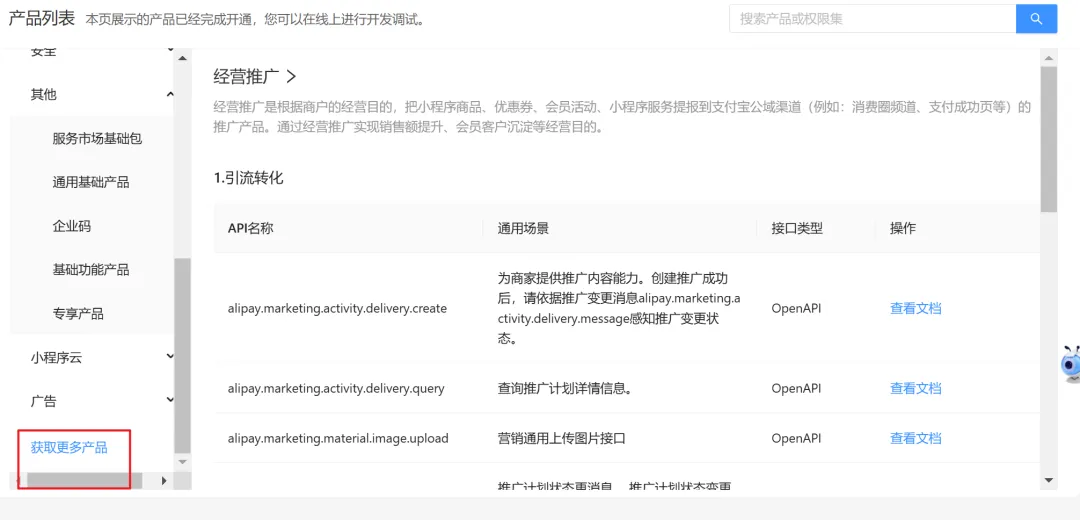
PC website payment. Applying for mobile payment later is the same, just select "Mobile Website Payment".
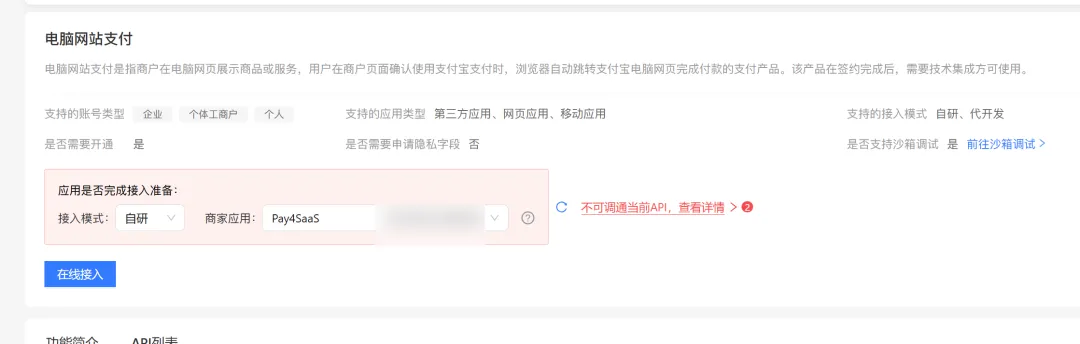
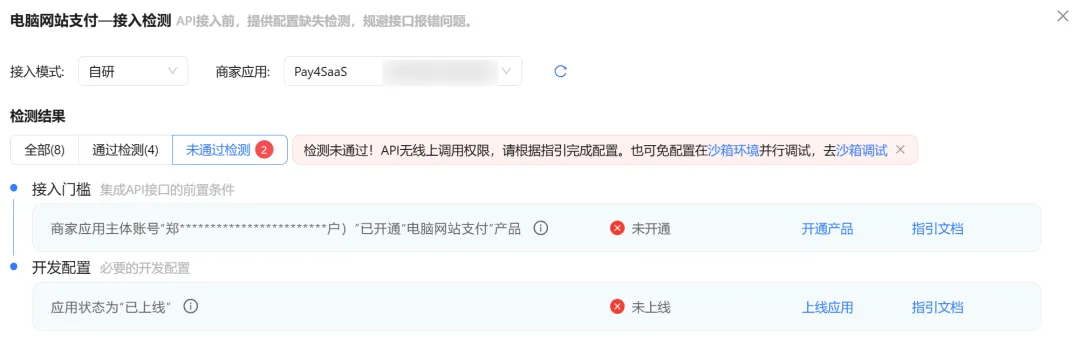
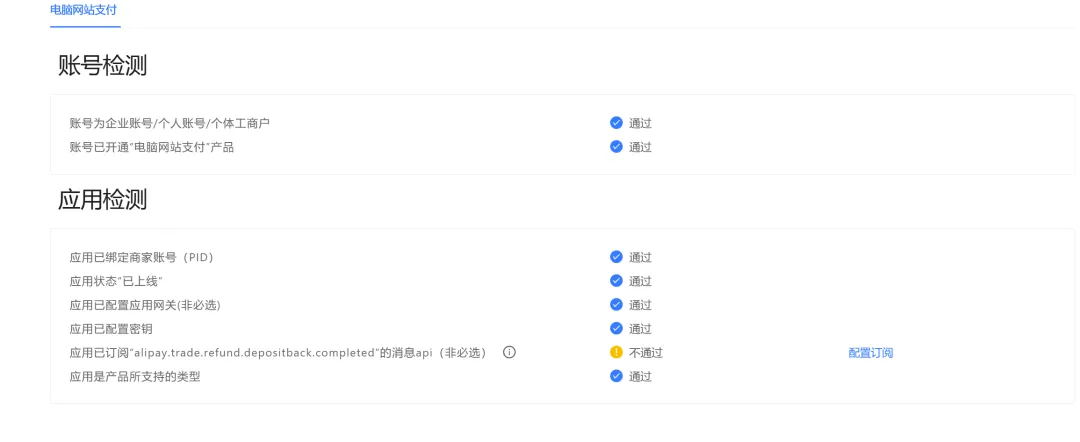
If it prompts that it's not callable, go handle it. Just fill in by item.
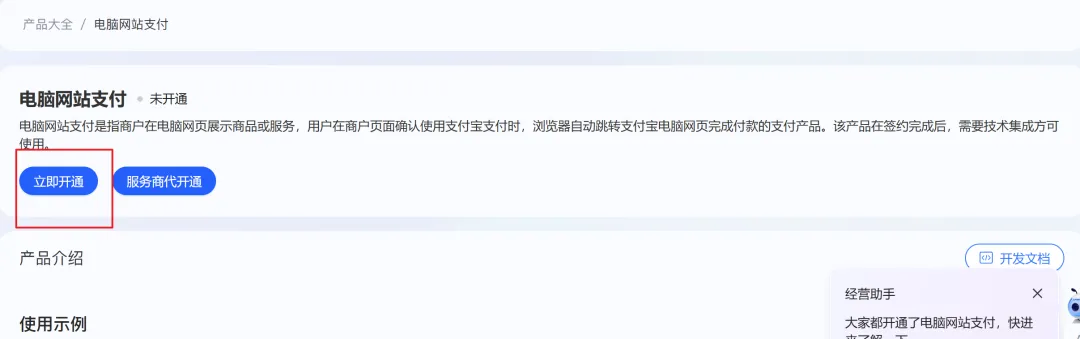
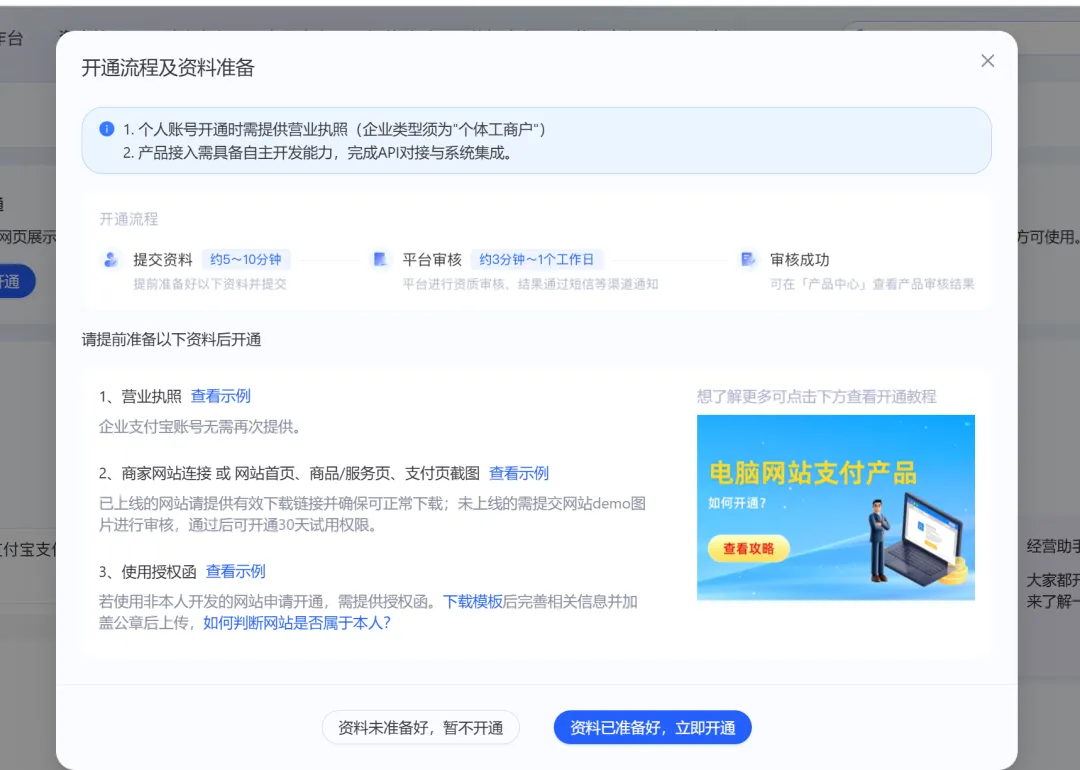

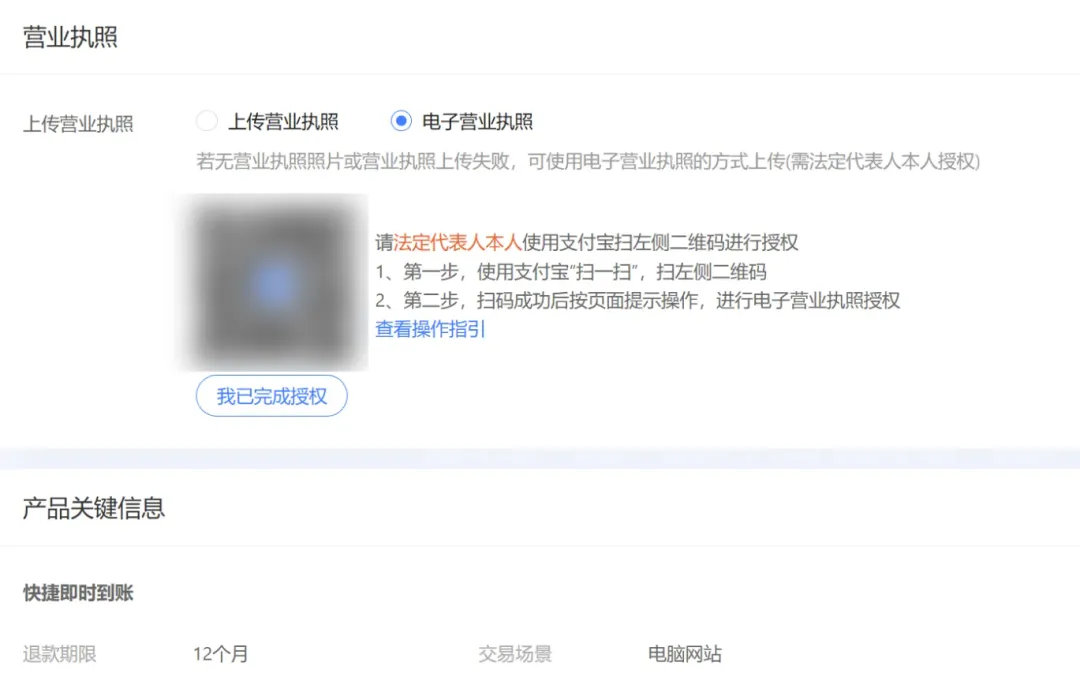
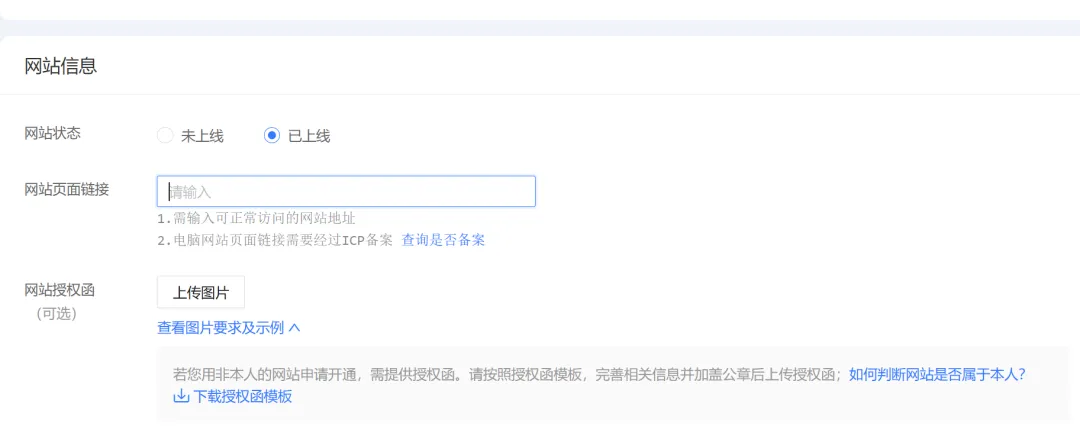
Apply for activation.
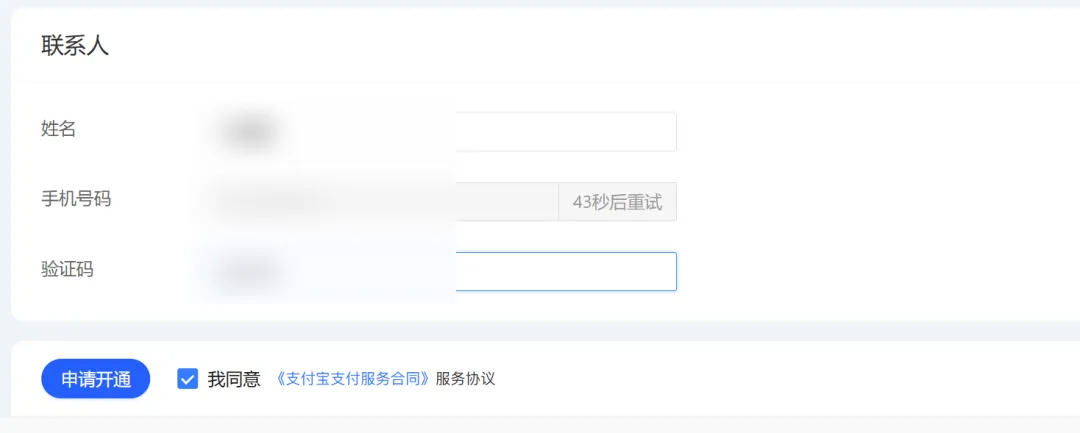
It succeeded in about 10 minutes.
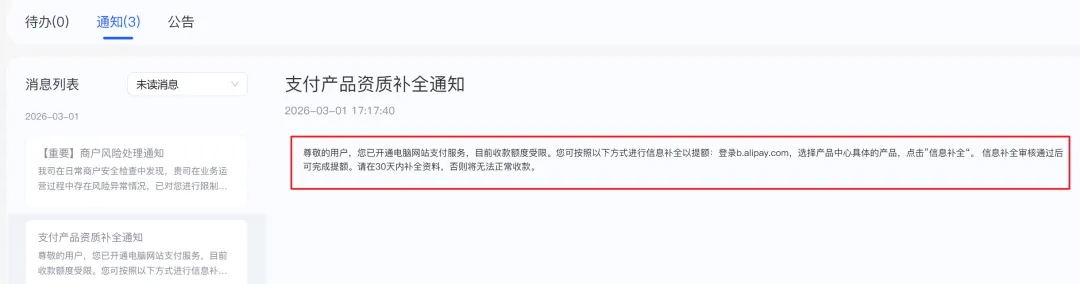
There's no red prompt here either.
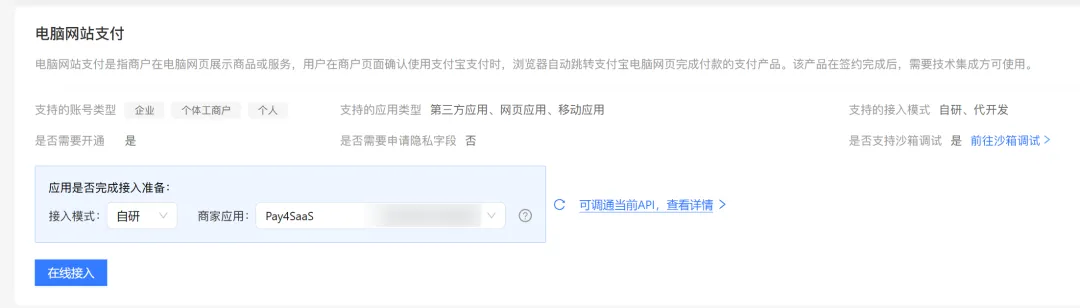
Select self-developed.
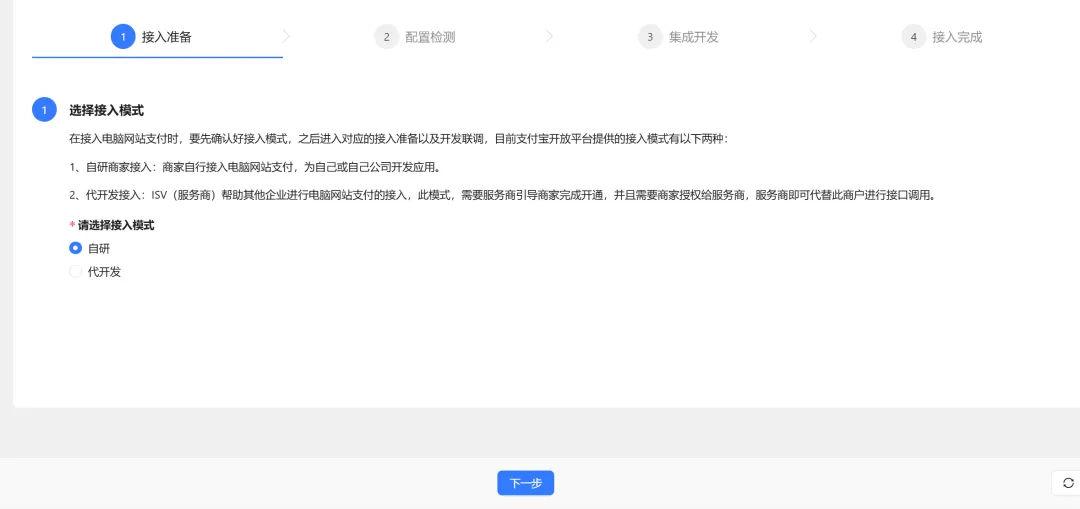
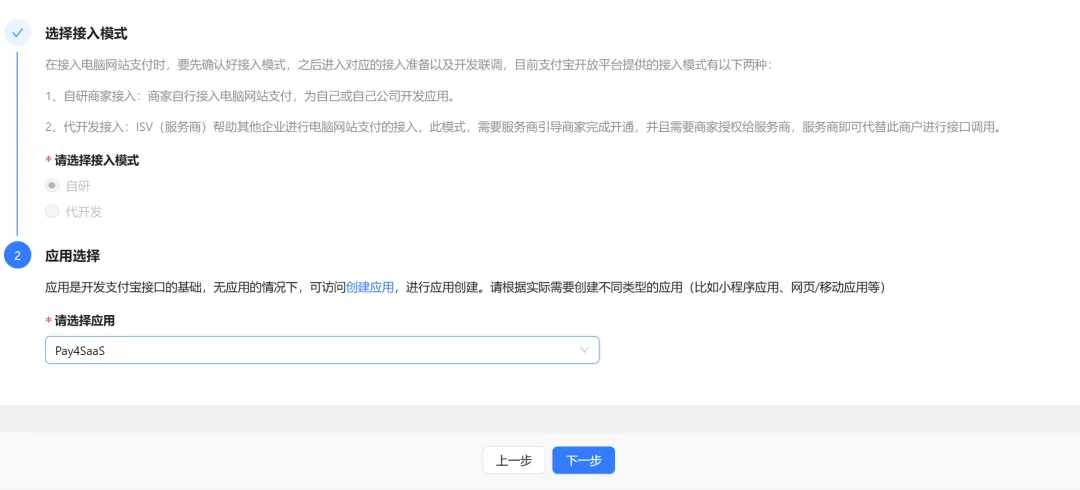
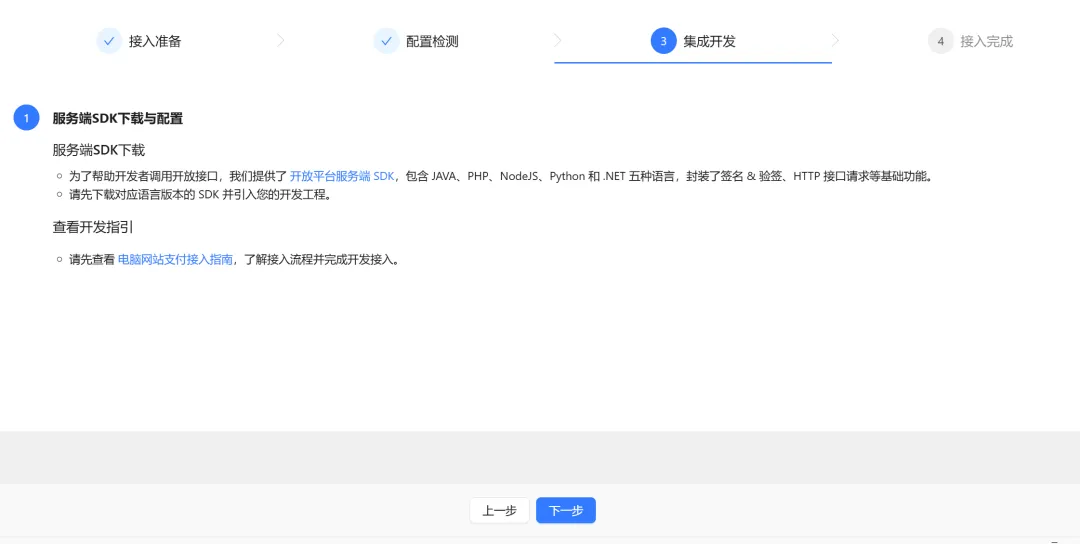
Next step directly.
Next step.
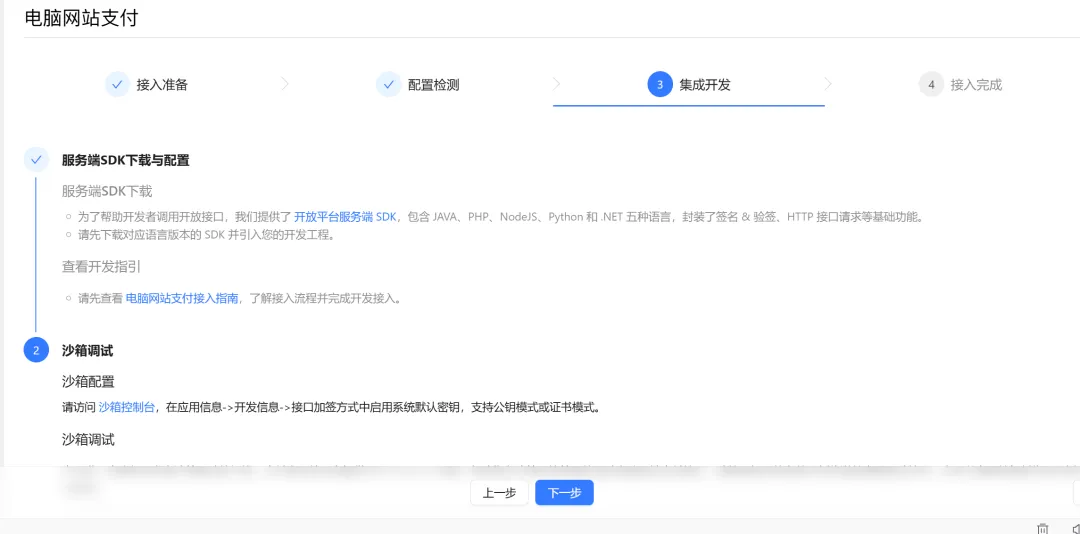
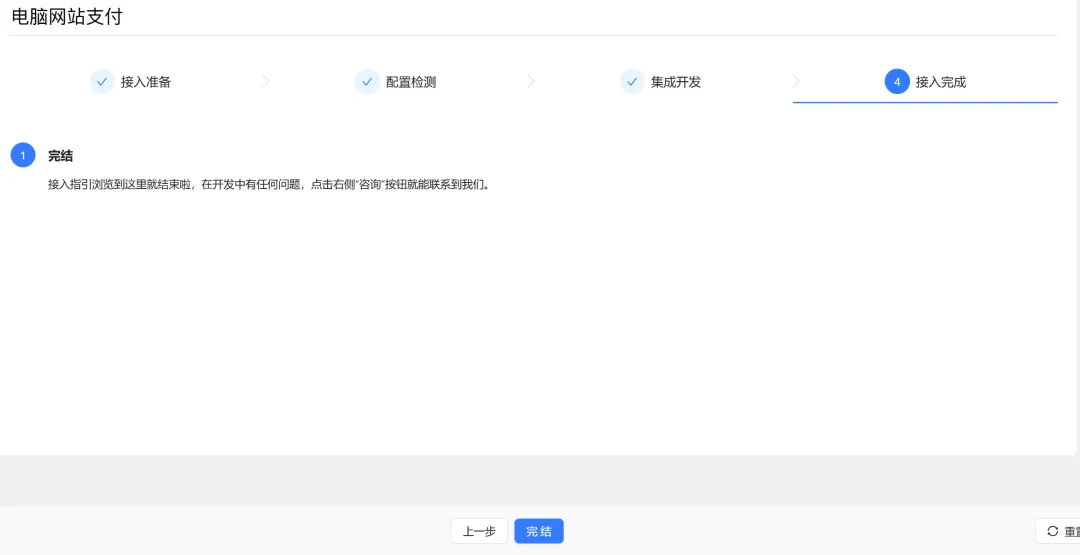
Done.
03
Start Integrating Payment on the Website
These are the main unified configuration fields. Additional fields are explained after each subsection.
.env

ALIPAY_APP_ID=2021006xxx
ALIPAY_PRIVATE_KEY=Private key (generated in the previous step, same for development and test environments)
ALIPAY_APP_CERT=Content of appPublicCert
ALIPAY_PUBLIC_CERT=Content of alipayPublicCert
ALIPAY_ROOT_CERT=Content of alipayRootCert
Note! These certificate fields are multi-line, so wrap them in double quotes ("") when writing.
How to get these fields? Let's explain separately for test and production environments.
1. Test Environment
Open sandbox application at https://open.alipay.com/develop/sandbox/app. Record the APPID to ALIPAY_APP_ID. Next, select certificate mode.
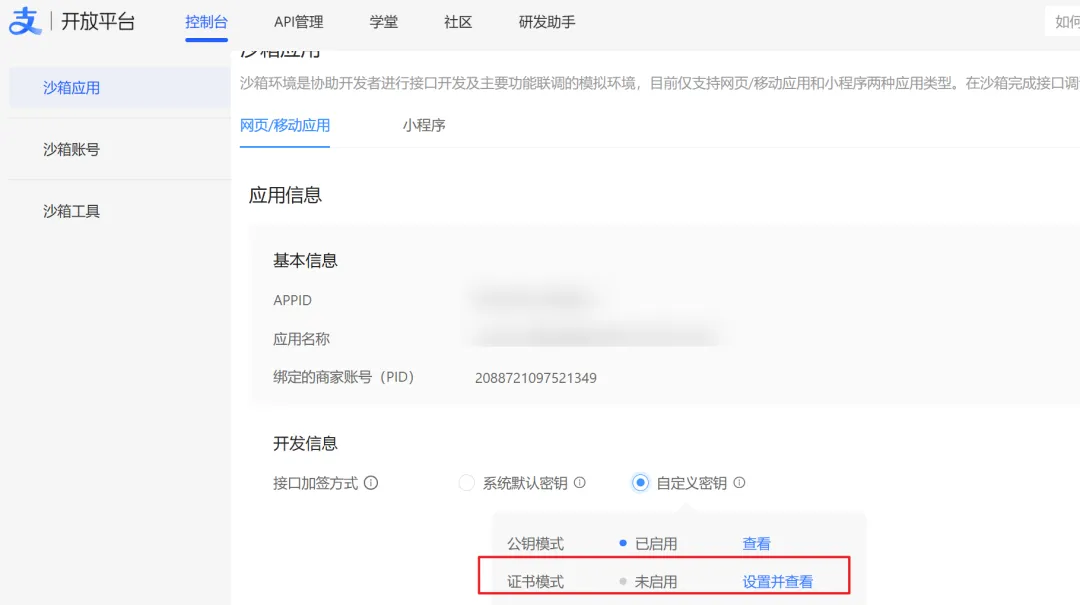 Because certificate mode = more complete trust system + more controllable risk + revocable and rotatable. In production environment, Alipay actually recommends using "payment certificate mode" because it's much more secure than simple key mode.
For development and test environments, using two sets is quite troublesome, right? It's better to unify the method and fields. Therefore, definitely use certificates for everything and upload.
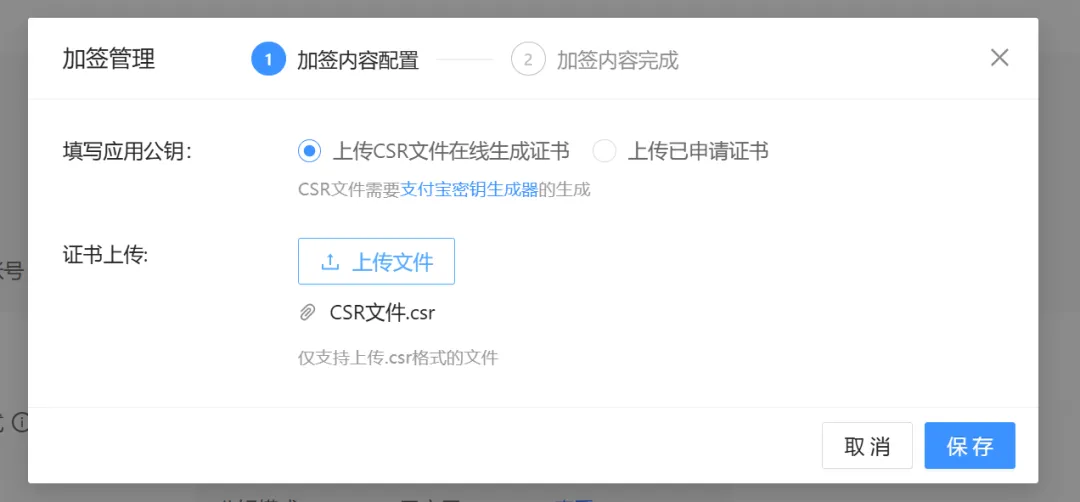
After saving, 3 certificates appear.
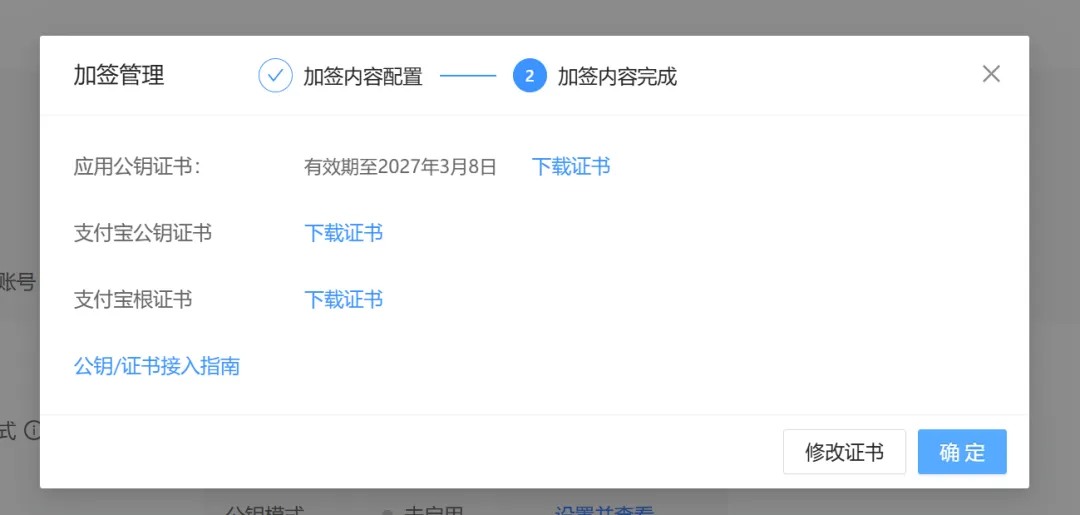
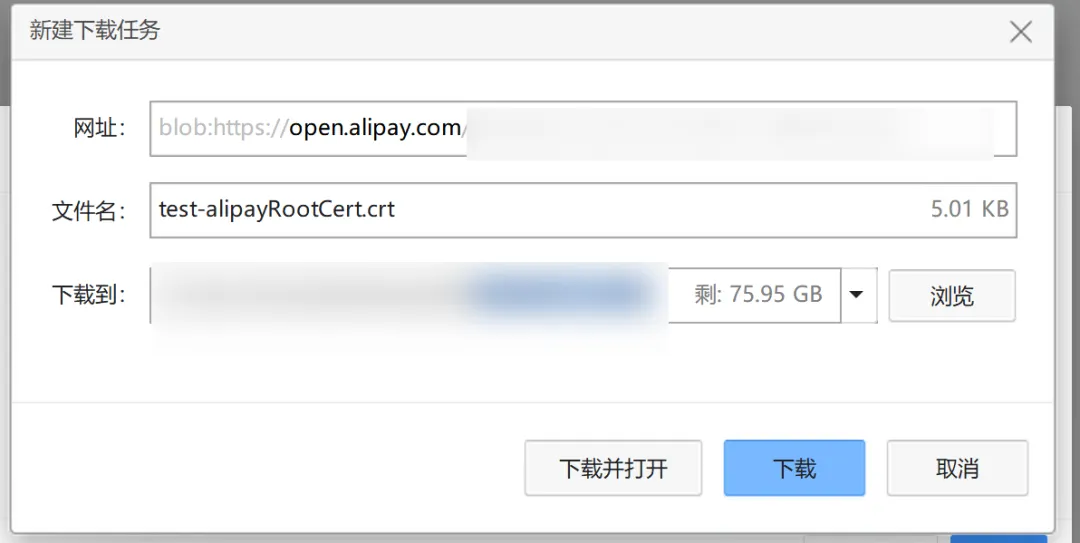
Add the prefix test- to them all to avoid confusion with production.
Other fields:
ALIPAY_GATEWAY=https://openapi-sandbox.dl.alipaydev.com/gateway.do, configure the Alipay gateway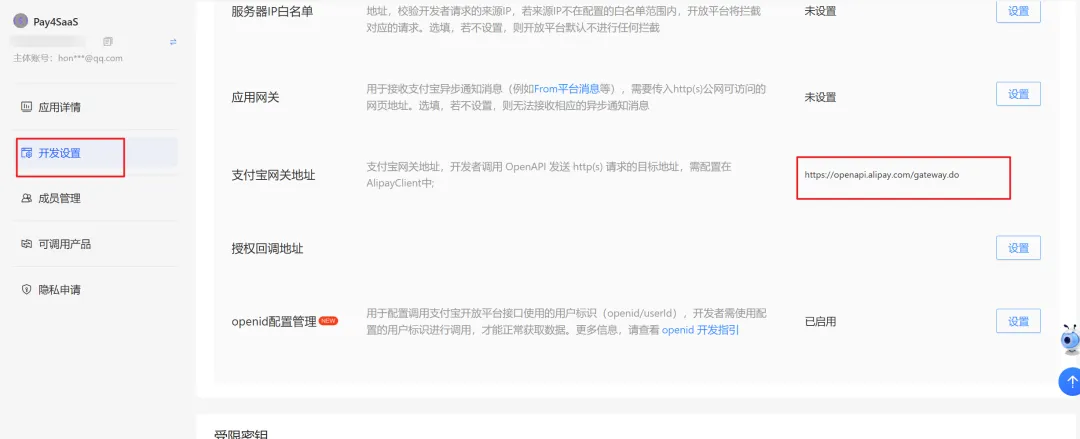 This must be configured, otherwise the SDK doesn't know where to send requests. Configure it to
 ALIPAY_GATEWAY.ALIPAY_WEBHOOK_URL=https://xxx.ngrok-free.dev/api/webhooks/alipay, callback address. This was mentioned before, so I won't say more.
Fill in the environment variables and test it. Click pay.
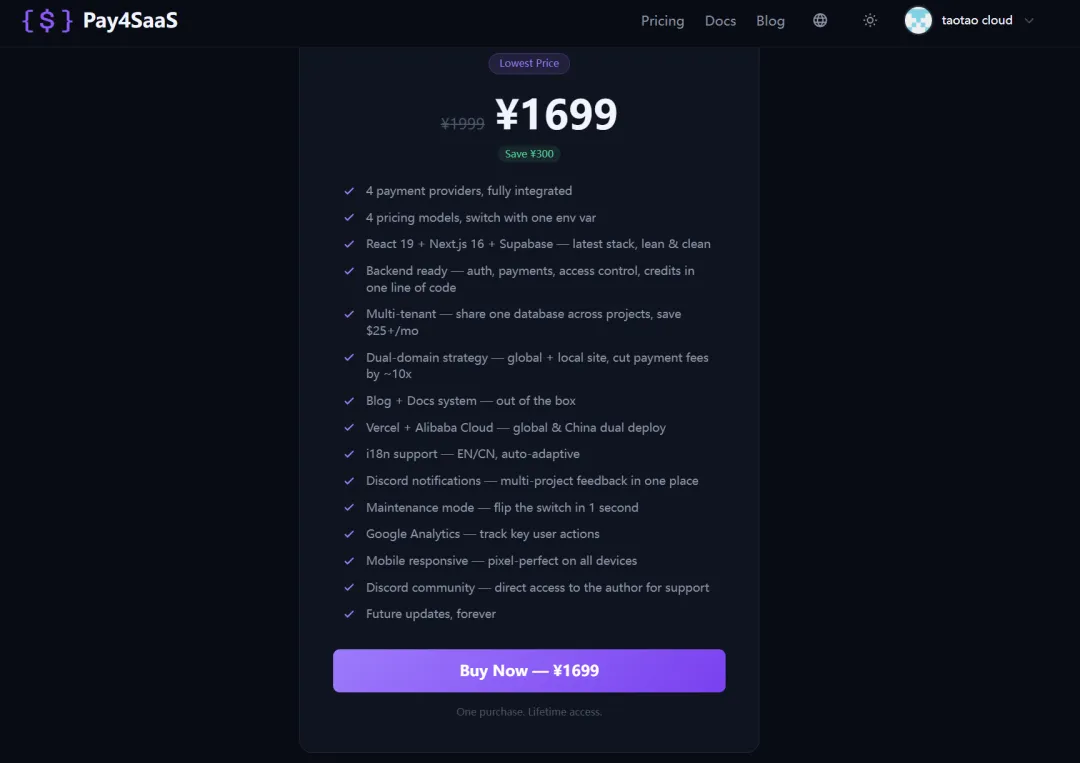
Check the effect, looks good.
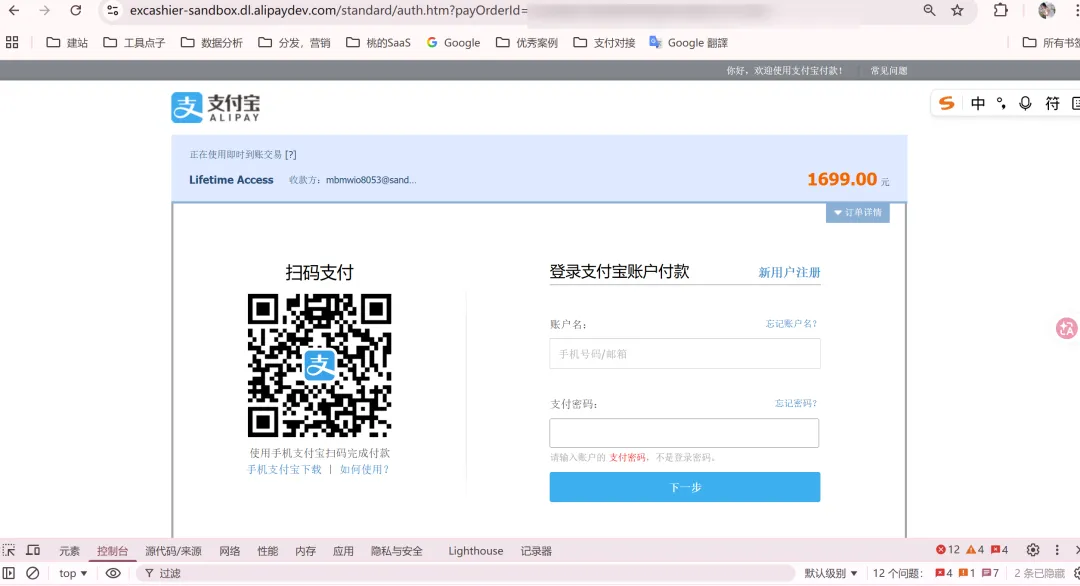
2. Production Environment
Return to the console. The string of numbers under the name is the ID. Write it into the environment variable ALIPAY_APP_ID.
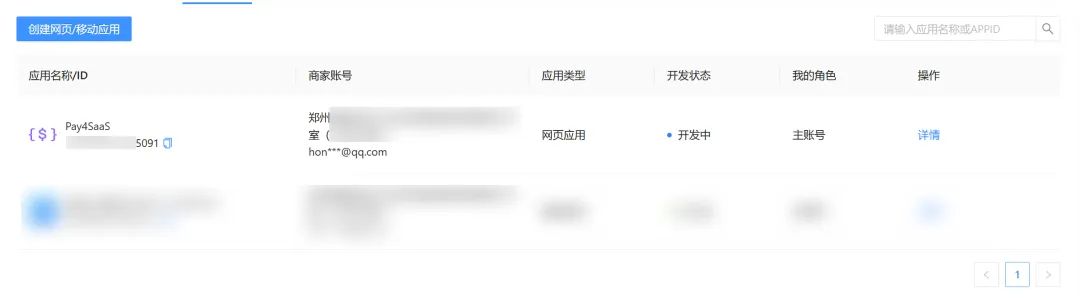
Open https://open.alipay.com/develop/manage, find the application, and enter development management.
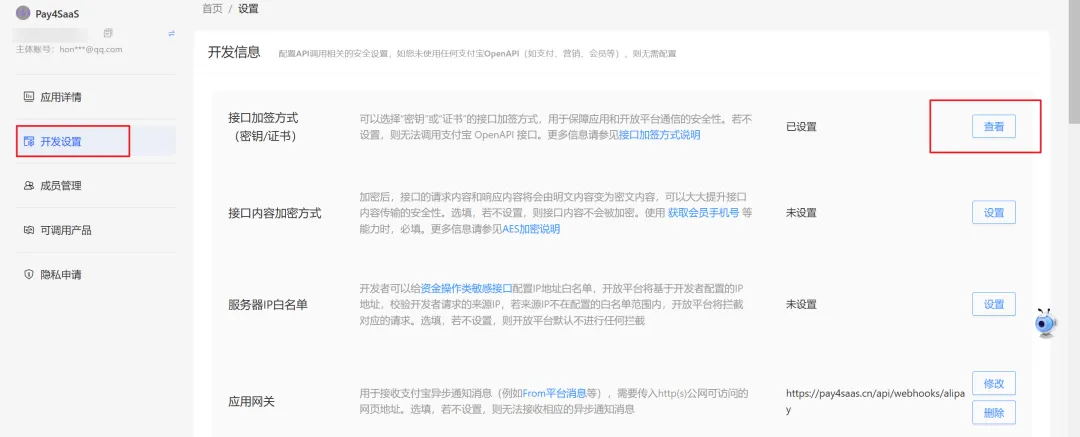
Download these certificates and fill them into the production environment variables.
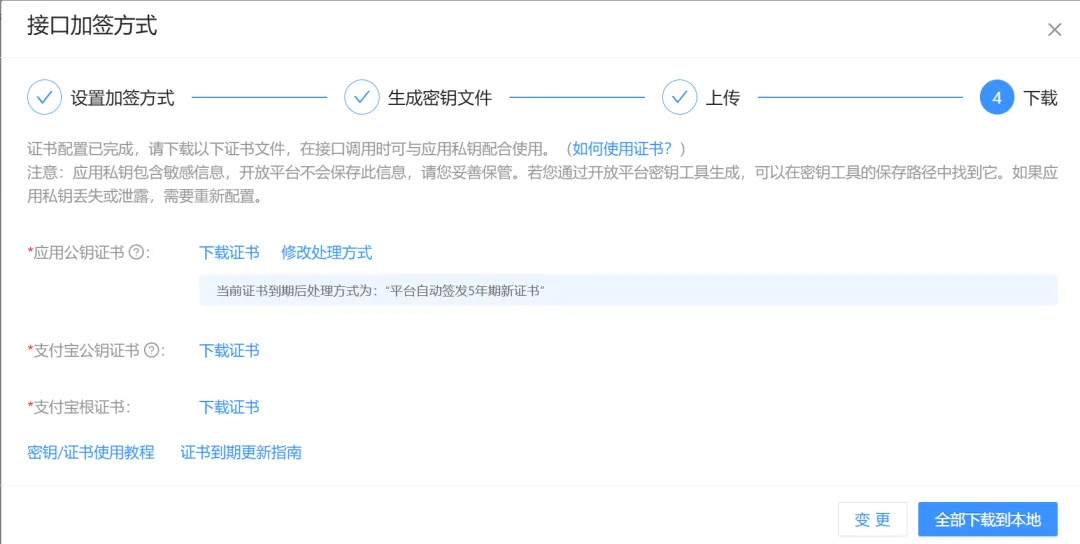
Other fields:
ALIPAY_GATEWAY=https://openapi.alipay.com/gateway.do
Check the effect, this is correct.
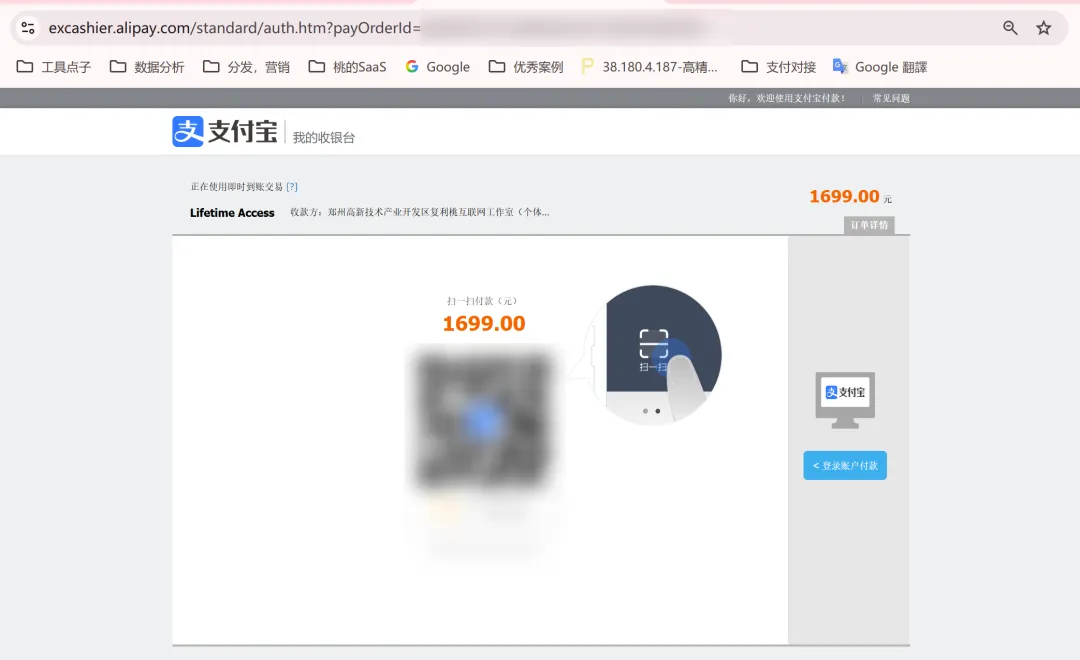
This is PC payment.
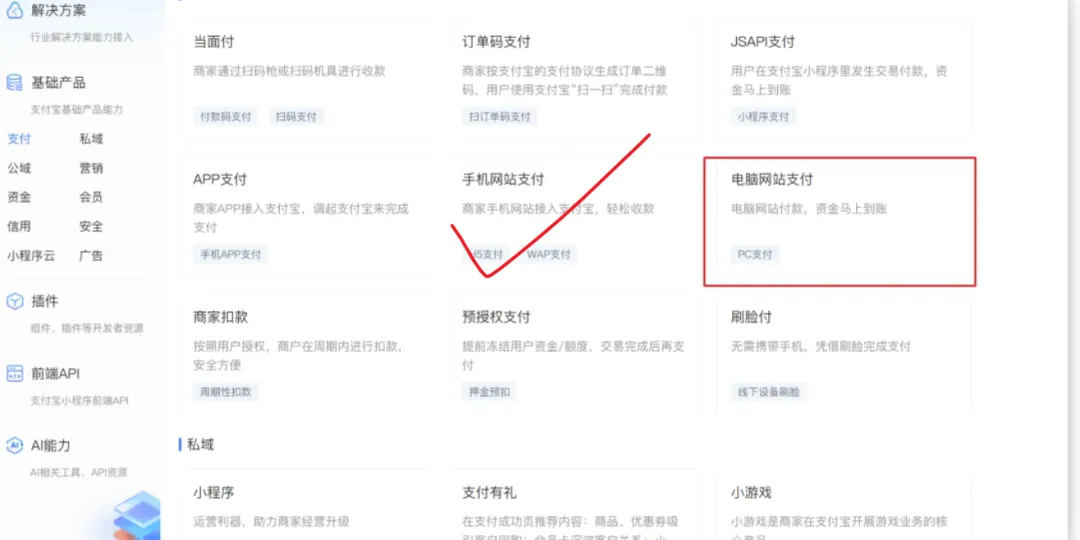
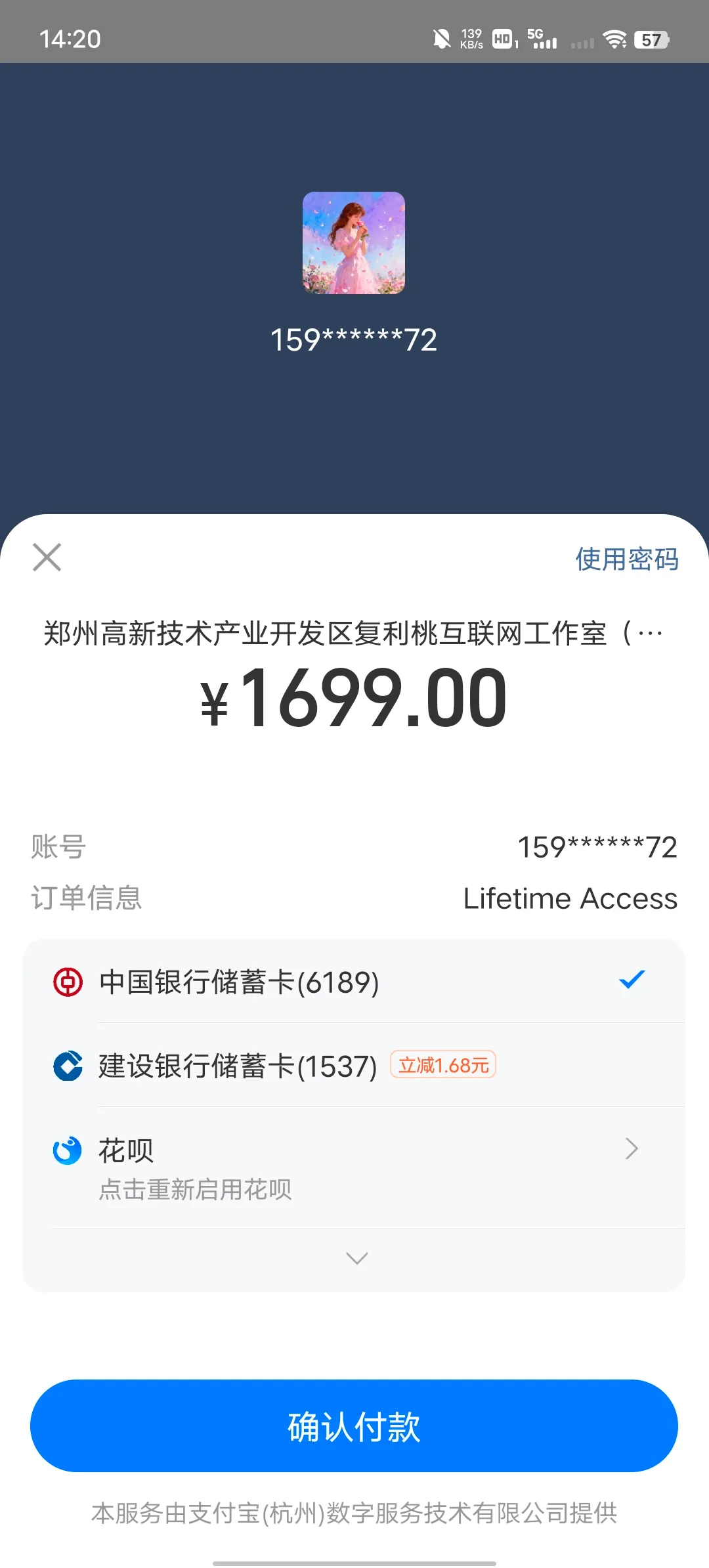
Mobile payment is also integrated. The effect is quite smooth, you can jump directly from the browser to the Alipay APP for payment.
04
At this point, the Alipay payment chain from sandbox to production, from PC to mobile has been fully connected. Key points recap:
- Uniformly use certificate mode to avoid troubleshooting costs from having two signature methods for development/production.
- PC uses alipay.trade.page.pay, mobile uses alipay.trade.wap.pay. Backend automatically routes based on User-Agent, frontend needs no changes.
Webhook callbacks share the same endpoint for both payment methods. Signature verification, idempotent processing, etc., all need to be considered to prevent fraud and forgery. Both maintainable and stable and secure.
Every detail has been fully verified from sandbox to production, OK.
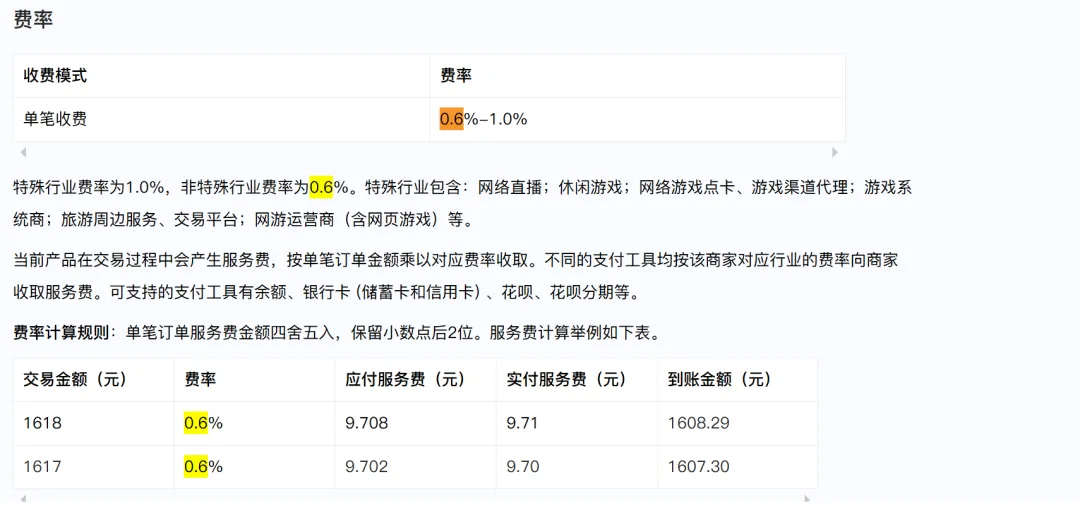
I have to say, it's a bit more troublesome than international options, but the transaction fees are really low.